---
schema_version: "1"
id: ac2458fd99bec8515ac75421fce146ed3d3e4e682cff6a973475b280c4f33ce4
title: Plan Visits and Perform Actions for Multiple Records Simultaneously
collection: admin
version: current
locale: en-us
portal_url: https://docs.salesforce.com/admin/current/en-us/sales/264-0-0/salesforce_maps_usage_visits_mass_actions.md
canonical_url: https://help.salesforce.com/s/articleView?id=sales.salesforce_maps_usage_visits_mass_actions.htm&release=264.0.0&type=5
source_site: help.salesforce.com
content_type: documentation
content_hash: 3eca1be5ab7419d4168d14907157fe6793b64b8d97141477f2a2ecd35837394d
description: Meet and exceed customer expectations with timely visits scheduled for multiple accounts at a time. Manage records in a marker or polyline layer using mass actions conveniently from the plotted legend in Salesforce Maps. Determine which accounts to take action on while viewing them on the map. Marker colors and shapes update immediately when you initiate single or mass action changes.
products:
- Sales
- Salesforce Maps
release: "264"
---
# Plan Visits and Perform Actions for Multiple Records Simultaneously
Meet and exceed customer expectations with timely visits scheduled for multiple accounts at a time. Manage records in a marker or polyline layer using mass actions conveniently from the plotted legend in Salesforce Maps. Determine which accounts to take action on while viewing them on the map. Marker colors and shapes update immediately when you initiate single or mass action changes.
### Required Editions
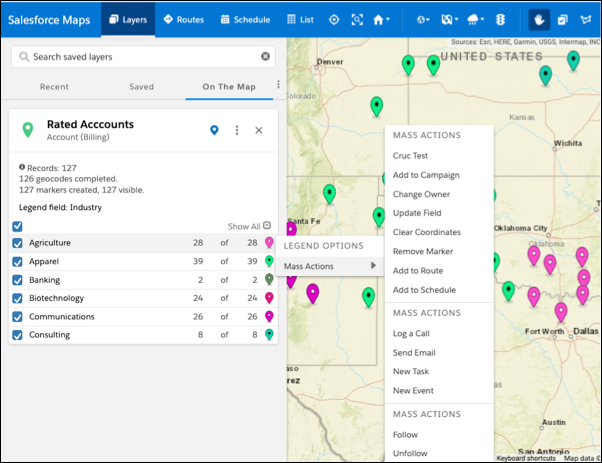
1. Open a marker or polyline layer.
2. Display markers according to the field you want to work with, such as industry or annual revenue.
3. Right-click a marker row. The row you click is highlighted for easy identification. Actions you take on that marker apply to all records included within it.