---
schema_version: "1"
id: de2950f4f6fc02b0ed004fa2ddb8dc3a65c5193d537981ac6af7596d73584d0f
title: Visualize and Set the Focus for Records That Require Attention
collection: admin
version: current
locale: en-us
portal_url: https://docs.salesforce.com/admin/current/en-us/sales/264-0-0/salesforce_maps_usage_visits_marker_selection.md
canonical_url: https://help.salesforce.com/s/articleView?id=sales.salesforce_maps_usage_visits_marker_selection.htm&release=264.0.0&type=5
source_site: help.salesforce.com
content_type: documentation
content_hash: 2a389f0472de13d88f1314ace0101b333055490357b5a0ab0229d93142c2e325
description: Select key records on the map and perform mass actions for them from a list that appears in the legend. Identify records using shape, color, and opacity options that keep you focused on what’s important now in Salesforce Maps.
products:
  - Sales
  - Salesforce Maps
release: "264"
---
# Visualize and Set the Focus for Records That Require Attention

Select key records on the map and perform mass actions for them from a list that appears in the legend. Identify records using shape, color, and opacity options that keep you focused on what’s important now in Salesforce Maps.

### Required Editions

<table class="slds-table slds-table_bordered slds-max-medium-table_stacked slds-m-bottom_small edition"><colgroup><col></colgroup><tbody><tr class=""><td class="slds-cell-wrap" style="vertical-align:top;"><a href="https://help.salesforce.com/s/articleView?id=sales.salesforce_maps_editions.htm&amp;release=264.0.0&amp;type=5" title="Identify supported Salesforce editions, user interfaces, and product areas.">View supported editions</a>.</td></tr></tbody></table>

<table class="slds-table slds-table_bordered slds-max-medium-table_stacked slds-m-bottom_small permission">
        <colgroup>
          <col style="width:50%">
          <col style="width:50%">
        </colgroup>
        <thead class="slds-text-title_caps ">
          <tr class="">
            <th scope="colgroup" class="slds-cell-wrap" colspan="2" style="text-align:center;vertical-align:top;" id="d3011e60">User Permissions Needed</th>
          </tr>
        </thead>
        <tbody>
          <tr class="">
            <td data-label="User Permissions Needed" class="slds-cell-wrap" style="vertical-align:top;" headers="d3011e60 ">To access Salesforce Maps:</td>

            <td class="slds-cell-wrap" style="vertical-align:top;" headers="d3011e60 ">Salesforce Maps</td>

          </tr>
        </tbody>
      </table>

1. Open a marker or polyline layer.
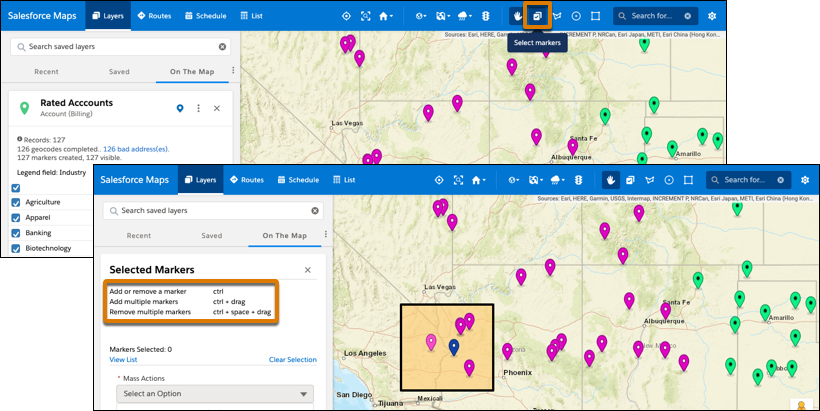
2. Click **Select Markers**, and then select markers using Ctrl key shortcuts.
    
    ![Selected markers using Ctrl shortcuts](https://sf-zdocs-cdn-prod.zoominsoftware.com/tdta-sales-salesforce_maps-264-0-0-production-enus/2addcda4-01f0-4f47-83c5-f499a45bf555/salesforce_maps/images/selected_markers_ctrl_shortcuts.png)
3. View the list of records and select an action that you want to take.
4. Set appearance options so that you identify selected records and reduce opacity for unselected ones.