---
schema_version: "1"
id: 391fcf3351c0278de4a71390c76a18d39c8c7ccd4f6177b636ef779f78b41f42
title: Explore Sales and Service Opportunities Among Property Owners
collection: admin
version: current
locale: en-us
portal_url: https://docs.salesforce.com/admin/current/en-us/sales/264-0-0/salesforce_maps_usage_grow_business_property_data.md
canonical_url: https://help.salesforce.com/s/articleView?id=sales.salesforce_maps_usage_grow_business_property_data.htm&release=264.0.0&type=5
source_site: help.salesforce.com
content_type: documentation
content_hash: f5b65d9cecbf02a5f3774072f9116389904ba10c8c2be3cdf693cbe71f7cbb1e
description: Identify properties that can benefit from your products and services using trusted property data from ATTOM. Get insight on issued permits, loan positions and balances, and property features and characteristics. Focus on specific cities and neighborhoods on a map using Salesforce Maps data.
products:
  - Sales
  - Salesforce Maps
release: "264"
---
# Explore Sales and Service Opportunities Among Property Owners

Identify properties that can benefit from your products and services using trusted property data from ATTOM. Get insight on issued permits, loan positions and balances, and property features and characteristics. Focus on specific cities and neighborhoods on a map using Salesforce Maps data.

### Required Editions

<table class="slds-table slds-table_bordered slds-max-medium-table_stacked slds-m-bottom_small edition"><colgroup><col></colgroup><tbody><tr class=""><td class="slds-cell-wrap" style="vertical-align:top;"><a href="https://help.salesforce.com/s/articleView?id=sales.salesforce_maps_editions.htm&amp;release=264.0.0&amp;type=5" title="Identify supported Salesforce editions, user interfaces, and product areas.">View supported editions</a>.</td></tr></tbody></table>

<table class="slds-table slds-table_bordered slds-max-medium-table_stacked slds-m-bottom_small permission">
        <colgroup>
          <col style="width:50%">
          <col style="width:50%">
        </colgroup>
        <thead class="slds-text-title_caps ">
          <tr class="">
            <th scope="colgroup" class="slds-cell-wrap" colspan="2" style="text-align:center;vertical-align:top;" id="d9199e60">User Permissions Needed</th>
          </tr>
        </thead>
        <tbody>
          <tr class="">
            <td data-label="User Permissions Needed" class="slds-cell-wrap" style="vertical-align:top;" headers="d9199e60 ">To access Salesforce Maps:</td>

            <td class="slds-cell-wrap" style="vertical-align:top;" headers="d9199e60 ">Salesforce Maps</td>

          </tr>
        </tbody>
      </table>

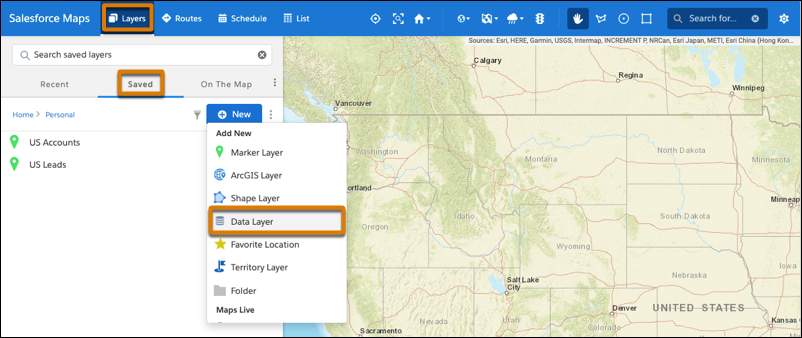
1. Click **Layers** | **Saved** | **Personal** | **New** | **Data Layer**.
    
    ![Option to create a data layer](https://sf-zdocs-cdn-prod.zoominsoftware.com/tdta-sales-salesforce_maps-264-0-0-production-enus/2addcda4-01f0-4f47-83c5-f499a45bf555/salesforce_maps/images/salesforce_maps_usage_grow_business_data_layer.png)
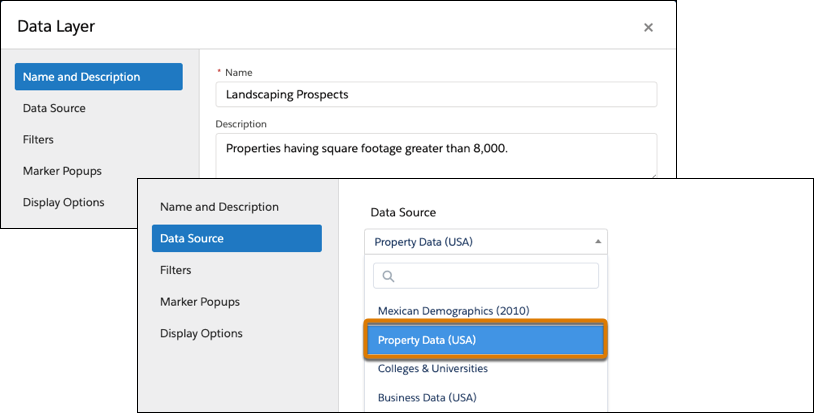
2. Enter a name and a description for your data layer. Select the data source **Property Data (USA)**.
    
    ![Option to create a data layer using the Property Data source](https://sf-zdocs-cdn-prod.zoominsoftware.com/tdta-sales-salesforce_maps-264-0-0-production-enus/2addcda4-01f0-4f47-83c5-f499a45bf555/salesforce_maps/images/salesforce_maps_usage_grow_business_property_1.png)
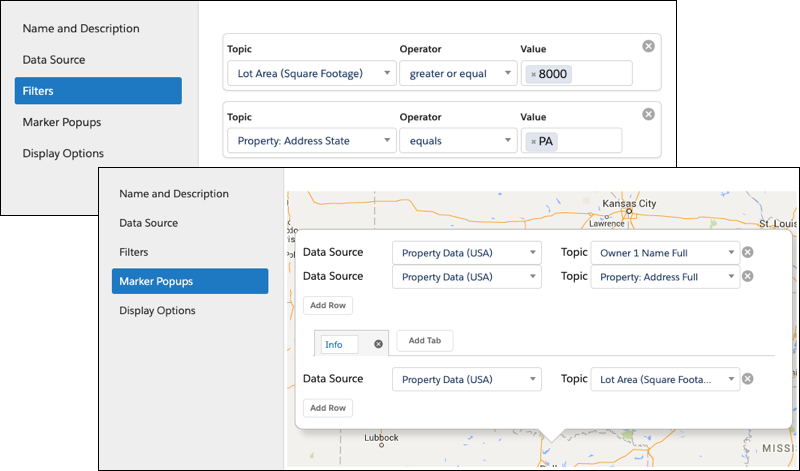
3. Add filters so that you focus on specific property characteristics and locations. Then specify the details that you want to appear in marker popups, such as names, addresses, and property characteristics.
    
    ![Filters that help you focus on specific characteristics and areas](https://sf-zdocs-cdn-prod.zoominsoftware.com/tdta-sales-salesforce_maps-264-0-0-production-enus/2addcda4-01f0-4f47-83c5-f499a45bf555/salesforce_maps/images/salesforce_maps_usage_grow_business_property_2.png)
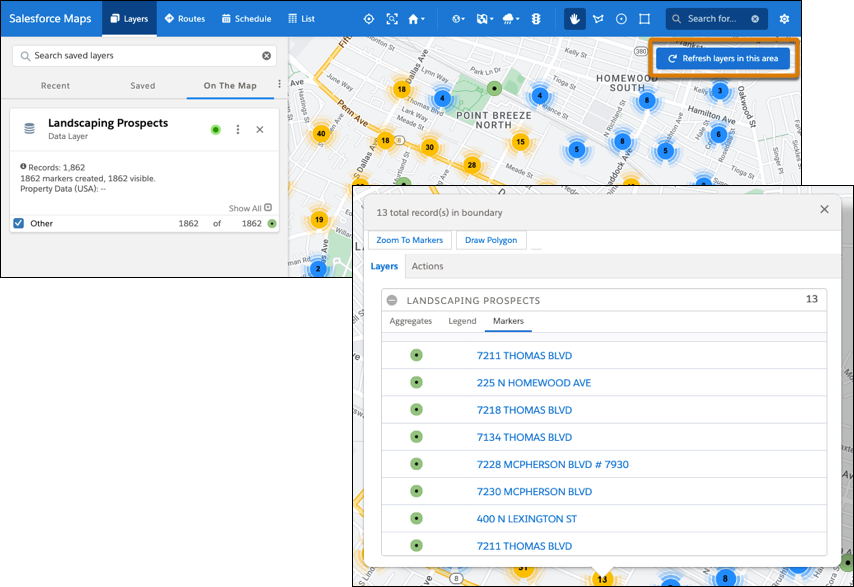
4. Save your work, and then plot the data layer. Zoom to the area where you want to focus your efforts, and then refresh the layer for that area.
    
    ![Properties that meet the criteria in filters](https://sf-zdocs-cdn-prod.zoominsoftware.com/tdta-sales-salesforce_maps-264-0-0-production-enus/2addcda4-01f0-4f47-83c5-f499a45bf555/salesforce_maps/images/salesforce_maps_usage_grow_business_property_4.png)
    
    Markers that represent individual and clusters of properties appear. When you select any marker, you get access to details for the properties represented in that marker.
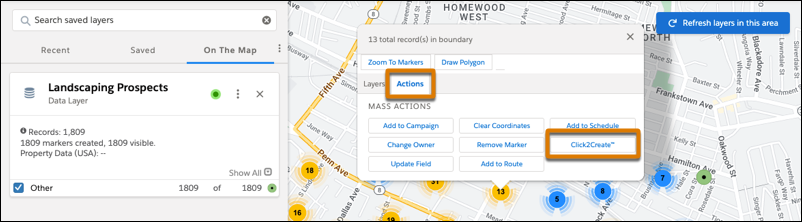
5. To create leads for properties, click a marker, select **Actions**, and then click **Click2Create**. If you don’t have access to Click2Create, ask your Salesforce admin for help.
    
    ![Option to create leads for the properties represented in a marker](https://sf-zdocs-cdn-prod.zoominsoftware.com/tdta-sales-salesforce_maps-264-0-0-production-enus/2addcda4-01f0-4f47-83c5-f499a45bf555/salesforce_maps/images/salesforce_maps_usage_grow_business_property_5.png)