---
schema_version: "1"
id: 40ff7be032046d19620268b299ebfd123a74372b33ad16b65c9352b25336bfab
title: Promote Your Products and Services to Businesses
collection: admin
version: current
locale: en-us
portal_url: https://docs.salesforce.com/admin/current/en-us/sales/264-0-0/salesforce_maps_usage_grow_business_business_data.md
canonical_url: https://help.salesforce.com/s/articleView?id=sales.salesforce_maps_usage_grow_business_business_data.htm&release=264.0.0&type=5
source_site: help.salesforce.com
content_type: documentation
content_hash: fe13f3687b8cd49953d74a61ee38cd9594dbd13a946cad8ae5fbfb0394bd9571
description: Provide sales and services to businesses near your established customers. Focus on specific industries and locations using trusted US and Canadian business data from DatabaseUSA.com that you plot in Salesforce Maps.
products:
  - Sales
  - Salesforce Maps
release: "264"
---
# Promote Your Products and Services to Businesses

Provide sales and services to businesses near your established customers. Focus on specific industries and locations using trusted US and Canadian business data from DatabaseUSA.com that you plot in Salesforce Maps.

### Required Editions

<table class="slds-table slds-table_bordered slds-max-medium-table_stacked slds-m-bottom_small edition"><colgroup><col></colgroup><tbody><tr class=""><td class="slds-cell-wrap" style="vertical-align:top;"><a href="https://help.salesforce.com/s/articleView?id=sales.salesforce_maps_editions.htm&amp;release=264.0.0&amp;type=5" title="Identify supported Salesforce editions, user interfaces, and product areas.">View supported editions</a>.</td></tr></tbody></table>

<table class="slds-table slds-table_bordered slds-max-medium-table_stacked slds-m-bottom_small permission">
        <colgroup>
          <col style="width:50%">
          <col style="width:50%">
        </colgroup>
        <thead class="slds-text-title_caps ">
          <tr class="">
            <th scope="colgroup" class="slds-cell-wrap" colspan="2" style="text-align:center;vertical-align:top;" id="d6166e60">User Permissions Needed</th>
          </tr>
        </thead>
        <tbody>
          <tr class="">
            <td data-label="User Permissions Needed" class="slds-cell-wrap" style="vertical-align:top;" headers="d6166e60 ">To access Salesforce Maps:</td>

            <td class="slds-cell-wrap" style="vertical-align:top;" headers="d6166e60 ">Salesforce Maps</td>

          </tr>
        </tbody>
      </table>

1. Click **Layers** | **Saved** | **Personal** | **New** | **Data Layer**.
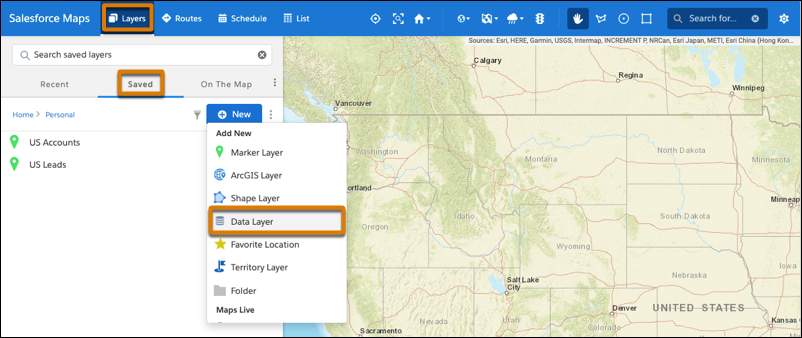
    
    ![Option to create a data layer](https://sf-zdocs-cdn-prod.zoominsoftware.com/tdta-sales-salesforce_maps-264-0-0-production-enus/2addcda4-01f0-4f47-83c5-f499a45bf555/salesforce_maps/images/salesforce_maps_usage_grow_business_data_layer.png)
2. Enter a name and a description for your data layer. Select the data source **Business Data (USA)**.
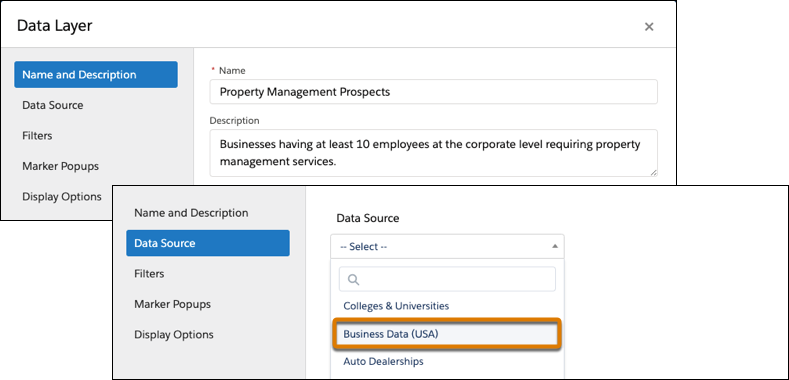
    
    ![Option to create a data layer using the Business Data source](https://sf-zdocs-cdn-prod.zoominsoftware.com/tdta-sales-salesforce_maps-264-0-0-production-enus/2addcda4-01f0-4f47-83c5-f499a45bf555/salesforce_maps/images/salesforce_maps_usage_grow_business_business_1.png)
3. Add filters so that you focus on specific property characteristics and locations. Then specify the details that you want to appear in marker popups, such as contact names, addresses, and business characteristics.
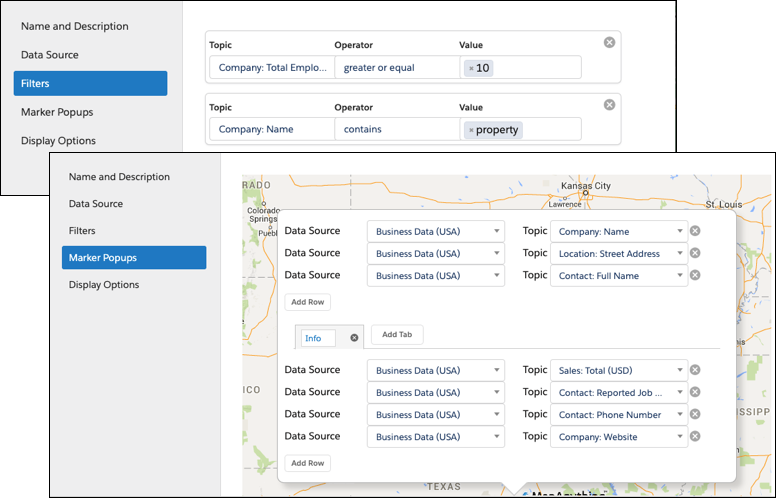
    
    ![Filters that help you focus on specific characteristics](https://sf-zdocs-cdn-prod.zoominsoftware.com/tdta-sales-salesforce_maps-264-0-0-production-enus/2addcda4-01f0-4f47-83c5-f499a45bf555/salesforce_maps/images/salesforce_maps_usage_grow_business_business_2.png)
4. Save your work, and then plot the data layer. Zoom to the area where you want to focus your efforts, and then refresh the layer for that area.
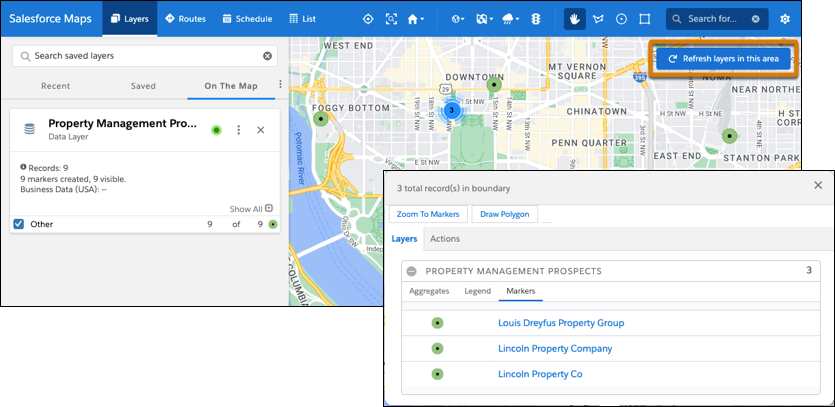
    
    ![Businesses that meet the criteria in filters](https://sf-zdocs-cdn-prod.zoominsoftware.com/tdta-sales-salesforce_maps-264-0-0-production-enus/2addcda4-01f0-4f47-83c5-f499a45bf555/salesforce_maps/images/salesforce_maps_usage_grow_business_business_3.png)
    
    Markers that represent individual and clusters of businesses appear. When you select any marker, you get access to details for the businesses represented in that marker.
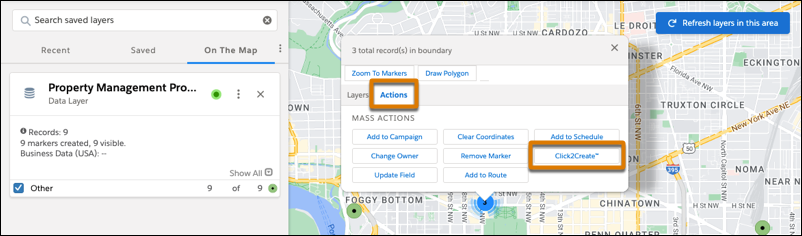
5. To generate leads for businesses, click a marker, select **Actions**, and then click **Click2Create**. If you don’t have access to Click2Create, ask your Salesforce admin for help.
    
    ![Option to create leads for the businesses represented in a marker](https://sf-zdocs-cdn-prod.zoominsoftware.com/tdta-sales-salesforce_maps-264-0-0-production-enus/2addcda4-01f0-4f47-83c5-f499a45bf555/salesforce_maps/images/salesforce_maps_usage_grow_business_business_4.png)