---
schema_version: "1"
id: 7cd7dd7fa48991c26c7cf8baa5b3070e7fb99282e7c7e983fa7819c353117495
title: Plot Publicly Available Content from Around the World
collection: admin
version: current
locale: en-us
portal_url: https://docs.salesforce.com/admin/current/en-us/sales/264-0-0/salesforce_maps_usage_esri_living_atlas.md
canonical_url: https://help.salesforce.com/s/articleView?id=sales.salesforce_maps_usage_esri_living_atlas.htm&release=264.0.0&type=5
source_site: help.salesforce.com
content_type: documentation
content_hash: 4a45a63a19ce677f2feb7220691fdae88cdfb2c6c4651943a8c27738f1944693
description: Gain deeper insight on the geographical landscape and plan schedules that improve sales and service when you plot available layers from Esri™ ArcGIS Living Atlas of the World—directly in Salesforce Maps.
products:
  - Sales
  - Salesforce Maps
release: "264"
---
# Plot Publicly Available Content from Around the World

Gain deeper insight on the geographical landscape and plan schedules that improve sales and service when you plot available layers from Esri™ ArcGIS Living Atlas of the World—directly in Salesforce Maps.

### Required Editions

<table class="slds-table slds-table_bordered slds-max-medium-table_stacked slds-m-bottom_small edition"><colgroup><col></colgroup><tbody><tr class=""><td class="slds-cell-wrap" style="vertical-align:top;"><a href="https://help.salesforce.com/s/articleView?id=sales.salesforce_maps_editions.htm&amp;release=264.0.0&amp;type=5" title="Identify supported Salesforce editions, user interfaces, and product areas.">View supported editions</a>.</td></tr></tbody></table>

<table class="slds-table slds-table_bordered slds-max-medium-table_stacked slds-m-bottom_small permission">
        <colgroup>
          <col style="width:50%">
          <col style="width:50%">
        </colgroup>
        <thead class="slds-text-title_caps ">
          <tr class="">
            <th scope="colgroup" class="slds-cell-wrap" colspan="2" style="text-align:center;vertical-align:top;" id="d5169e60">User Permissions Needed</th>
          </tr>
        </thead>
        <tbody>
          <tr class="">
            <td data-label="User Permissions Needed" class="slds-cell-wrap" style="vertical-align:top;" headers="d5169e60 ">To access Salesforce Maps:</td>

            <td class="slds-cell-wrap" style="vertical-align:top;" headers="d5169e60 ">Salesforce Maps</td>

          </tr>
        </tbody>
      </table>

1. Browse the catalog of layers at [ArcGIS Living Atlas of the World](https://livingatlas.arcgis.com/en/browse).
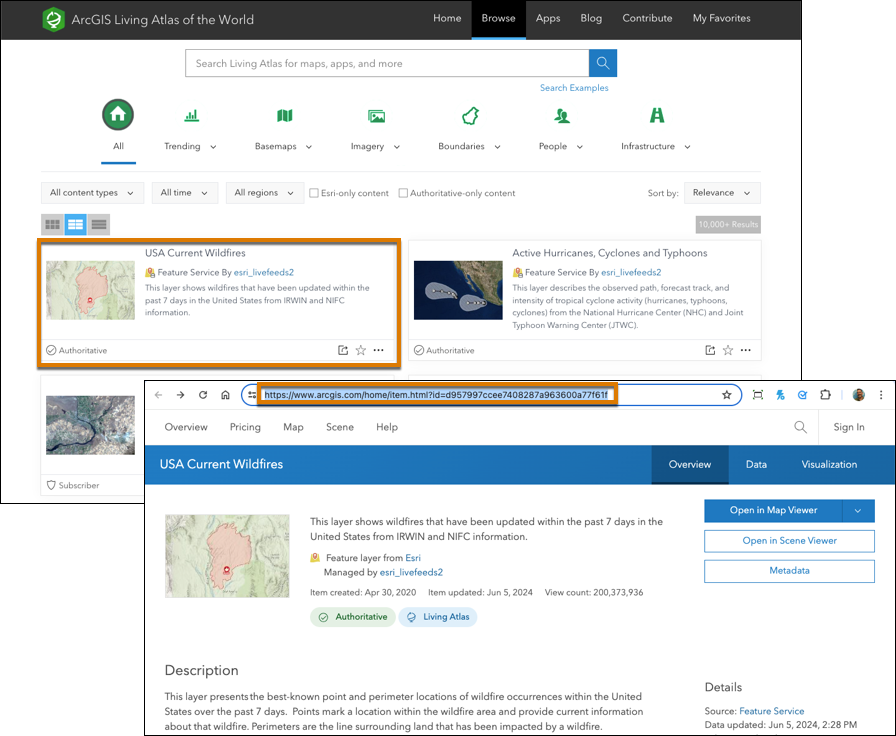
2. Click a layer that you want to plot, and then copy its URL. For example, to plot wildfire data, select **USA Current Wildfires**. Then copy its URL.
    
    ![URL selection for the USA Current Wildfiles layer](https://sf-zdocs-cdn-prod.zoominsoftware.com/tdta-sales-salesforce_maps-264-0-0-production-enus/2addcda4-01f0-4f47-83c5-f499a45bf555/salesforce_maps/images/salesforce_maps_esri_living_atlas_layer_url.png)
3. In Salesforce Maps, create an ArcGIS layer. If you don’t see the option to do so, ask your Salesforce admin to enable ArcGIS in Salesforce Maps permission groups.
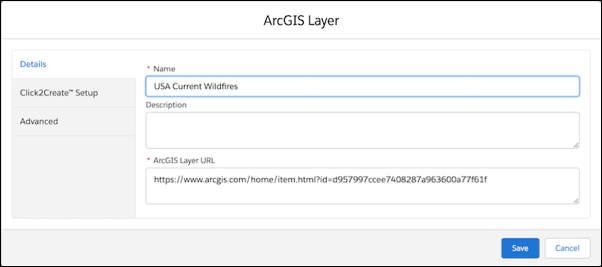
4. Name your layer, and then paste the ArcGIS layer URL.
    
    ![New ArcGIS layer name and URL](https://sf-zdocs-cdn-prod.zoominsoftware.com/tdta-sales-salesforce_maps-264-0-0-production-enus/2addcda4-01f0-4f47-83c5-f499a45bf555/salesforce_maps/images/salesforce_maps_esri_living_atlas_layer_new.png)
5. Save your changes.
6. Plot the layer you created.