---
schema_version: "1"
id: d5b2b6f36c3a2d760d8a47fb1dbc35411e590b1316bac85c5262d445c6c6f7c6
title: Edit Polyline Layers in Salesforce Maps
collection: admin
version: current
locale: en-us
portal_url: https://docs.salesforce.com/admin/current/en-us/sales/264-0-0/salesforce_maps_setup_polyline_layers_edit.md
canonical_url: https://help.salesforce.com/s/articleView?id=sales.salesforce_maps_setup_polyline_layers_edit.htm&release=264.0.0&type=5
source_site: help.salesforce.com
content_type: documentation
content_hash: 0ee3bcb7b1d4c3d9f1b9cedff0f20f354e46b87bb9f1fa837b30222744bec2c1
description: Update polyline layers as your business changes and grows. Change which records you see on the map and adjust their filters, display options, and popups in Salesforce Maps.
products:
  - Sales
  - Salesforce Maps
release: "264"
---
# Edit Polyline Layers in Salesforce Maps

Update polyline layers as your business changes and grows. Change which records you see on the map and adjust their filters, display options, and popups in Salesforce Maps.

### Required Editions

<table class="slds-table slds-table_bordered slds-max-medium-table_stacked slds-m-bottom_small edition"><colgroup><col></colgroup><tbody><tr class=""><td class="slds-cell-wrap" style="vertical-align:top;"><a href="https://help.salesforce.com/s/articleView?id=sales.salesforce_maps_editions.htm&amp;release=264.0.0&amp;type=5" title="Identify supported Salesforce editions, user interfaces, and product areas.">View supported editions</a>.</td></tr></tbody></table>

<table class="slds-table slds-table_bordered slds-max-medium-table_stacked slds-m-bottom_small permission">
        <colgroup>
          <col style="width:50%">
          <col style="width:50%">
        </colgroup>
        <thead class="slds-text-title_caps ">
          <tr class="">
            <th scope="colgroup" class="slds-cell-wrap" colspan="2" style="text-align:center;vertical-align:top;" id="d15044e60">User Permissions Needed</th>
          </tr>
        </thead>
        <tbody>
          <tr class="">
            <td data-label="User Permissions Needed" class="slds-cell-wrap" style="vertical-align:top;" headers="d15044e60 ">To access Salesforce Maps:</td>

            <td class="slds-cell-wrap" style="vertical-align:top;" headers="d15044e60 ">Salesforce Maps</td>

          </tr>
          <tr class="">
            <td data-label="User Permissions Needed" class="slds-cell-wrap" style="vertical-align:top;" headers="d15044e60 ">To customize settings:</td>

            <td class="slds-cell-wrap" style="vertical-align:top;" headers="d15044e60 ">Customize Application</td>

          </tr>
          <tr class="">
            <td data-label="User Permissions Needed" class="slds-cell-wrap" style="vertical-align:top;" headers="d15044e60 ">To access the shared Corporate folder:</td>

            <td class="slds-cell-wrap" style="vertical-align:top;" headers="d15044e60 ">Folder Permissions</td>

          </tr>
        </tbody>
      </table>

1. Click **Layers**.
2. Enter the name of the polyline layer you want to edit, or click **Saved** and select the folder that contains the polyline layer you want to edit.
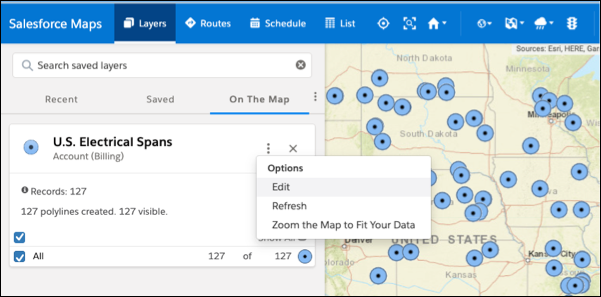
3. Hover over the polyline layer menu and click **Edit**.
    
    ![Edit a polyline layer.](https://sf-zdocs-cdn-prod.zoominsoftware.com/tdta-sales-salesforce_maps-264-0-0-production-enus/2addcda4-01f0-4f47-83c5-f499a45bf555/salesforce_maps/images/setup_polyline_layer_edit_1.png)
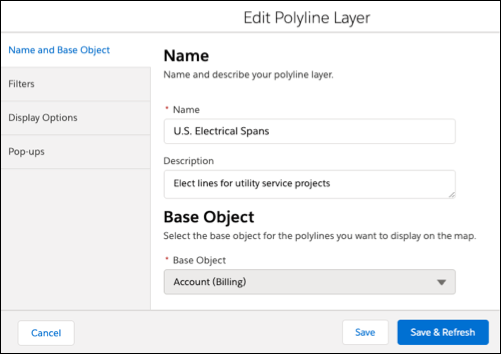
4. Select the tab for the area you want to edit. Then make your changes.
    
    ![Options for editing a polyline layer](https://sf-zdocs-cdn-prod.zoominsoftware.com/tdta-sales-salesforce_maps-264-0-0-production-enus/2addcda4-01f0-4f47-83c5-f499a45bf555/salesforce_maps/images/setup_polyline_layer_edit_2png.png)
5. Save your changes.