---
schema_version: "1"
id: 5c90300da212a6c48068f4a28315136a180151dbe0377b8cda74ef8f21d6e143
title: Create Polyline Layers in Salesforce Maps
collection: admin
version: current
locale: en-us
portal_url: https://docs.salesforce.com/admin/current/en-us/sales/264-0-0/salesforce_maps_setup_polyline_layers_create.md
canonical_url: https://help.salesforce.com/s/articleView?id=sales.salesforce_maps_setup_polyline_layers_create.htm&release=264.0.0&type=5
source_site: help.salesforce.com
content_type: documentation
content_hash: 71162c9284798b77d7b819494c886f3f56b63f6e74347110abf23a53c5e96f94
description: Show utility lines on the map so reps can manage and respond to service calls quickly and efficiently in Salesforce Maps. Add filters that determine which polylines show up on the map, such as accounts in certain states or area codes.
products:
  - Sales
  - Salesforce Maps
release: "264"
---
# Create Polyline Layers in Salesforce Maps

Show utility lines on the map so reps can manage and respond to service calls quickly and efficiently in Salesforce Maps. Add filters that determine which polylines show up on the map, such as accounts in certain states or area codes.

### Required Editions

<table class="slds-table slds-table_bordered slds-max-medium-table_stacked slds-m-bottom_small edition"><colgroup><col></colgroup><tbody><tr class=""><td class="slds-cell-wrap" style="vertical-align:top;"><a href="https://help.salesforce.com/s/articleView?id=sales.salesforce_maps_editions.htm&amp;release=264.0.0&amp;type=5" title="Identify supported Salesforce editions, user interfaces, and product areas.">View supported editions</a>.</td></tr></tbody></table>

<table class="slds-table slds-table_bordered slds-max-medium-table_stacked slds-m-bottom_small permission">
        <colgroup>
          <col style="width:50%">
          <col style="width:50%">
        </colgroup>
        <thead class="slds-text-title_caps ">
          <tr class="">
            <th scope="colgroup" class="slds-cell-wrap" colspan="2" style="text-align:center;vertical-align:top;" id="d11128e60">User Permissions Needed</th>
          </tr>
        </thead>
        <tbody>
          <tr class="">
            <td data-label="User Permissions Needed" class="slds-cell-wrap" style="vertical-align:top;" headers="d11128e60 ">To access Salesforce Maps:</td>

            <td class="slds-cell-wrap" style="vertical-align:top;" headers="d11128e60 ">Salesforce Maps</td>

          </tr>
          <tr class="">
            <td data-label="User Permissions Needed" class="slds-cell-wrap" style="vertical-align:top;" headers="d11128e60 ">To customize settings:</td>

            <td class="slds-cell-wrap" style="vertical-align:top;" headers="d11128e60 ">Customize Application</td>

          </tr>
          <tr class="">
            <td data-label="User Permissions Needed" class="slds-cell-wrap" style="vertical-align:top;" headers="d11128e60 ">To access the shared Corporate folder:</td>

            <td class="slds-cell-wrap" style="vertical-align:top;" headers="d11128e60 ">Folder Permissions</td>

          </tr>
        </tbody>
      </table>

![Important](https://sf-zdocs-cdn-prod.zoominsoftware.com/tdta-sales-salesforce_maps-264-0-0-production-enus/2addcda4-01f0-4f47-83c5-f499a45bf555/images/icon_important.png)

Important Always use the Salesforce Maps user interface for creating records related to the managed package objects. Creating records outside of the user interface or adding automation on the managed package objects isn’t supported. See [Support for records created outside of the Maps user interface](https://help.salesforce.com/s/articleView?id=000390023&type=1&language=en_US) in Salesforce Knowledge.

1. From Setup, in the Quick Find box, enter Installed Packages, and then select **Installed Packages**.
2. Click **Configure** next to the Salesforce Maps package.
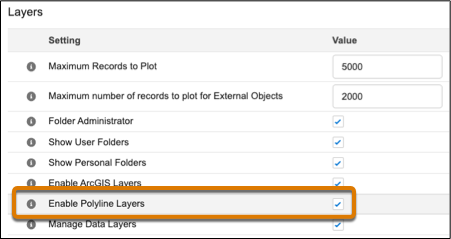
3. Choose a permission group and enable polyline layers under Layers.
    
    ![Enable polyline layers in Maps settings](https://sf-zdocs-cdn-prod.zoominsoftware.com/tdta-sales-salesforce_maps-264-0-0-production-enus/2addcda4-01f0-4f47-83c5-f499a45bf555/salesforce_maps/images/setup_polyline_permission.png)
4. In Salesforce Maps Base Objects settings, select the base object that you want to plot polyline layers for, such as Account.
    1. Configure the latitude and longitude fields.
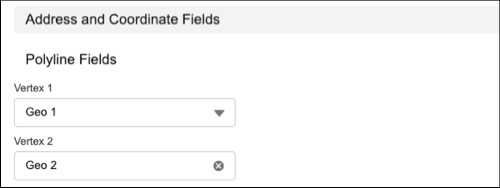
    2. Assign at least two geolocation fields to two vertices. Then click **Save**.
        
        ![Map geolocation fields to vertices.](https://sf-zdocs-cdn-prod.zoominsoftware.com/tdta-sales-salesforce_maps-264-0-0-production-enus/2addcda4-01f0-4f47-83c5-f499a45bf555/salesforce_maps/images/setup_polyline_layer_create_vertex.png)
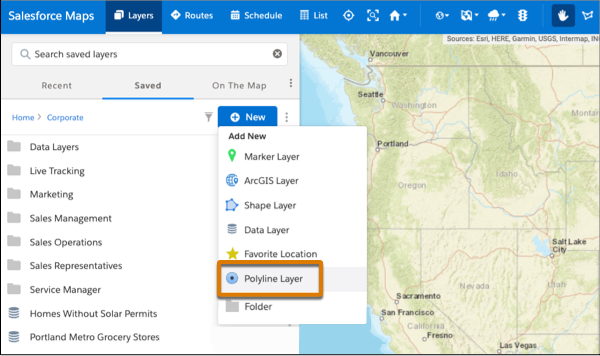
5. In Salesforce Maps, click **Layers**.
6. To save the polyline layer privately so only you can see it, click **Saved** | **Personal**. Or, to share the polyline layer with other maps users, click **Saved** | **Corporate**.
7. Hover over **New** and select **Polyline Layer**.
    
    ![Create a polyline layer on the map](https://sf-zdocs-cdn-prod.zoominsoftware.com/tdta-sales-salesforce_maps-264-0-0-production-enus/2addcda4-01f0-4f47-83c5-f499a45bf555/salesforce_maps/images/setup_polyline_layer_create.png)
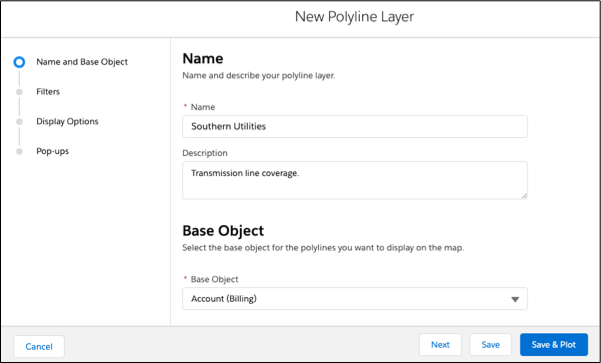
8. Enter a name and description.
9. Select the base object to plot.
10. Click **Next**.
    
    ![Name polyline layer](https://sf-zdocs-cdn-prod.zoominsoftware.com/tdta-sales-salesforce_maps-264-0-0-production-enus/2addcda4-01f0-4f47-83c5-f499a45bf555/salesforce_maps/images/setup_polyline_layer_create_name.png)
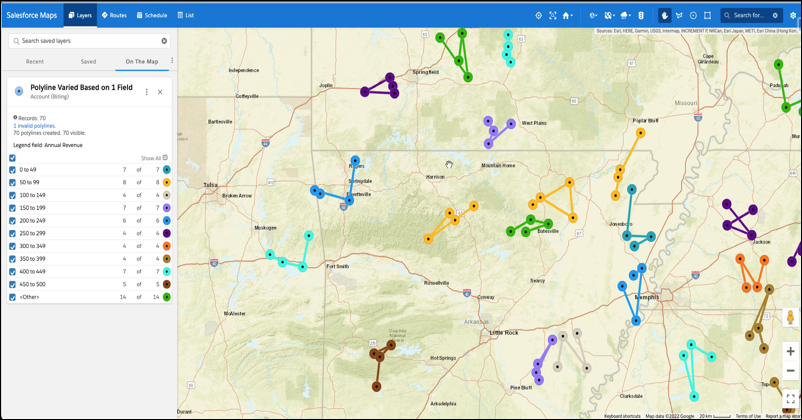
11. Choose the filter and style options that you want your polyline layer to show.
12. Save and plot your work.
    
    ![Plotted polyline layer](https://sf-zdocs-cdn-prod.zoominsoftware.com/tdta-sales-salesforce_maps-264-0-0-production-enus/2addcda4-01f0-4f47-83c5-f499a45bf555/salesforce_maps/images/setup_polyline_layer_result.png)