---
schema_version: "1"
id: ab7baed76fc10e56c2c57daf1a23fcc7c1464959363736b844b84e3284c56004
title: Embed Salesforce Maps Within Partner Sites
collection: admin
version: current
locale: en-us
portal_url: https://docs.salesforce.com/admin/current/en-us/sales/264-0-0/salesforce_maps_setup_partner_sites.md
canonical_url: https://help.salesforce.com/s/articleView?id=sales.salesforce_maps_setup_partner_sites.htm&release=264.0.0&type=5
source_site: help.salesforce.com
content_type: documentation
content_hash: 570a78235c622fb50e2b8b04a63f4894b3decc1e1c7ad17e5ea83a3e85a4908a
description: Support partner selling efforts when you include Salesforce Maps in your Experience Cloud sites. The added context of embedded maps helps partners identify sales opportunities and generate routes to them from shared customer data.
products:
  - Sales
  - Salesforce Maps
release: "264"
---
# Embed Salesforce Maps Within Partner Sites

Support partner selling efforts when you include Salesforce Maps in your Experience Cloud sites. The added context of embedded maps helps partners identify sales opportunities and generate routes to them from shared customer data.

### Required Editions

<table class="slds-table slds-table_bordered slds-max-medium-table_stacked slds-m-bottom_small edition"><colgroup><col></colgroup><tbody><tr class=""><td class="slds-cell-wrap" style="vertical-align:top;"><a href="https://help.salesforce.com/s/articleView?id=sales.salesforce_maps_editions.htm&amp;release=264.0.0&amp;type=5" title="Identify supported Salesforce editions, user interfaces, and product areas.">View supported editions</a>.</td></tr></tbody></table>

<table class="slds-table slds-table_bordered slds-max-medium-table_stacked slds-m-bottom_small permission">
        <colgroup>
          <col style="width:50%">
          <col style="width:50%">
        </colgroup>
        <thead class="slds-text-title_caps ">
          <tr class="">
            <th scope="colgroup" class="slds-cell-wrap" colspan="2" style="text-align:center;vertical-align:top;" id="d13266e60">User Permissions Needed</th>
          </tr>
        </thead>
        <tbody>
          <tr class="">
            <td data-label="User Permissions Needed" class="slds-cell-wrap" style="vertical-align:top;" headers="d13266e60 ">To customize settings:</td>

            <td class="slds-cell-wrap" style="vertical-align:top;" headers="d13266e60 ">Customize Application</td>

          </tr>
        </tbody>
      </table>

1. From Setup, in the Quick Find box, enter Sites, and then select **All Sites**.
2. Next to the site where you want to embed Salesforce Maps, click **Builder**.
3. Drag the **Visualforce Page** component to your page layout. Select **Maps**, and then increase the height to at least 400 pixels so that the site shows Salesforce Maps correctly.
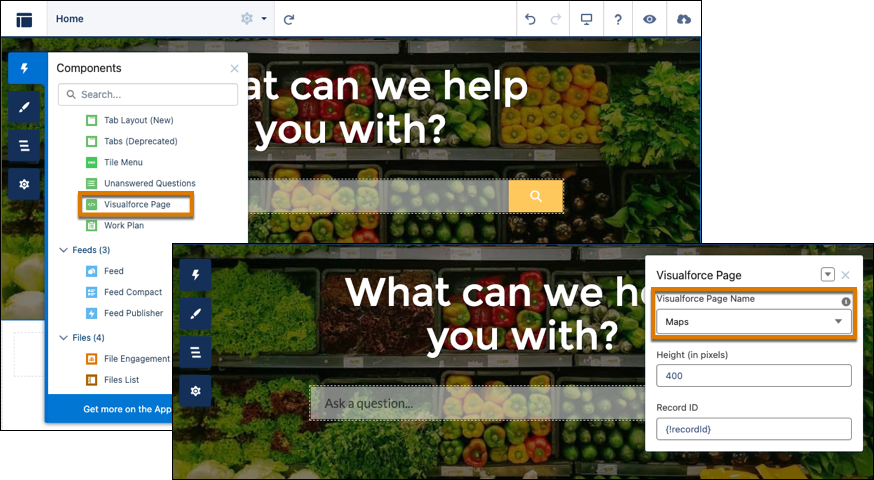
    
    ![Visualforce page on the page layout with Maps set to 400 pixels in height](https://sf-zdocs-cdn-prod.zoominsoftware.com/tdta-sales-salesforce_maps-264-0-0-production-enus/2addcda4-01f0-4f47-83c5-f499a45bf555/salesforce_maps/images/salesforce_maps_partner_sites_1.png)
4. Preview and publish the site.
    
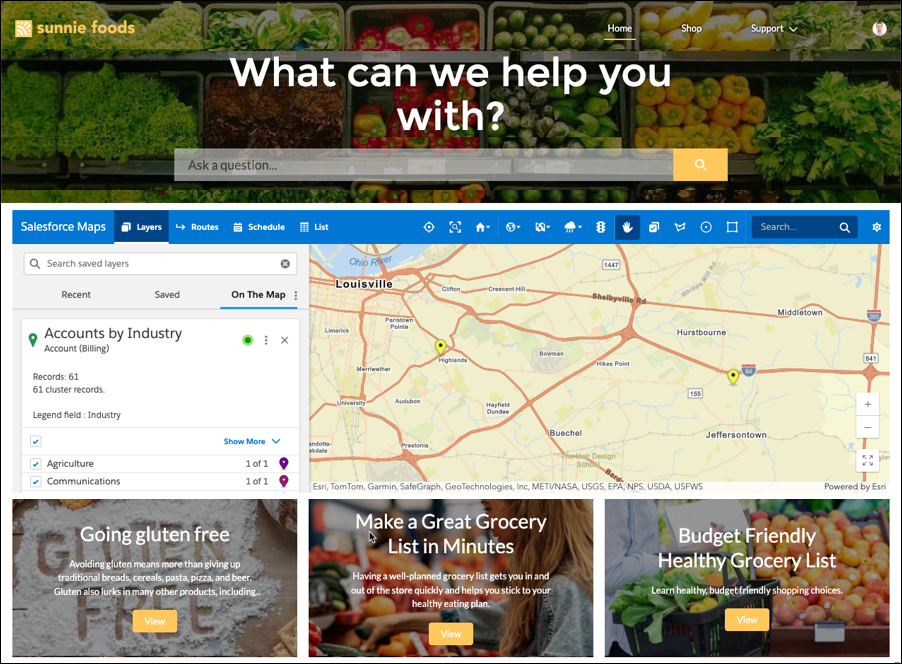
    ![Experience Cloud site that shows Salesforce Maps](https://sf-zdocs-cdn-prod.zoominsoftware.com/tdta-sales-salesforce_maps-264-0-0-production-enus/2addcda4-01f0-4f47-83c5-f499a45bf555/salesforce_maps/images/salesforce_maps_partner_sites_2.png)

The site shows Salesforce Maps for your partners.