---
schema_version: "1"
id: a2e611a0627d3d3240d115899d98cc615694685e6b56cccd93e72b28bbbb08a8
title: Create Custom Nearby Maps
collection: admin
version: current
locale: en-us
portal_url: https://docs.salesforce.com/admin/current/en-us/sales/264-0-0/salesforce_maps_setup_nearby_maps_create_custom.md
canonical_url: https://help.salesforce.com/s/articleView?id=sales.salesforce_maps_setup_nearby_maps_create_custom.htm&release=264.0.0&type=5
source_site: help.salesforce.com
content_type: documentation
content_hash: 596d2ac64e97455ad6301c9cc56d1e57362bed0c889e0794f9647a8d97597b05
description: Customize nearby maps to show the records or filtered layers that you want to appear in Salesforce records and on sites when you add a Salesforce Maps component to page and site layouts.
products:
- Sales
- Salesforce Maps
release: "264"
---
# Create Custom Nearby Maps
Customize nearby maps to show the records or filtered layers that you want to appear in Salesforce records and on sites when you add a Salesforce Maps component to page and site layouts.
### Required Editions
| User Permissions Needed |
| To customize settings: |
Customize Application |
1. From Setup, in the Quick Find box, enter Installed Packages, and then select **Installed Packages**.
2. Click **Configure** next to the Salesforce Maps package.
3. Select **Nearby Map**, and then click **Create New**.
4. Name your map, and then select what you want the map to show.
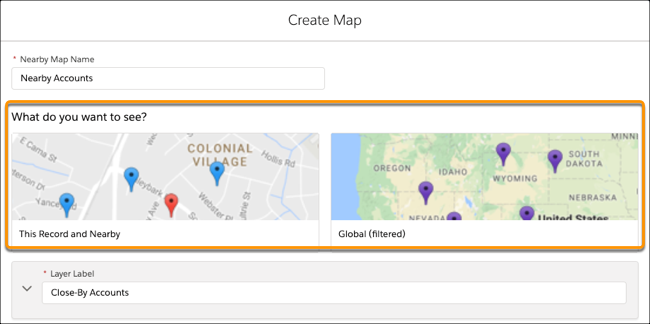
For example, to show:
- Other records within close proximity to the record you’re working on, select **This Record and Nearby**.
- A predefined, filtered layer, select **Global (filtered)**.
5. Customize your map, and then save your changes.