---
schema_version: "1"
id: acaf2d2ace983361e1641ebd375412f323d7d37a1c82669b118093e037dcf062
title: Create a Lookup Relationship Between Your Custom Object and Waypoints
collection: admin
version: current
locale: en-us
portal_url: https://docs.salesforce.com/admin/current/en-us/sales/264-0-0/salesforce_maps_adv_prepare_customoutput_lookup.md
canonical_url: https://help.salesforce.com/s/articleView?id=sales.salesforce_maps_adv_prepare_customoutput_lookup.htm&release=264.0.0&type=5
source_site: help.salesforce.com
content_type: documentation
content_hash: 5bc4100e6c42a5253509bcdd377a9f5fd646b14d269a22a2b8d3e2dcc80b502b
description: After you create your custom object for Salesforce Maps Advanced output, create a lookup relationship with the Maps Advanced Route Waypoint object.
products:
- Sales
- Salesforce Maps
release: "264"
---
# Create a Lookup Relationship Between Your Custom Object and Waypoints
After you create your custom object for Salesforce Maps Advanced output, create a lookup relationship with the Maps Advanced Route Waypoint object.
### Required Editions
To customize settings and create and edit custom objects:
Customize Application
1. From Setup, in the Quick Find box, enter Object, and then select **Object Manager**.
2. Create and name your custom object in Object Manager.
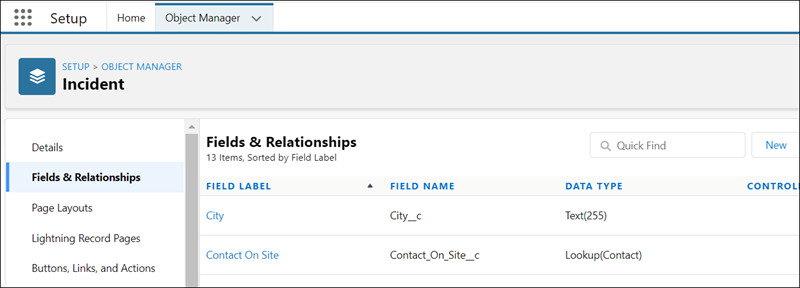
3. Select **Fields & Relationships**, and then click **New**.
4. On the New Custom Field page, under Data Type, select **Lookup Relationship**, and then click **Next**.
5. From the Related To list, select **Maps Advanced Route Waypoint**, and then click **Next**.
6. On the New Relationship page, specify the field label and field name, and then click **Next**.
1. Field Label: Maps Advanced Route Waypoint
2. Field Name: WA\_AdvRouteWaypoint
7. Configure optional field-level security and other settings for the custom object, and then save your work.
Next, create a custom event to ensure that your custom object’s records appear on your reps’ schedules.