---
schema_version: "1"
id: 7134c65602c484b16591c3ff822c3884f0d3b2b3b28839d7336a85c3a73e3bb5
title: Keep Salesforce Data up to Date
collection: admin
version: current
locale: en-us
portal_url: https://docs.salesforce.com/admin/current/en-us/sales/264-0-0/salesforce_maps_adv_prepare_batch.md
canonical_url: https://help.salesforce.com/s/articleView?id=sales.salesforce_maps_adv_prepare_batch.htm&release=264.0.0&type=5
source_site: help.salesforce.com
content_type: documentation
content_hash: aaf1273e515bd96ae545d9a20b7b52f89aefff5067b8aa5c88edafdd546009b1
description: Schedule batches to send and receive data to Salesforce Maps Advanced routing.
products:
- Sales
- Salesforce Maps
release: "264"
---
# Keep Salesforce Data up to Date
Schedule batches to send and receive data to Salesforce Maps Advanced routing.
### Required Editions
| User Permissions Needed |
| To customize settings: |
Customize Application |
1. Identify your OAuth user, and have that user log in to Salesforce with their username and password.
2. From Setup, in the Quick Find box, enter Installed Packages, and then select **Installed Packages**.
3. Next to the Salesforce Maps package, click **Configure**.
4. Under Maps Advanced, select **Data Management**.
5. Click **Schedule Advanced Batches**.
A Batches Scheduled message appears. About every hour, the product checks to see if there are any visit plans with route optimization scheduled. If there are, route and schedule data is updated in those visit plans.
It’s not recommended, but if you want to disable scheduled batches for all visit plans, delete the Advanced Route Reoptimization Template Batch job in Setup.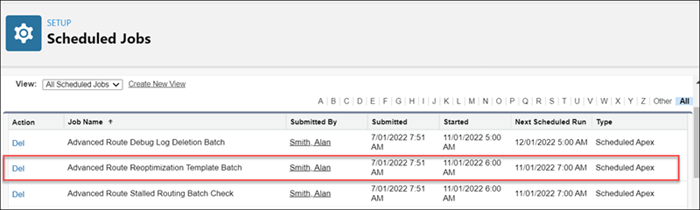
#### See Also
- [Designate an OAuth User for Route Optimizations](https://help.salesforce.com/s/articleView?id=sales.salesforce_maps_adv_prepare_access.htm&release=264.0.0&type=5 "Assign yourself or a colleague as the OAuth user. Salesforce Maps Advanced processes route optimizations through the OAuth user on Salesforce Maps servers. That way, no one is affected during intensive system processing.")