---
schema_version: "1"
id: 1d449a983b6479e311a81a757780b227f56125f4fc14286f7d09d8dfa14dad6f
title: Designate an OAuth User for Route Optimizations
collection: admin
version: current
locale: en-us
portal_url: https://docs.salesforce.com/admin/current/en-us/sales/264-0-0/salesforce_maps_adv_prepare_access.md
canonical_url: https://help.salesforce.com/s/articleView?id=sales.salesforce_maps_adv_prepare_access.htm&release=264.0.0&type=5
source_site: help.salesforce.com
content_type: documentation
content_hash: 1e29b5aa271c3cb9c18e73768f74cb897a8fd68ba6d40099342a26e2f3bb31af
description: Assign yourself or a colleague as the OAuth user. Salesforce Maps Advanced processes route optimizations through the OAuth user on Salesforce Maps servers. That way, no one is affected during intensive system processing.
products:
- Sales
- Salesforce Maps
release: "264"
---
# Designate an OAuth User for Route Optimizations
Assign yourself or a colleague as the OAuth user. Salesforce Maps Advanced processes route optimizations through the OAuth user on Salesforce Maps servers. That way, no one is affected during intensive system processing.
### Required Editions
Regardless of who creates and manages visit plans and schedules, Salesforce Maps Advanced has processes that work through the OAuth user.

Note The OAuth user doesn’t override the logged-in user’s visibility when events are marked as private. The OAuth user also doesn’t override scheduling route optimization for other users.
1. To designate yourself as the OAuth user, log in to Salesforce with your username and password. To designate a colleague, ask that person to log in to Salesforce with their username and password.
The person you designate as the OAuth user completes the rest of this configuration.
2. Confirm that you have the following:
- A role that is above the Salesforce Maps Advanced end users’ role in the Salesforce hierarchy.
- Access to Salesforce Maps Advanced. Specifically, the SF Maps and SF Maps Advanced permission sets assigned to you.
- Access to the Salesforce objects used in the visit plan process, such as the Account, Event, and Task objects.
3. From Setup, in the Quick Find box, enter Installed Packages, and then select **Installed Packages**.
4. Next to the Salesforce Maps package, click **Configure**.
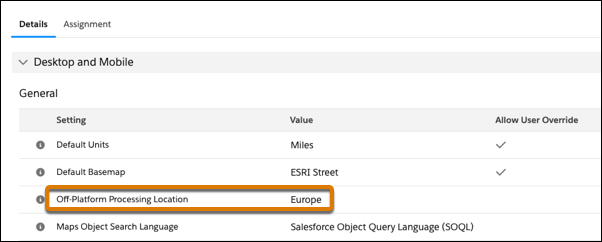
5. To meet data residency requirements, open your permission groups and set **Off-Platform Processing Location** to the location that matches your Salesforce instance location. For example, your Salesforce instance is based in Europe, so you set your off-platform processing location to Europe in each permission group.
6. Select **OAuth**.
7. Click **Authorize**.
8. Click **Allow Access**.
#### See Also
- [_Salesforce Help_: Controlling Access Using Hierarchies](https://help.salesforce.com/s/articleView?id=platform.security_controlling_access_using_hierarchies.htm&type=5&language=en_US)