---
schema_version: "1"
id: 8765253b414e44c8a8ae01b2746a580a8abd19baaf94610b96e11701eddaab14
title: Verify That Scheduled Batches Are Running
collection: admin
version: current
locale: en-us
portal_url: https://docs.salesforce.com/admin/current/en-us/sales/264-0-0/salesforce_maps_adv_finetune_batch.md
canonical_url: https://help.salesforce.com/s/articleView?id=sales.salesforce_maps_adv_finetune_batch.htm&release=264.0.0&type=5
source_site: help.salesforce.com
content_type: documentation
content_hash: cea33af6f460cf29b8e2512c0f1fb343adfd154518dddefe20635b4df9e8ebae
description: If you're unsure whether your Salesforce Maps Advanced data is being kept up to date through scheduled batches, check the status of the scheduled job in Setup.
products:
- Sales
- Salesforce Maps
release: "264"
---
# Verify That Scheduled Batches Are Running
If you're unsure whether your Salesforce Maps Advanced data is being kept up to date through scheduled batches, check the status of the scheduled job in Setup.
### Required Editions
| User Permissions Needed |
| To customize settings: |
Customize Application |
1. From Setup, in the Quick Find box, enter Jobs, and then select **Scheduled Jobs**.
2. Navigate to the Advanced Route Reoptimization Template Batch job and identify when the job started and is scheduled to run next. About every hour, the product checks to see if there are any visit plans with route optimization scheduled. If there are, the batch job runs and updates route and schedule data in those visit plans.
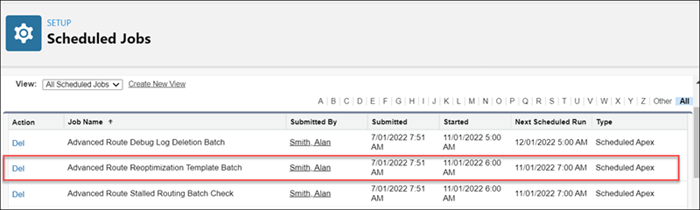

Warning If you delete the Advanced Route Reoptimization Template Batch job, you disable scheduled batches for all visit plans.
#### See Also
- [Keep Salesforce Data up to Date](https://help.salesforce.com/s/articleView?id=sales.salesforce_maps_adv_prepare_batch.htm&release=264.0.0&type=5 "Schedule batches to send and receive data to Salesforce Maps Advanced routing.")