---
schema_version: "1"
id: 6b9ffd055df9e10490d0fb0831f2a58103c61e9eec099a52cd85b7a8a1d9889b
title: View Accounts, Leads, and Opportunities in Seller-Focused Mobile Experience
collection: admin
version: current
locale: en-us
portal_url: https://docs.salesforce.com/admin/current/en-us/sales/264-0-0/sales_mobile_app_view_records.md
canonical_url: https://help.salesforce.com/s/articleView?id=sales.sales_mobile_app_view_records.htm&release=264.0.0&type=5
source_site: help.salesforce.com
content_type: documentation
content_hash: f7131e8a89d982c9daf5d5dc7d4ece631122ce8632dfe283d8a90444283ad926
description: These three cards show you the records you need to stay on top of sales.
products:
- Sales
- Mobile App
release: "264"
---
# View Accounts, Leads, and Opportunities in Seller-Focused Mobile Experience
These three cards show you the records you need to stay on top of sales.
### Required Editions
Available in: Salesforce Mobile App for Android and iOS on phones and tablets in all editions, except Database.com.
User Permissions
Needed
To use Seller-Focused Mobile Experience
Salesforce Mobile App: Native Seller Experience
View and take action on leads in the Build Pipeline card, accounts in the Plan My Accounts card, and opportunities in the Close Deals card.
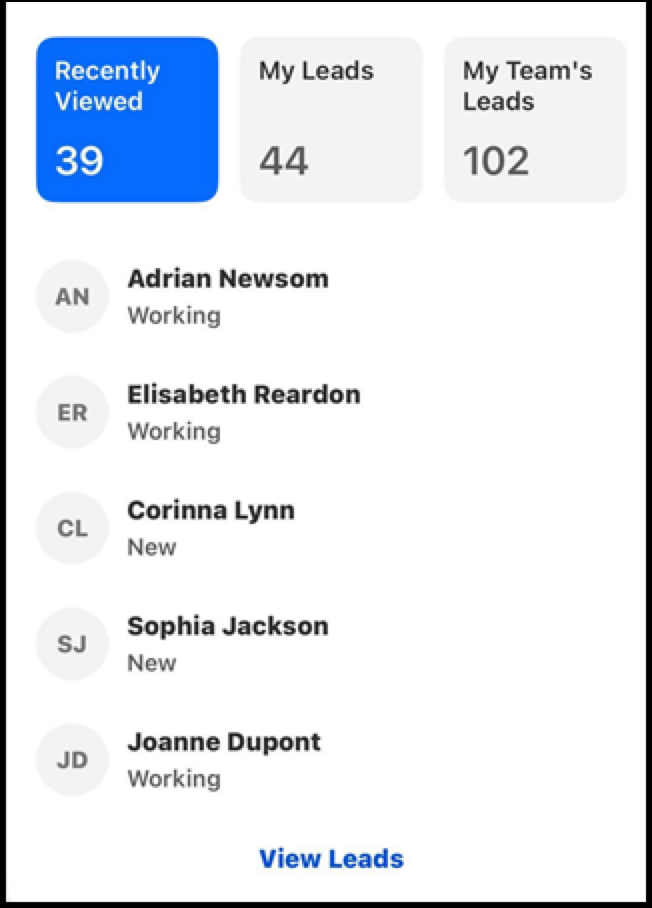
Each of these cards lets you filter results right in Home. To see just what you want, tap on **Recently Viewed**, **My Records (Leads, Accounts, or Opportunities)**, or **My Team’s Records**
To access more options, like calling, sending an email, or creating a task, swipe a record to the left.
To see all of your records and access other options, tap **View Accounts**, **View Leads**, or **View Opportunities**.
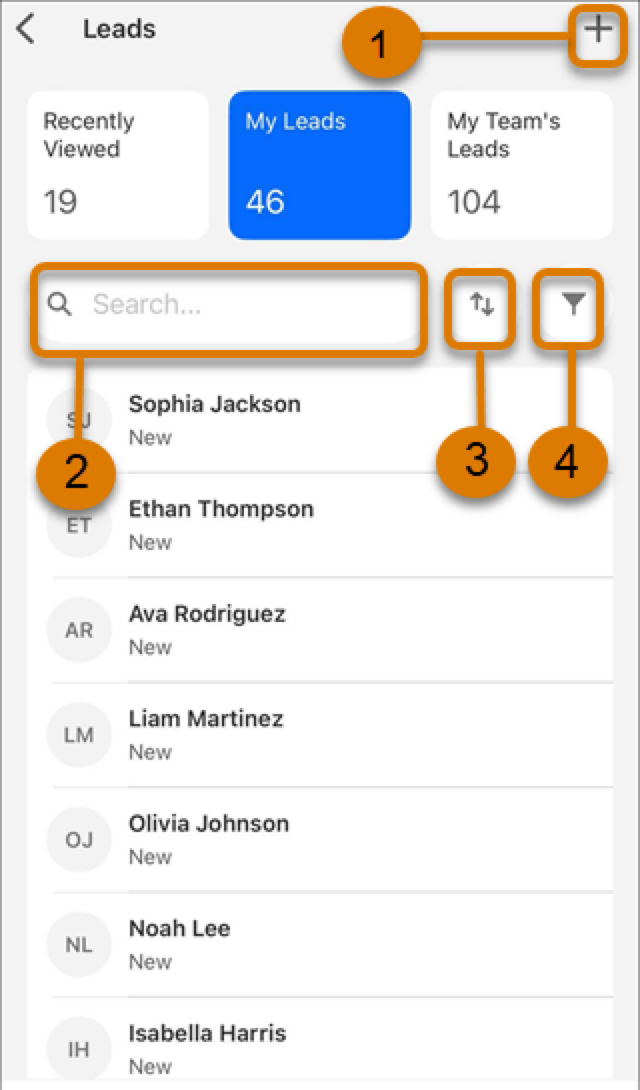
To create a record, tap the plus icon (1). (2) Search, (3) Sort, or (4) Filter your records
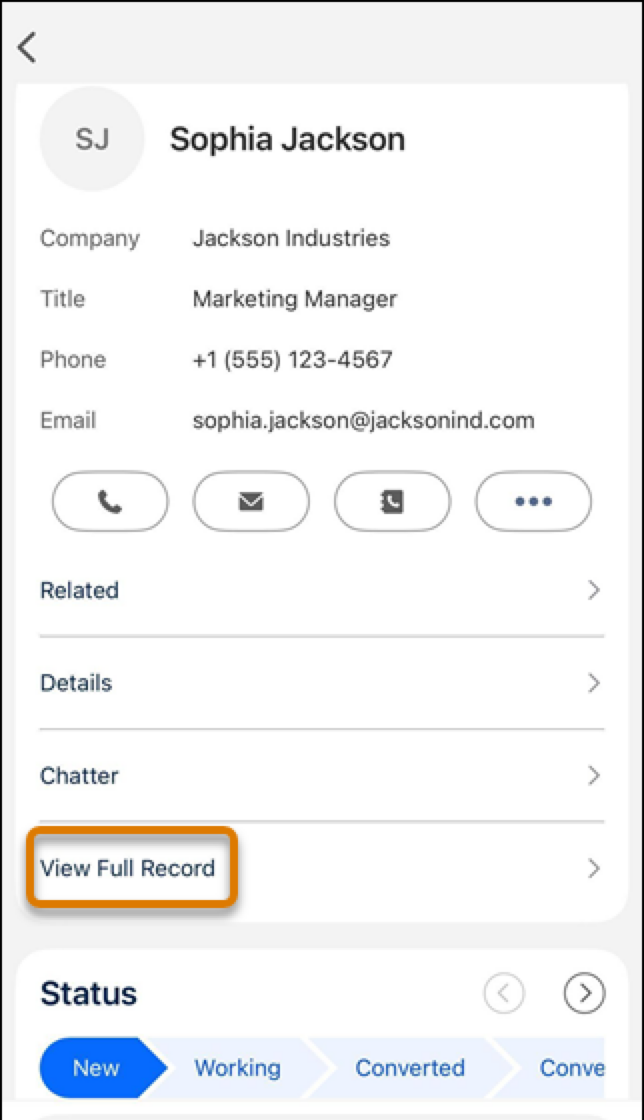
When viewing a record, to keep the view clean, you see only the most important fields. If you need a field that’s not displayed, tap **View Full Record** to see all fields.
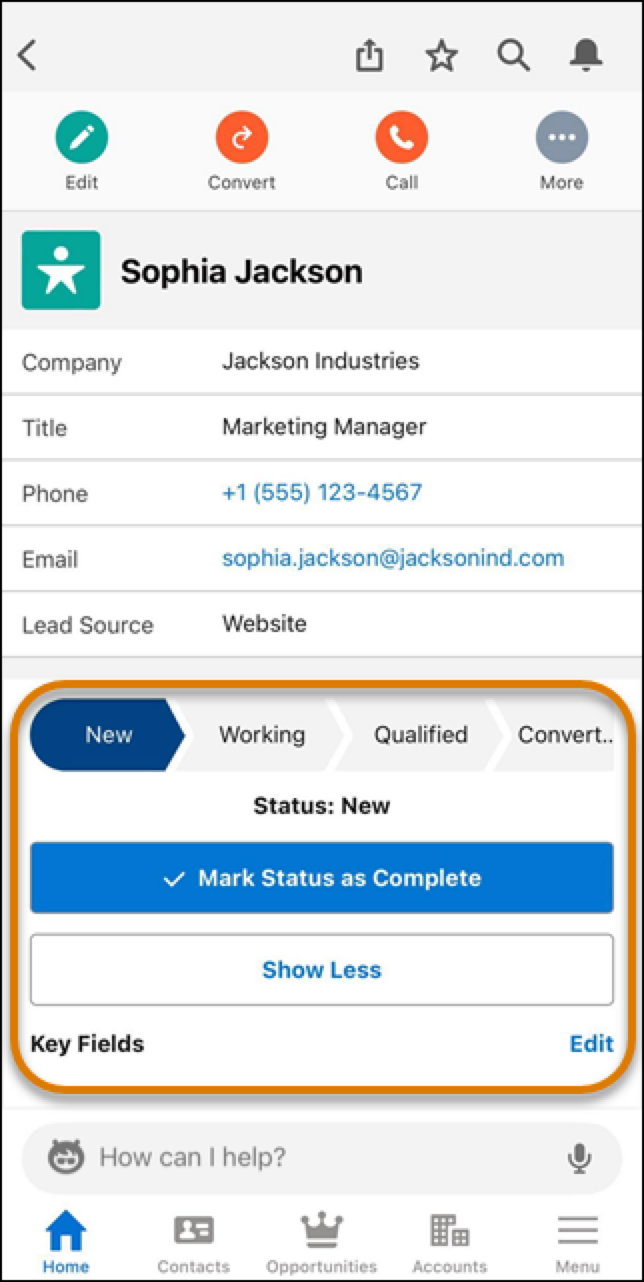
On the full record detail screen, you can change a record's status.