---
schema_version: "1"
id: da3458ddfd48c3229fc01aaa4242c503f4c6c4cb0f616376190c372f1136d263
title: Manage Seller-Focused Mobile Experience To Dos
collection: admin
version: current
locale: en-us
portal_url: https://docs.salesforce.com/admin/current/en-us/sales/264-0-0/sales_mobile_app_manage_todos.md
canonical_url: https://help.salesforce.com/s/articleView?id=sales.sales_mobile_app_manage_todos.htm&release=264.0.0&type=5
source_site: help.salesforce.com
content_type: documentation
content_hash: 34ba6c7d4eddc7a029deb8d017130a5d43637565b6eaf579843967f668aca374
description: The To Dos card keeps you focused on your next tasks, Learn how to create, manage, and complete them.
products:
  - Sales
  - Mobile App
release: "264"
---
# Manage Seller-Focused Mobile Experience To Dos

The To Dos card keeps you focused on your next tasks, Learn how to create, manage, and complete them.

### Required Editions

<table class="slds-table slds-table_bordered slds-max-medium-table_stacked slds-m-bottom_small edition"><colgroup><col></colgroup><tbody><tr class=""><td class="slds-cell-wrap" style="vertical-align:top;">Available in: Salesforce Mobile App for Android and iOS on phones and tablets in all editions, except <strong>Database.com</strong>.</td></tr></tbody></table>

<table class="slds-table slds-table_bordered slds-max-medium-table_stacked slds-m-bottom_small permission">
      <colgroup>
        <col style="width:50%">
        <col style="width:50%">
      </colgroup>
      <thead class="slds-text-title_caps ">
        <tr class="">
          <th scope="colgroup" class="slds-cell-wrap" colspan="2" style="text-align:center;vertical-align:top;" id="d2444e55">User Permissions Needed</th>
        </tr>
      </thead>
      <tbody>
        <tr class="">
          <td data-label="User Permissions Needed" class="slds-cell-wrap" style="vertical-align:top;" headers="d2444e55 ">To use Seller-Focused Mobile Experience</td>

          <td class="slds-cell-wrap" style="vertical-align:top;" headers="d2444e55 ">Salesforce Mobile App: Native Seller Experience</td>

        </tr>
      </tbody>
    </table>

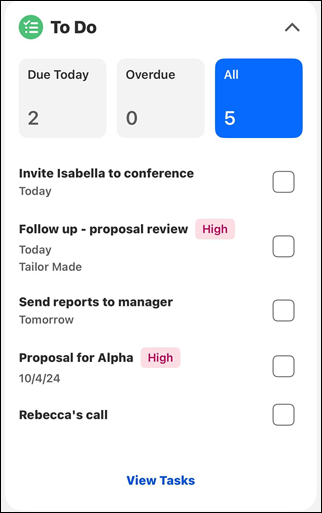
See the most time-dependent tasks in the To Dos card in Home. To filter the results you see in the card, tap **Due Today**, **Overdue**, or **All**.
![The To-Do card on the home screen](https://sf-zdocs-cdn-prod.zoominsoftware.com/tdta-sales-sales_mobile_app-264-0-0-production-enus/63cf813d-50e1-40ff-94ad-c5919765229c/sales_mobile_app/images/Task.png)

Tapping the checkbox next to a task marks it complete.

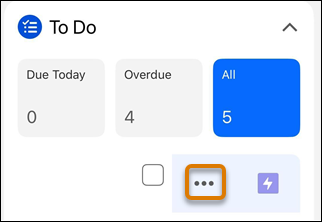
Swiping the task to the left reveals options.
![The options when you swipe left on a To-Do item.](https://sf-zdocs-cdn-prod.zoominsoftware.com/tdta-sales-sales_mobile_app-264-0-0-production-enus/63cf813d-50e1-40ff-94ad-c5919765229c/sales_mobile_app/images/8_todo_swipe.png)

To log a call, or create a task or event, tap the three dots.

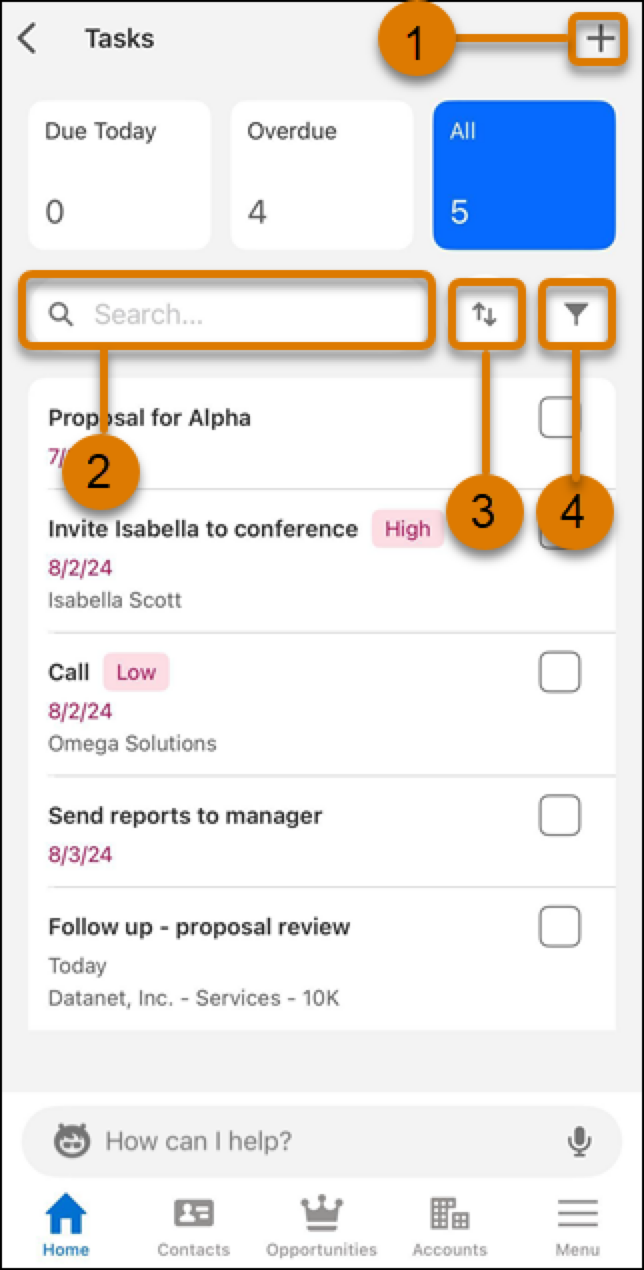
To see all of your tasks and access other options, tap **View Tasks** on the To Do card on the home screen.
![View all todo options](https://sf-zdocs-cdn-prod.zoominsoftware.com/tdta-sales-sales_mobile_app-264-0-0-production-enus/63cf813d-50e1-40ff-94ad-c5919765229c/sales_mobile_app/images/todo_view_all2.png)

To create a to do item, tap the plus (1). (2) Search, (3) sort, or (4) filter your items.
![To-do record detail](https://sf-zdocs-cdn-prod.zoominsoftware.com/tdta-sales-sales_mobile_app-264-0-0-production-enus/63cf813d-50e1-40ff-94ad-c5919765229c/sales_mobile_app/images/todo_detail.jpg)

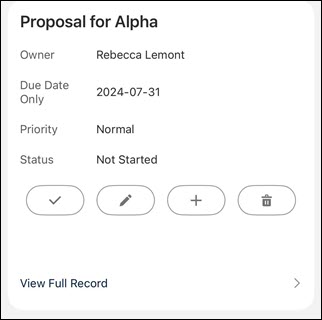
To see details, mark a task as done, edit, create another task, delete, or view the full record, tap a to do item.