---
schema_version: "1"
id: 42f25f17a3d883a3dcaa3899c8bd45ef4050380f8d5f23912509a84b89f92c6f
title: Manage Events in Seller-Focused Mobile Experience
collection: admin
version: current
locale: en-us
portal_url: https://docs.salesforce.com/admin/current/en-us/sales/264-0-0/sales_mobile_app_manage_events.md
canonical_url: https://help.salesforce.com/s/articleView?id=sales.sales_mobile_app_manage_events.htm&release=264.0.0&type=5
source_site: help.salesforce.com
content_type: documentation
content_hash: 0b55a0a5291f0945239218decf23f1d24f2c0222076e38c48e5c2225a67c7146
description: View and manage events quickly and easily in the Events card.
products:
  - Sales
  - Mobile App
release: "264"
---
# Manage Events in Seller-Focused Mobile Experience

View and manage events quickly and easily in the Events card.

### Required Editions

<table class="slds-table slds-table_bordered slds-max-medium-table_stacked slds-m-bottom_small edition"><colgroup><col></colgroup><tbody><tr class=""><td class="slds-cell-wrap" style="vertical-align:top;">Available in: Salesforce Mobile App for Android and iOS on phones and tablets in all editions, except <strong>Database.com</strong>.</td></tr></tbody></table>

<table class="slds-table slds-table_bordered slds-max-medium-table_stacked slds-m-bottom_small permission">
      <colgroup>
        <col style="width:50%">
        <col style="width:50%">
      </colgroup>
      <thead class="slds-text-title_caps ">
        <tr class="">
          <th scope="colgroup" class="slds-cell-wrap" colspan="2" style="text-align:center;vertical-align:top;" id="d337e55">User Permissions Needed</th>
        </tr>
      </thead>
      <tbody>
        <tr class="">
          <td data-label="User Permissions Needed" class="slds-cell-wrap" style="vertical-align:top;" headers="d337e55 ">To use Seller-Focused Mobile Experience</td>

          <td class="slds-cell-wrap" style="vertical-align:top;" headers="d337e55 ">Salesforce Mobile App: Native Seller Experience</td>

        </tr>
      </tbody>
    </table>

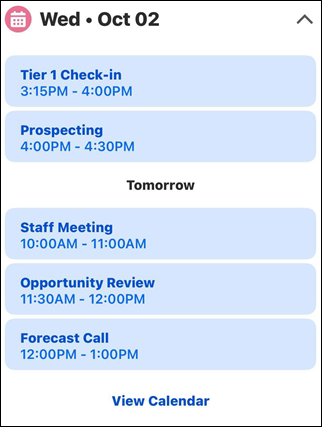
The Events card shows you your upcoming events.
![The events card](https://sf-zdocs-cdn-prod.zoominsoftware.com/tdta-sales-sales_mobile_app-264-0-0-production-enus/63cf813d-50e1-40ff-94ad-c5919765229c/sales_mobile_app/images/events.png)

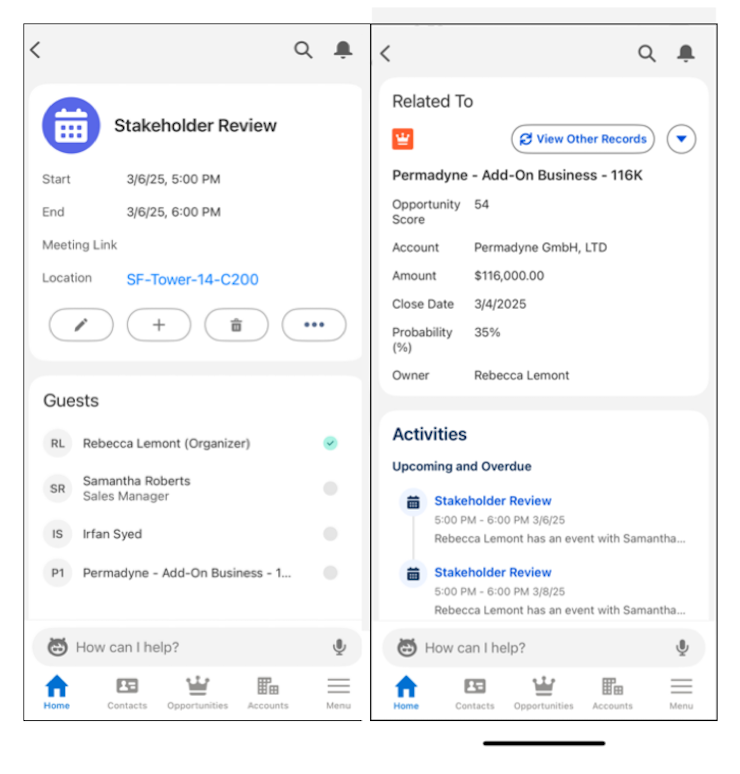
To prepare for a meeting, tap on an event. You see more details, like who is attending, attachments and notes, and can edit the event.
![Event detail screen](https://sf-zdocs-cdn-prod.zoominsoftware.com/tdta-sales-sales_mobile_app-264-0-0-production-enus/63cf813d-50e1-40ff-94ad-c5919765229c/sales_mobile_app/images/event_details1and2.png)

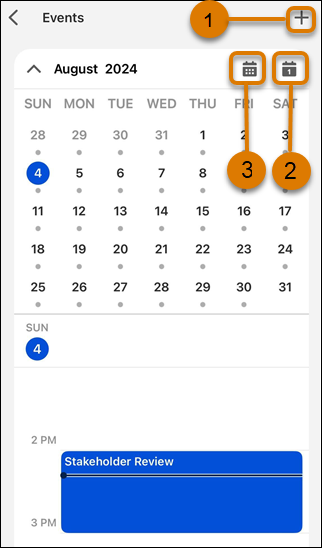
To see a full calendar, tap **View Calendar** on the Events card on the home screen.
![The view more events screen](https://sf-zdocs-cdn-prod.zoominsoftware.com/tdta-sales-sales_mobile_app-264-0-0-production-enus/63cf813d-50e1-40ff-94ad-c5919765229c/sales_mobile_app/images/3_view_more_events.png)

To create an event, tap the plus icon (1).

Change how many days of events you see by tapping the view icon (2). Select **Day**, **3-Day**, or **Week**.

Jump to today's schedule by tapping on the calendar icon(3). Swipe left or right to change the date in view.