---
schema_version: "1"
id: af3c8698bc9e85356fac3297f47960a960ce66a506c826879ed1cdd2c75c263b
title: Use Enhanced Contacts in Seller-Focused Mobile Experience
collection: admin
version: current
locale: en-us
portal_url: https://docs.salesforce.com/admin/current/en-us/sales/264-0-0/sales_mobile_app_enhanced_contacts.md
canonical_url: https://help.salesforce.com/s/articleView?id=sales.sales_mobile_app_enhanced_contacts.htm&release=264.0.0&type=5
source_site: help.salesforce.com
content_type: documentation
content_hash: 1bcd54bdf8fcabf51952013b241c591a1af217ebb23d468df5eba22e5b376e27
description: Connecting with people is one of the most crucial parts of the job, and Seller-Focused Mobile Experience makes contacting the right person easy when you're on-the-go.
products:
- Sales
- Mobile App
release: "264"
---
# Use Enhanced Contacts in Seller-Focused Mobile Experience
Connecting with people is one of the most crucial parts of the job, and Seller-Focused Mobile Experience makes contacting the right person easy when you're on-the-go.
### Required Editions
Available in: Salesforce Mobile App for Android and iOS on phones and tablets in all editions, except Database.com.
User Permissions
Needed
To use Seller-Focused Mobile Experience
Salesforce Mobile App: Native Seller Experience
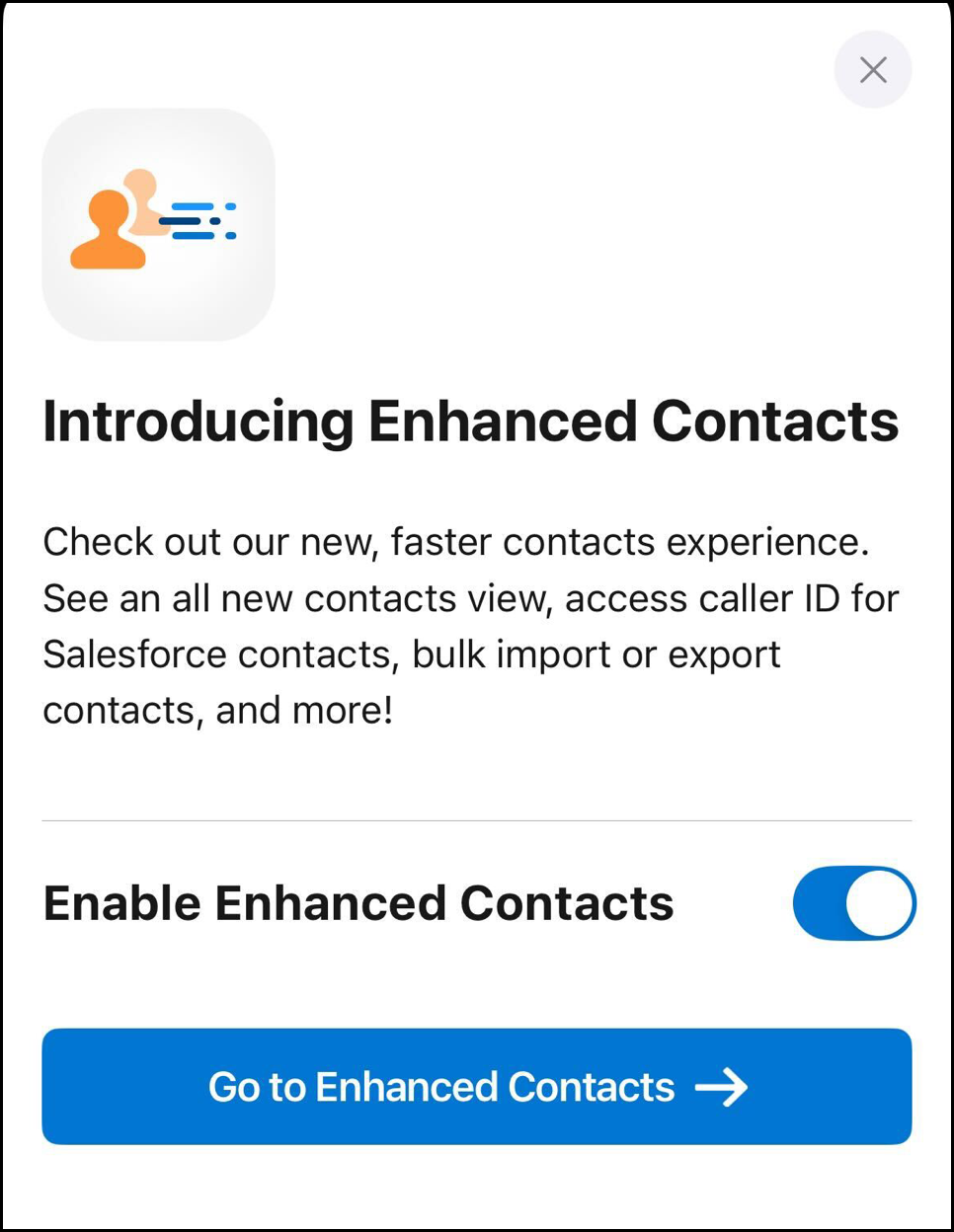
You are prompted to enable Enhanced Contacts when you log in to the mobile app for the first time.
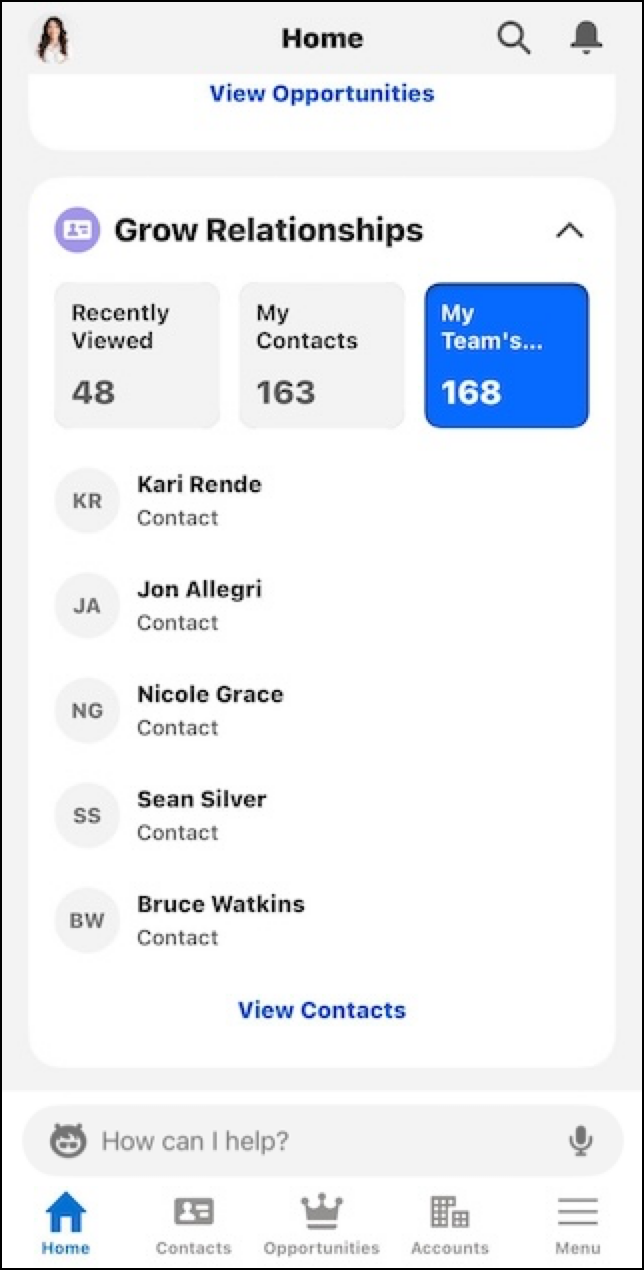
See just the contacts you want in the Grow Relationships card. To filter the results you see in the card, tap **Recently Viewed**, **My Contacts**, or **My Team’s Contacts**.
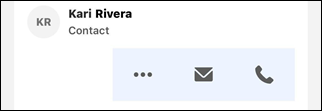
To call a contact or send an email, swipe the contact to the left.
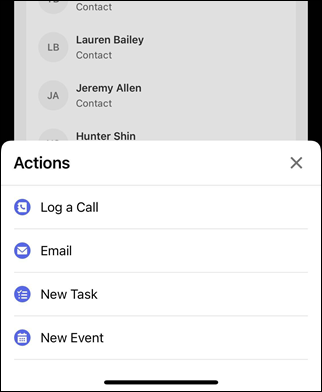
Tapping the three dot menu icon gives you more options, like logging a call, or creating a task or event. If you have custom quick actions configured, you see those here, too.
To see all of your contacts and access other options, tap **View Contacts** on the Grow Relationships card on the home screen.
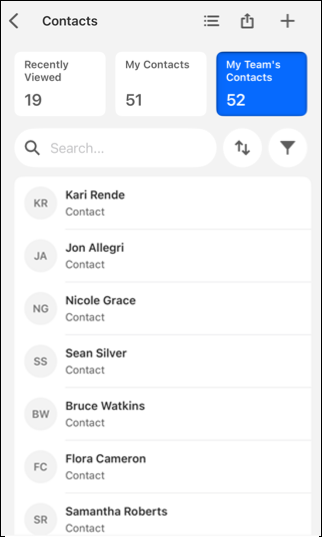
Add contacts by tapping the plus icon. Manually add a contact, import contacts from your mobile device, or scan a business card, and follow the prompts.
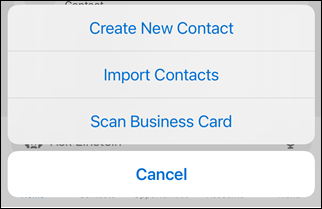

Note Importing contacts from your device might require allowing Salesforce the permission to access to your contacts. Follow on-screen instructions if prompted.
You can view contact lists. To see the contacts in the list, or to see all of your lists, tap **View All Lists**. Lists are view-only in Seller-Focused Mobile Experience.
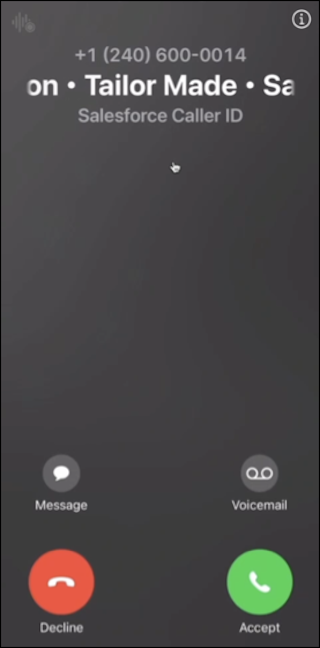
You can see a caller's contact information when they call you. To enable Salesforce Caller ID, either follow the instruction when prompted, or enable in your device's call identification settings.
You can stop using Enhanced Contacts by tapping the **Return to Legacy Contacts** toggle at the bottom of the contact tab in the Sales Mobile app (not Seller-Focused Mobile Experience).