---
schema_version: "1"
id: d7dfb324313ae8ac8fab48da4c01964e72d6c8d49a6c6316427b126a75a37eae
title: Create a Path
collection: admin
version: current
locale: en-us
portal_url: https://docs.salesforce.com/admin/current/en-us/sales/264-0-0/path_create.md
canonical_url: https://help.salesforce.com/s/articleView?id=sales.path_create.htm&release=264.0.0&type=5
source_site: help.salesforce.com
content_type: documentation
content_hash: 3aa41e470fef74b4279cddd458e2bab8a8a4dec4c2b6a3f660e535dc606714d2
description: Create one path for each available combination of object, picklist, and record type for supported objects. And help your teams celebrate their successes by tossing virtual confetti when reps reach designated path steps.
products:
- Sales Cloud
release: "264"
---
# Create a Path
Create one path for each available combination of object, picklist, and record type for supported objects. And help your teams celebrate their successes by tossing virtual confetti when reps reach designated path steps.
### Required Editions
Available in: Lightning Experience
Available in: Essentials, Group, Professional, Enterprise, Performance, Unlimited, and Developer Editions
User Permissions Needed
To create a path:
Modify All Data
OR
Customize Application
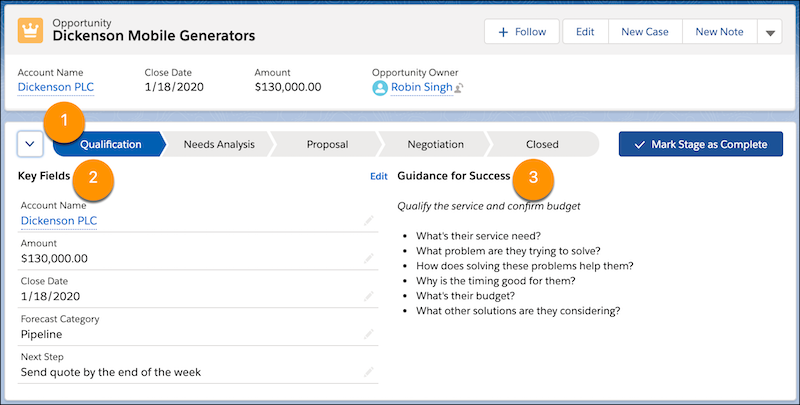
Steps for each path (1) are based on picklist values that you select when you create the path. At each step, show up to five key fields to help users focus on the most important information (2). And help users succeed with guidance, such as tips, links, and company policy information (3).
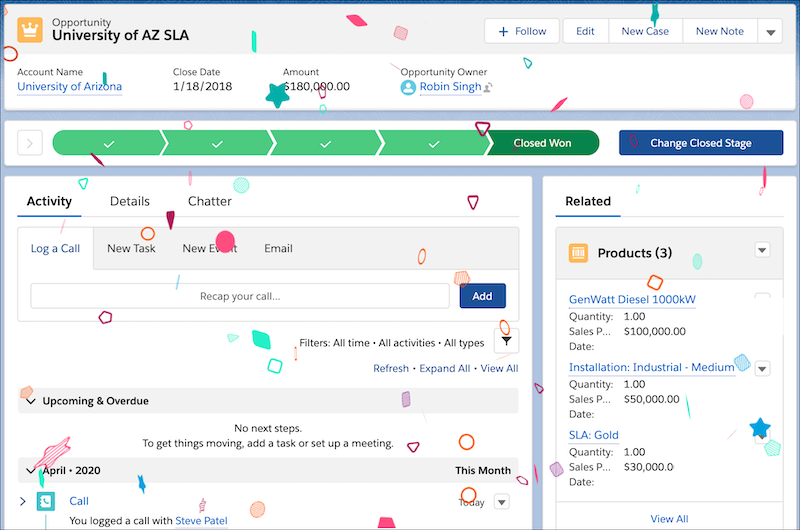
Help users celebrate their successes by tossing virtual confetti when reps reach path steps such as Closed Won.
1. From Setup, in the Quick Find box, enter Path Settings and select it.
2. Select **New Path**.
3. In step 1 of creating a path, enter basic information about the path: a unique path name, the object to base the path on, the record type, and the picklist to base the path on.

Note
Paths are supported for many standard picklists and for custom picklists.
If paths exist for all available record types for the object, create another record type, and then return to Path Settings to create a path.
4. Click **Next**.
5. In step 2 of creating a path, select key fields for each step on the path and enter success guidance.
1. For each step on the path, select up to five key fields.
2. For each step on the path, enter up to 1,000 characters of guidance.
6. Click **Next**.
7. In step 3 of creating a path, activate the path and enable confetti celebration animations.
1. Decide whether to activate the path immediately. To activate the path later, return to Path Settings.
2. Select picklist values and a frequency for triggering the celebration animation.
For frequency, if average users reach celebration values more often, set celebrations to occur less often. For example, let’s say you have a Renewal Business path where reps can close a lot of opportunities every day. Trigger the animation on random closed opportunities by selecting **Rarely** or **Sometimes**. But, for a New Business path where opportunities are hard won, select a frequency of **Always**.
8. Click **Finish**.
For most objects, the order of path steps is based on the order of the values in the picklist that the path is based on. The last step represents a closed stage or status. For example, in the last step of an opportunity path based on the Stage field, by default, users select Closed Won or Closed Lost.
On some objects and fields, you can customize the field value represented by the last step of the path.
#### See Also
- [Finalize the Path](https://help.salesforce.com/s/articleView?id=sales.path_final_status.htm&release=264.0.0&type=5 "Choose the final path step, following the order of the picklist values that the path is based on. Then, add the path to the related record pages.")