---
schema_version: "1"
id: 0562f7fa5e6e585092a1ebd0b8c7eac6d12b8e741d96aa30f36363382f684c11
title: Considerations for Languages on Your Enablement Site
collection: admin
version: current
locale: en-us
portal_url: https://docs.salesforce.com/admin/current/en-us/sales/264-0-0/mth_language.md
canonical_url: https://help.salesforce.com/s/articleView?id=sales.mth_language.htm&release=264.0.0&type=5
source_site: help.salesforce.com
content_type: documentation
content_hash: 7031239306be7e9eff13c465895ce731f485f377312bf7fc94f701ce30a37d4a
description: The default language for any enablement site is English, but other languages are supported. A user can select a different language, but the extent to which content is available for any language depends on whether you’ve localized and published content for that language.
products:
- Sales Cloud
- Sales Enablement
release: "264"
---
# Considerations for Languages on Your Enablement Site
The default language for any enablement site is English, but other languages are supported. A user can select a different language, but the extent to which content is available for any language depends on whether you’ve localized and published content for that language.
### Required Editions
Available in: Enterprise, Performance, and Unlimited Editions
User Roles
This topic supports these enablement site roles:
Learners
## Supported Languages
From the footer of any page on your enablement site, a user can select one of these languages.
- English
- Chinese (Simplified)
- French
- German
- Italian
- Japanese
- Korean
- Portuguese (Brazil)
- Spanish (Spain)
- Spanish (LATAM)
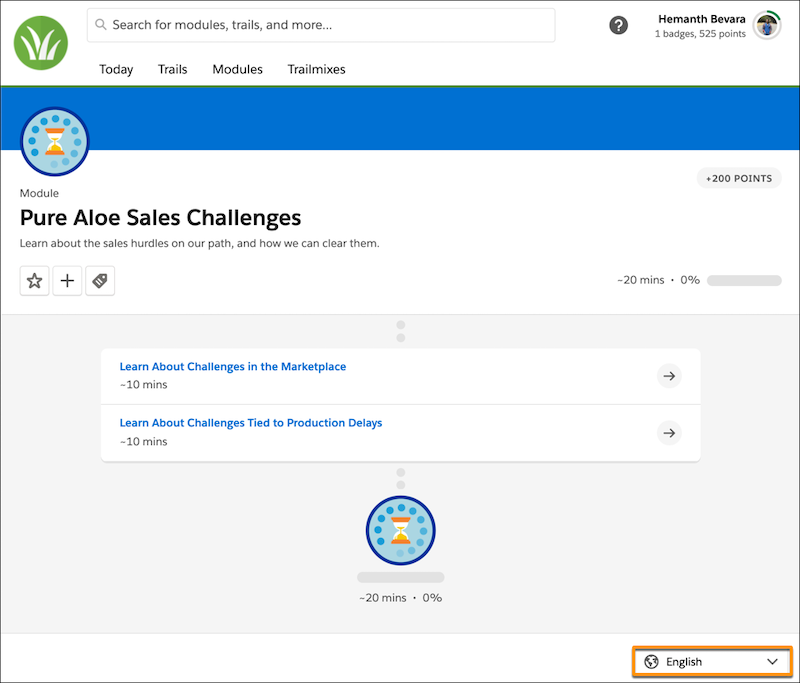
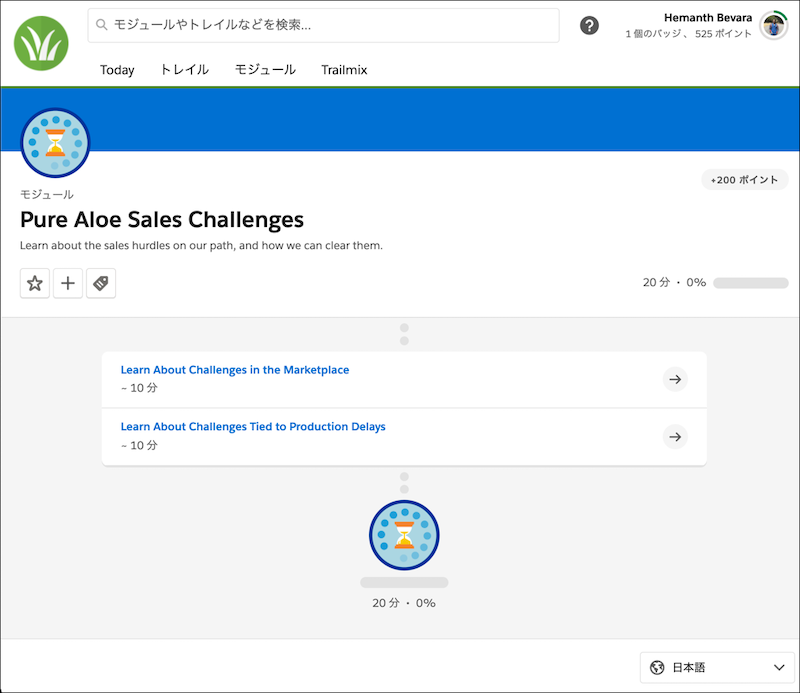
Selecting a different language shows localized labels throughout the user experience: tabs, search, points, completion time, content types, and so on. However, the content itself—titles, descriptions, and unit text—remain untranslated until you localize and publish content for that language.
To provide localized content for a supported language, collaborate with a localization team or vendor. After they return your localized backpacks, add the content to an unpublished release. Then, preview and publish the release. To learn more, see:
- [Give Content Files to a Localization Team or Vendor](https://help.salesforce.com/s/articleView?id=sales.mth_give_files_to_localization_vendor.htm&release=264.0.0&type=5 "To add localized content, send the backpack to your localization team or vendor. The backpack is a ZIP file, downloaded from Trailmaker, that contains the module or trail’s source files. You can send the backpack ZIP file or give the vendor access to your version control system (VCS) to download the backpack. After the vendor translates your content, the vendor can upload the backpack—updated with the localized files—to your VCS. Then, you can publish the localized content.")
- [Guidelines for Localizing Files in a Backpack](https://help.salesforce.com/s/articleView?id=sales.mth_localize_files.htm&release=264.0.0&type=5 "Your localization team or vendor can localize only certain trail, module, unit, and quiz information in your backpack’s files.")
- [Preview and Publish Localized Content](https://help.salesforce.com/s/articleView?id=sales.mth_publish_localized_content.htm&release=264.0.0&type=5 "After you receive the localized backpack and confirm that the appropriate updates are complete, set up a release and preview the translated content. Then, publish the release.")
## Default and Fallback Languages
When you create trails, modules, and units in Trailmaker Content, the content is encoded as English by default. When you add that content to a release and publish, that content appears when a user selects English for viewing your enablement site.
In Trailmaker Content, your writers can author content in any language they want, but Trailmaker still encodes the content as English. For example, if you write content in German but don’t properly localize the backpack, Trailmaker encodes your content as English. When a user selects English from the language dropdown when viewing your enablement site, they see your German content. To ensure that a user sees German content only when they select German:
- Author English content in Trailmaker Content.
- Work with a localization team or vendor to add the German content to the appropriate localized folder and files.

Note In your backpacks, localized files are placed in language-specific folders, where each folder is named with the appropriate locale code for the language, such as de-DE for German. For more information, see [Guidelines for Localizing Files in a Backpack](https://help.salesforce.com/s/articleView?id=sales.mth_localize_files.htm&release=264.0.0&type=5 "Your localization team or vendor can localize only certain trail, module, unit, and quiz information in your backpack’s files.").
Because English is the default language, it serves as the fallback for any part of the user experience that isn’t properly localized for a selected language. If you localize only some units in a module but leave other units in English, the entire module falls back to English. For example, maybe you translate a module with three units into German, but the localization vendor accidentally doesn’t translate one of the units. When a user selects German, they see the entire module in English. To make sure that the full localized module is available for a selected language, work with your localization team or vendor to [fix the localized backpack](https://help.salesforce.com/s/articleView?id=sales.mth_why_is_localized_content_in_wrong_language.htm&release=264.0.0&type=5 "Did you localize enablement site content for a particular language and a user selected that language, but the content still appears in the source language? Most likely, the number of units in a module differs between the source and localized files. When content isn’t available for a selected language, an enablement site falls back to the source language. To resolve this issue, work with your localization team or vendor to correct the number of units in a module in the localized files.").
## Translations and Content Collections
When you publish localized content, you’re adding languages to trails, modules, and units. But, you’re not increasing the number of trails, modules, and units that you’ve published.
For example, let’s say that you published a module in English. Later, your team localizes the module into French. When the localization team or vendor returns the localized module backpack, the backpack contains English and French files for one module. When you add the content to a release and publish, your enablement site still contains one module. A user can view the module in English or French by toggling the selected language, but you’ve still published only one module, not two separate modules.
With content collections, you can’t add a module in one language to one content collection and the same module but in a different language to another content collection. Using the previous example, both the English and French translations of a module exist together in the same content collection. You can’t assign the English version to a content collection for an English audience and the French version to a content collection for a French audience. You can create language-specific content for each audience, but you use separate modules, published in separate releases, each with their own localized backpack.
## Trailmaker
The Trailmaker Content, Trailmaker Release, and Trailmaker Settings apps are available only in English.
## Filter Values
The default filter values for the Roles, Levels, and Products content categories are already translated for all supported languages.
If you create any custom filter values, translate the filter values for the languages that you want to support. This way, a user who views your enablement site in a different language can find content using filters in that language.
Because Trailmaker is available only in English, only the English filter names appear for authors who edit trails or modules in Trailmaker Content.
#### See Also
- [Give Content Files to a Localization Team or Vendor](https://help.salesforce.com/s/articleView?id=sales.mth_give_files_to_localization_vendor.htm&release=264.0.0&type=5 "To add localized content, send the backpack to your localization team or vendor. The backpack is a ZIP file, downloaded from Trailmaker, that contains the module or trail’s source files. You can send the backpack ZIP file or give the vendor access to your version control system (VCS) to download the backpack. After the vendor translates your content, the vendor can upload the backpack—updated with the localized files—to your VCS. Then, you can publish the localized content.")
- [Guidelines for Localizing Files in a Backpack](https://help.salesforce.com/s/articleView?id=sales.mth_localize_files.htm&release=264.0.0&type=5 "Your localization team or vendor can localize only certain trail, module, unit, and quiz information in your backpack’s files.")
- [Preview and Publish Localized Content](https://help.salesforce.com/s/articleView?id=sales.mth_publish_localized_content.htm&release=264.0.0&type=5 "After you receive the localized backpack and confirm that the appropriate updates are complete, set up a release and preview the translated content. Then, publish the release.")
- [Add a Custom Filter for Enablement Site Content](https://help.salesforce.com/s/articleView?id=sales.mth_add_filter_to_products_category.htm&release=264.0.0&type=5 "You can add custom filters for the Roles, Levels, and Products content categories that you apply to trails and modules. Making these changes can require different users to collaborate, such as an admins, content creators, and release managers.")