---
schema_version: "1"
id: 47bfbc5b37a7935afb19b9ab3ee6929fca8b64937333d73f04cdcd56c5a6fe32
title: Send a List Email in Lightning Experience
collection: admin
version: current
locale: en-us
portal_url: https://docs.salesforce.com/admin/current/en-us/sales/264-0-0/email_list_email_create.md
canonical_url: https://help.salesforce.com/s/articleView?id=sales.email_list_email_create.htm&release=264.0.0&type=5
source_site: help.salesforce.com
content_type: documentation
content_hash: 5cac8bc91f2971aa191324e3650ee84165773a4358e130e9918a62a38a20539b
description: Create and send a list email, which sends an individual email to each recipient in the list.
products:
- Sales Cloud
- Cross Cloud
- Service Cloud Voice
release: "264"
---
# Send a List Email in Lightning Experience
Create and send a list email, which sends an individual email to each recipient in the list.
### Required Editions
Available in: Lightning Experience
Available in: Essentials, Professional, Enterprise, Performance, Unlimited, and Developer Editions
User Permissions
Needed
To send and view list emails:
Allow sending of List Emails
Before creating the list email, verify that you have a contact or lead list view, or a campaign, with the recipients you want. To email everyone on a report, run the report and add the resulting records to a campaign. Then send a list email to that campaign.
To use an email template from Salesforce Classic, create the template before creating the list email. You can’t create a list email in the Salesforce app, but you can see the activity in the Activity History related list.
1. Go to a contact or lead list view, or a campaign member view.
Unless you want to email all campaign members, filter the campaign members list or select individual campaign members.
2. Select the checkbox next to the individual records that you want to email, or select all records on the page.
If you’re on any view except Recently Viewed, and there are no records selected, clicking **Send Email** selects all the records as list email recipients.
3. Click **Send Email**, then **Sales List Email**.
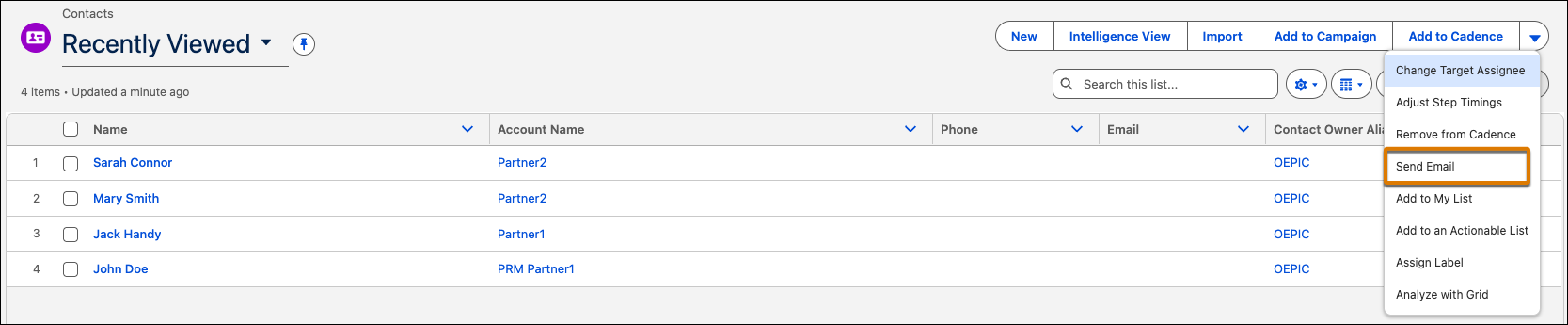
4. If you want, add the names of list views or campaigns in the Recipients field. You can add contact and lead list views for the same list email.
If you’re sending a list email to at least one campaign, use the Related To field to select a campaign. The campaign tracks all the engagement metrics from the list email, such as total sent.
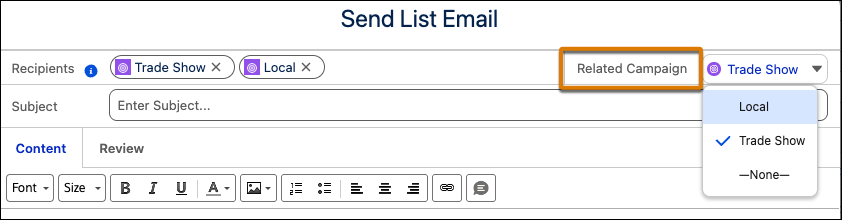
5. Add content or insert an email template.
6. Customize the content or add attachments.
7. On the **Review** tab, confirm that the preview looks correct. Click each recipient’s name to see any personalization.
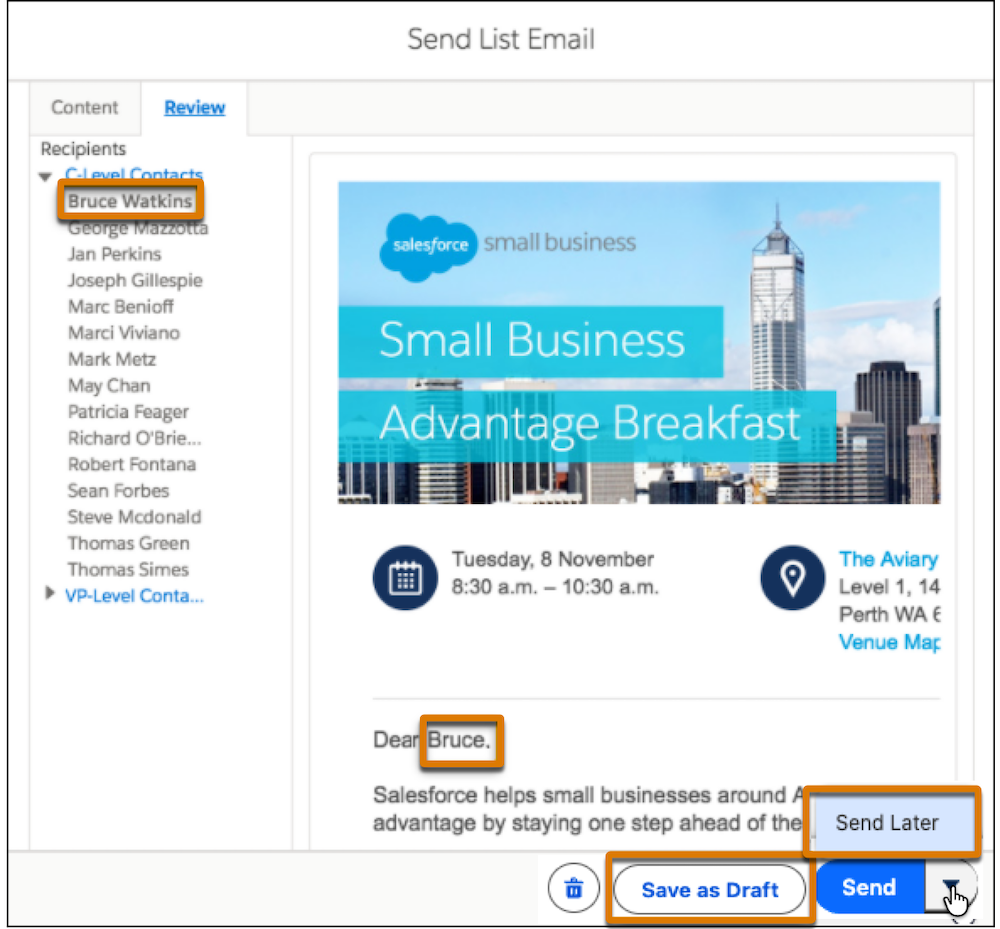
8. Click **Save as Draft**, **Send**, or **Send Later**.
To continue editing a list email draft or updating a schedule, go to the List Emails home page.
Choose Send Later to get an email when the list email is sent. You can also see that the email was sent by looking in the recipient’s activity timeline, or on the List Emails home page.
Enable **Roll up activities to a contact’s primary account** to show the list email in the activity timeline for the recipient and the recipient’s account. Click the activity to see more details. Details include a sample of the sent list email in its original format, the recipients and attachments, and statistics such as total sent. If the email includes merge fields, the stored sample shows the merge field syntax, not the personalized values that each recipient received.
After sending a List Email in Salesforce, you can confirm its delivery status through the List Email object. If the email was sent successfully, you can optionally generate an HTML Email Status Report to view engagement metrics such as email open rates. To see the HTML Email Status report, go to the Reports page, click **New Report**, and search for HTML. Select HTML Email Status. This report shows the results of all list emails.
#### See Also
- [Considerations for Sending List Email in Lightning Experience](https://help.salesforce.com/s/articleView?id=sales.email_list_email_considerations.htm&release=264.0.0&type=5 "Before you send a list email—an email to a list of contacts, leads, or campaign members—consider a few key points.")
- [Schedule Emails with Send Later](https://help.salesforce.com/s/articleView?id=sales.email_schedule_send_later_parent.htm&release=264.0.0&type=5 "As sales reps send emails to leads and contacts, they can schedule the emails so that they arrive at the most optimal time. Set up Scheduled Emails in Lightning Experience so that reps can update the content of a scheduled email and change its scheduled date and time.")
- [_Video_: Send Personalized Emails to a Group (English Only)](https://salesforce.vidyard.com/watch/sxFL8Jnfxk5NgxsGj86NQE)
- [_Knowledge Article_: View the Status of "List Emails" (Mass Emails) That Have Been Sent](https://help.salesforce.com/s/articleView?id=000381424&type=1&language=en_US)
- [_Knowledge Article_: ContentDocumentLink error when Trying to Send List Email](https://help.salesforce.com/apex/HTViewSolution?urlname=ContentDocumentLink-error-when-Trying-to-Send-List-Email)
- [_Knowledge Article_: List Email - Engagement Metrics](https://help.salesforce.com/s/articleView?id=000397103&type=1&language=en_US)