---
schema_version: "1"
id: 2efd27d32daf9eb21235e74a7d570c853b89d7897b46fa050c3d22ccaecb74e8
title: Edit the Field Mapping for a Data Integration Rule
collection: admin
version: current
locale: en-us
portal_url: https://docs.salesforce.com/admin/current/en-us/sales/264-0-0/ddc_data_integration_field_mapping.md
canonical_url: https://help.salesforce.com/s/articleView?id=sales.ddc_data_integration_field_mapping.htm&release=264.0.0&type=5
source_site: help.salesforce.com
content_type: documentation
content_hash: 48a648d081ca2aa3f91732383c0f2611d4ff5195df030b3b65ca0b1676b47a58
description: To help ensure that your records and reports are accurate, check the field mapping when you activate a data integration rule. Some Lightning Data rules let you keep or overwrite field values when new data is available.
products:
- Sales
- Sales Enablement
release: "264"
---
# Edit the Field Mapping for a Data Integration Rule
To help ensure that your records and reports are accurate, check the field mapping when you activate a data integration rule. Some Lightning Data rules let you keep or overwrite field values when new data is available.
### Required Editions
Available in: Professional, Enterprise, Performance, and Unlimited Editions
User Permissions
Needed
To edit field mapping:
Customize Application
The data service provider determines a rule’s default field mapping.
1. In Setup, use the Quick Find box to find **Data Integration Rules**. Select the rule you want to look at, and then click **Edit Field Mapping**.
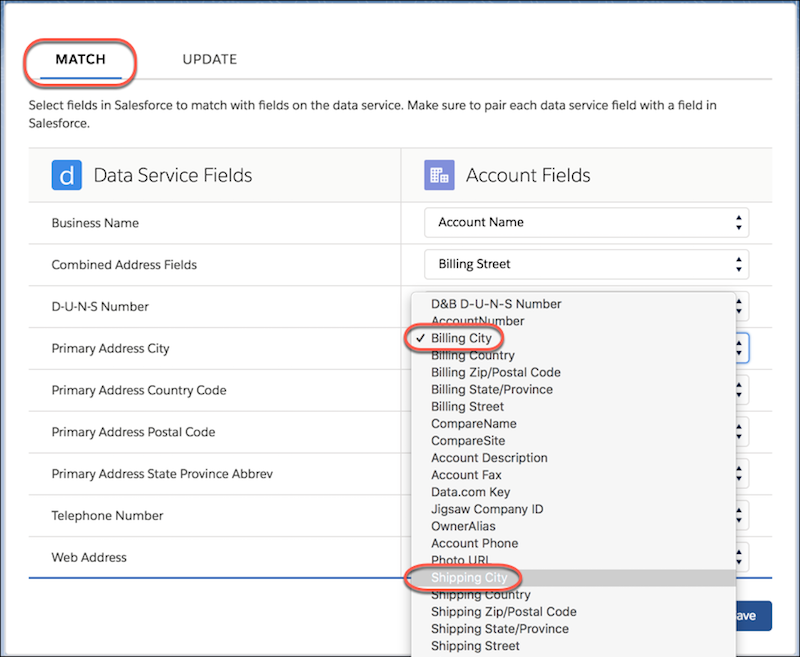
2. On the Match tab, look at the fields used to match your records to fields in the data service. If a data service field isn’t correctly mapped to the standard object, select a different standard object field.
For example, suppose that the data service field City is mapped to the account field Billing City, but you use Shipping City in account addresses. Change Billing City to Shipping City.
3. If the rule can update fields, the settings include an Update tab. Click **Update** and look at the fields that can be updated with new data when the rule runs. Check that each data service field is correctly mapped to a Salesforce standard object field. If needed, select different standard object fields and add or remove fields to update.
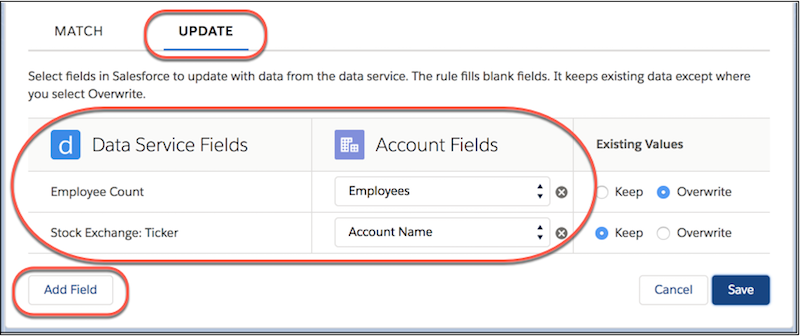
You can add, remove, or change up to 12 mappings at a time before saving.
Rules that support data updates determine a record’s data status using the standard object field values in the update mapping. The data service fields used to match records and the fields used to update them can differ.
4. If you use a Lightning Data rule that updates fields via custom object lookups, you can update a field automatically when new data is available. First enable history tracking for the field, and then select **Overwrite**.
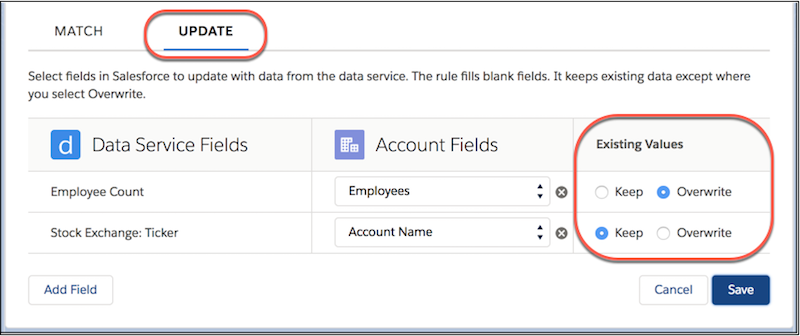
You can't overwrite data from company info or geo rules.
#### See Also
- [Track Field History for Standard Objects](https://help.salesforce.com/s/articleView?id=xcloud.tracking_field_history_for_standard_objects.htm&type=5&language=en_US)