---
schema_version: "1"
id: 1fedf8fa05f41b712a384649571c5e13fe70a2b78132843c0a611c0767694662
title: Access and Update Buyer Relationship Map
collection: admin
version: current
locale: en-us
portal_url: https://docs.salesforce.com/admin/current/en-us/sales/264-0-0/buyer_relationship_map_add_edit.md
canonical_url: https://help.salesforce.com/s/articleView?id=sales.buyer_relationship_map_add_edit.htm&release=264.0.0&type=5
source_site: help.salesforce.com
content_type: documentation
content_hash: f0f56b7fcc95bcac3d6c8629df16f45a7c05a48db1df7630993dfa107923957a
description: Learn how to access the Buyer Relationship Map and update it to visualize contacts across company levels.
products:
- Sales Cloud
- Cross Cloud
- Service Cloud Voice
release: "264"
---
# Access and Update Buyer Relationship Map
Learn how to access the Buyer Relationship Map and update it to visualize contacts across company levels.
### Required Editions
Available in: Lightning Experience
Available in: Enterprise, Performance, Unlimited Editions with Sales, and Agentforce 1 Sales Edition
User Permissions
Needed
To create and edit contacts:
Create and Edit on Contact
Contacts associated with the opportunity or account that have a seniority level and department group assigned are automatically shown on the map. These steps are for contacts that don’t meet that criteria.
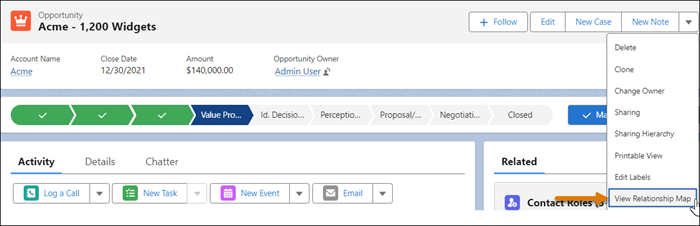
1. Access the map from any opportunity or account’s action menu.
2. To add a contact to the map, do one of the following.
- If the Relationship Map is for an account, click a contact tile at the required level under a department group. In the side panel, click **Add Contact**. Upon saving the contact details, the contact is added to the map.
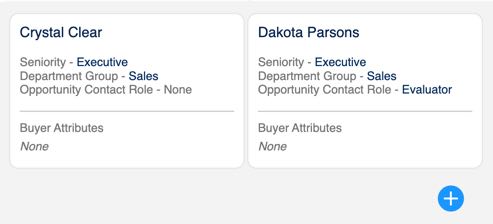
- If the Relationship Map is for an opportunity and the contact isn’t associated with it, click **Add Contact Role** in the side panel to add an opportunity contact role. After you add the role, the contact appears in **Incomplete Contacts** in the side panel. Edit the contact's details to assign a seniority level and department group so it appears on the map.
- If the contact is already associated with the opportunity or account, open **Incomplete Contacts** in the side panel. Find the contact to add, and then choose how to apply the Seniority Level and Department Group. To apply them from a specific tile, select the contact tile where you want to place the contact, and then click **Update contact**. To manually select them, click **Edit contact**, and then edit the contact's details in the side panel.
- If a contact was previously removed from the Relationship Map, find it in the **Removed from Map** section. To add the contact back to the map, select it, and then click **Add back to map**.
Contacts added to the same level in a department group are grouped on the map.
3. To edit a contact, do one of the following.
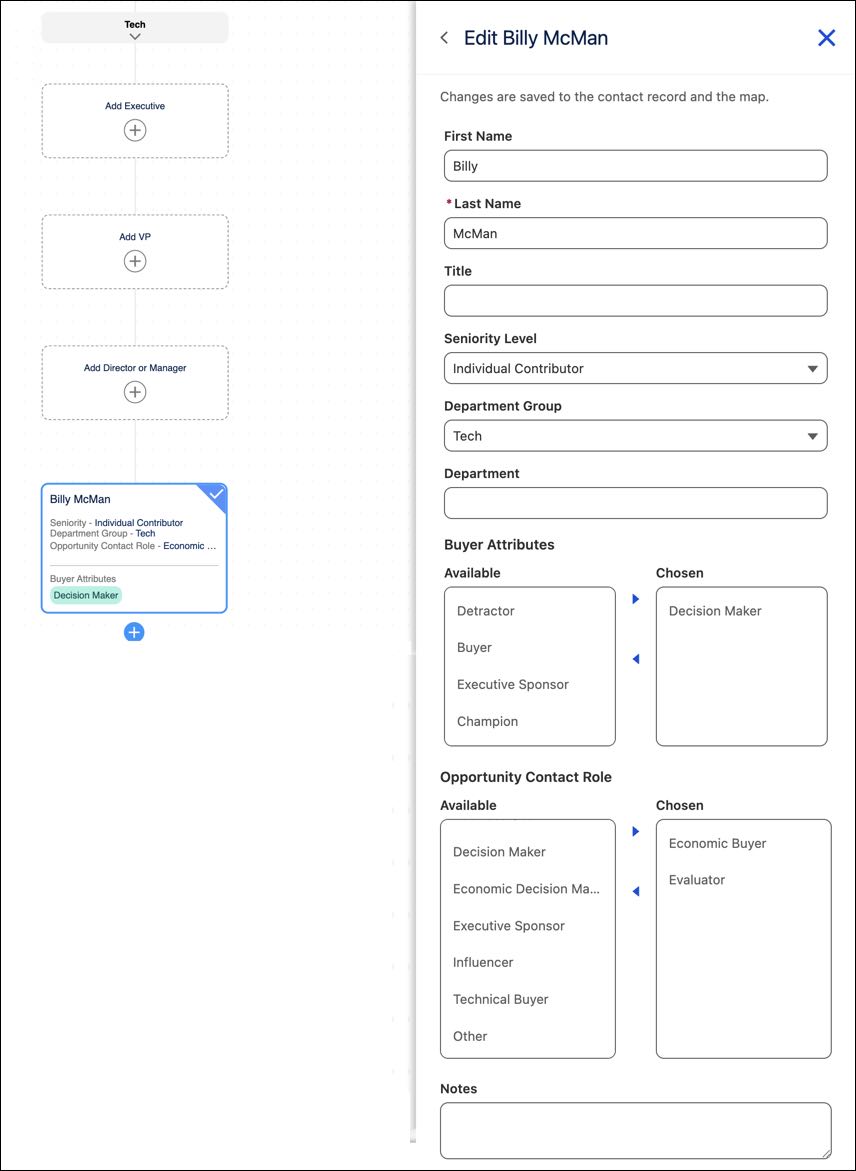
- If the contact is shown on the map, select the contact, and then click **Edit** in the side panel. Update the contact's details, and then click **Save**.
- If the contact isn’t shown on the map, open **Incomplete Contacts** in the side panel. Next to the contact, click **Edit contact**. Update the contact's details, and then click **Save**.
4. To remove a contact from the map, do one of the following.
- To delete the contact only from the map, select the contact, and then click **Remove**. Select **Remove from Relationship Map Only**, and then click **Remove**.
- To delete the contact from the opportunity or account, select the contact, and then click **Remove**. Select **Remove from Opportunity/Account**, and then click **Remove**.
#### See Also
- [How Automatic Contact Enhancements Works with the Buyer Relationship Map](https://help.salesforce.com/s/articleView?id=sales.contacts_buyer_rel_map.htm&release=264.0.0&type=5 "Automatic Contact Enhancements helps keep buyer relationship maps up-to-date so that you always have the most robust contact information without any manual data entry. Automatic Contact Enhancements uses generative AI to identify buyer attributes, department group, and seniority level from a user’s email activity. These values are then added to the contact and shown in the buyer relationship map.")
- [_Object Reference for the Salesforce Platform:_ Contact](https://developer.salesforce.com/docs/atlas.en-us.object_reference.meta/object_reference/sforce_api_objects_contact.htm)