---
schema_version: "1"
id: ac28b93679ef8dad835e1d58741a003e28176873879b93b78e80c934d133375a
title: Set Up the Gmail Integration in the Chrome Side Panel
collection: admin
version: current
locale: en-us
portal_url: https://docs.salesforce.com/admin/current/en-us/sales/264-0-0/app_for_gmail_setup_in_chrome_side_panel.md
canonical_url: https://help.salesforce.com/s/articleView?id=sales.app_for_gmail_setup_in_chrome_side_panel.htm&release=264.0.0&type=5
source_site: help.salesforce.com
content_type: documentation
content_hash: 5573f62a24456801ef5f38a2e7aab1870425a16ccb86e67e3cd2e94b4e0220d6
description: The Chrome side panel is visible as sales reps work in their email and calendar, and as they navigate from page to page in their browser.
products:
  - Sales Cloud
  - Cross Cloud
  - Service Cloud Voice
release: "264"
---
# Set Up the Gmail Integration in the Chrome Side Panel

The Chrome side panel is visible as sales reps work in their email and calendar, and as they navigate from page to page in their browser.

### Required Editions

<table class="slds-table slds-table_bordered slds-max-medium-table_stacked slds-m-bottom_small edition"><colgroup><col></colgroup><tbody><tr class=""><td class="slds-cell-wrap" style="vertical-align:top;">Available with Sales, Service, and Lightning Platform in: <strong>Essentials</strong>, <strong>Group</strong>, <strong>Professional</strong>, <strong>Enterprise</strong>, <strong>Performance</strong>, <strong>Unlimited</strong>, and <strong>Developer</strong> Editions</td></tr></tbody></table>

<table class="slds-table slds-table_bordered slds-max-medium-table_stacked slds-m-bottom_small permission">
        <colgroup>
          <col>
          <col>
        </colgroup>
        <thead class="slds-text-title_caps ">
          <tr class="">
            <th scope="colgroup" class="slds-cell-wrap" colspan="2" style="text-align:center;vertical-align:top;" id="d135426e82">User Permissions Needed</th>
          </tr>
        </thead>
        <tbody>
          <tr class="">
            <td data-label="User Permissions Needed" class="slds-cell-wrap" style="vertical-align:top;" headers="d135426e82 ">To enable the Gmail integration</td>

            <td class="slds-cell-wrap" style="vertical-align:top;" headers="d135426e82 ">Customize Application</td>

          </tr>
        </tbody>
      </table>

The process to move to the Chrome side panel starts automatically when you open Gmail.

1. Open the Gmail integration.
2. Click **Try It Now** in the first onboarding panel.
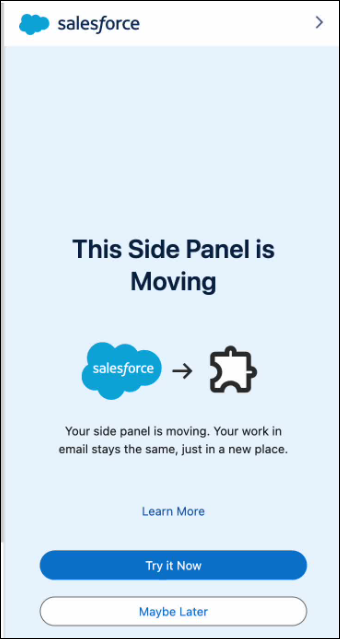
    
    ![Move the Gmail integration to the side panel](https://sf-zdocs-cdn-prod.zoominsoftware.com/tdta-sales-sales_productivity-264-0-0-production-enus/b2f6c36a-fa61-4a3c-9752-032ce1818a69/sales_productivity/images/email_integrations/app_for_gmail_setup_in_chrome_side_panel_step0.png)
3. In the next panel, click **Next**.
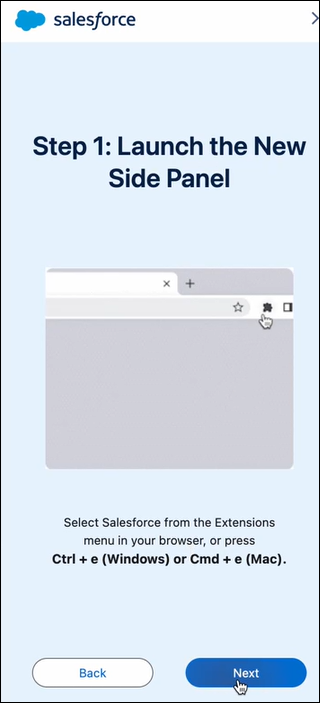
    
    ![Launch the new side panel](https://sf-zdocs-cdn-prod.zoominsoftware.com/tdta-sales-sales_productivity-264-0-0-production-enus/b2f6c36a-fa61-4a3c-9752-032ce1818a69/sales_productivity/images/email_integrations/app_for_gmail_setup_in_chrome_side_panel_step1.png)
4. In the next panel, check **Remove this panel from view**, and then click **Done**.
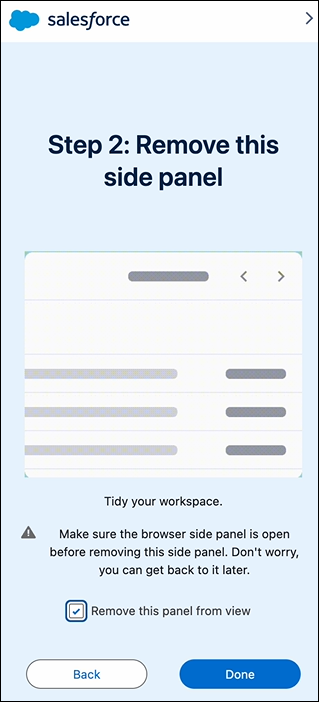
    
    ![Remove the old Gmail integration](https://sf-zdocs-cdn-prod.zoominsoftware.com/tdta-sales-sales_productivity-264-0-0-production-enus/b2f6c36a-fa61-4a3c-9752-032ce1818a69/sales_productivity/images/email_integrations/app_for_gmail_setup_in_chrome_side_panel_step2.png)

You can return to the old way of working with the Gmail integration. From the side panel navigation menu, select **Switch back to embedded mode**. If you don't see that option, exit and then reopen the Gmail integration. In the last step, select **Remove this panel from view** and then click **Done**.