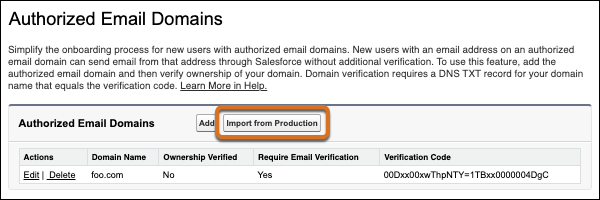
Simplify sandbox setup by skipping an update to DNS. Specify the authorized email domains in production to copy to sandboxes, then import them all into a sandbox with one click.
Where: This change applies to Lightning Experience and Salesforce Classic in all editions except Database.com.
When: This feature was first released late in Summer ’26.
Why: Salesforce generates an org-specific verification code for each authorized email domain. To verify ownership of the domain, you add the code to the domain’s DNS record. When you import authorized email domains from production, you eliminate the extra verification step, so sandbox environments are ready faster.
Although Salesforce recommends DKIM keys for email domain verification, to maintain the security of DKIM key email signatures, you can’t copy a DKIM key to a sandbox. If you use DKIM keys, enable the Use a substitute email address for unverified domains deliverability setting in your sandboxes. Or consider setting up an authorized email domain in production for each domain that you want to copy to sandboxes.
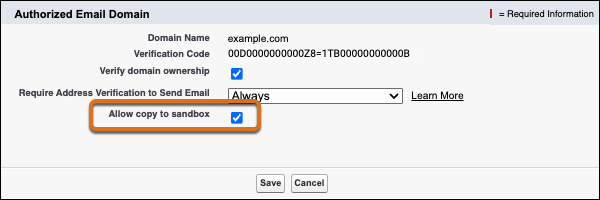
How: In production, from Setup, in the Quick Find box, enter Authorized Email Domains, and then select Authorized Email Domains. For each verified domain that you want to copy to sandboxes, edit the domain, select Allow copy to sandbox, and then save your changes.
In any sandbox, on the Authorized Email Domains page in Setup, click Import from Production.