
Share rich contextual data about customer interactions with your sales teams. Momentum automatically captures recorded sales conversations and structures them in Salesforce alongside relevant insights and any deal risks. Your reps can better prepare for scheduled calls, and review recordings, call summaries, and next steps with ease. And with Momentum’s data foundation, your teams can see these insights, buying signals, and deal risks surfaced in relevant areas across Salesforce.
Where: This change applies to Lightning Experience in Enterprise, Performance, and Unlimited Editions with the Agentforce for Sales add-on, or is included in Agentforce 1 Sales Edition.
When: This feature is available in November 2026.
Why: From the Momentum tab, users can access their call library, including a list of their upcoming calls and recorded calls.
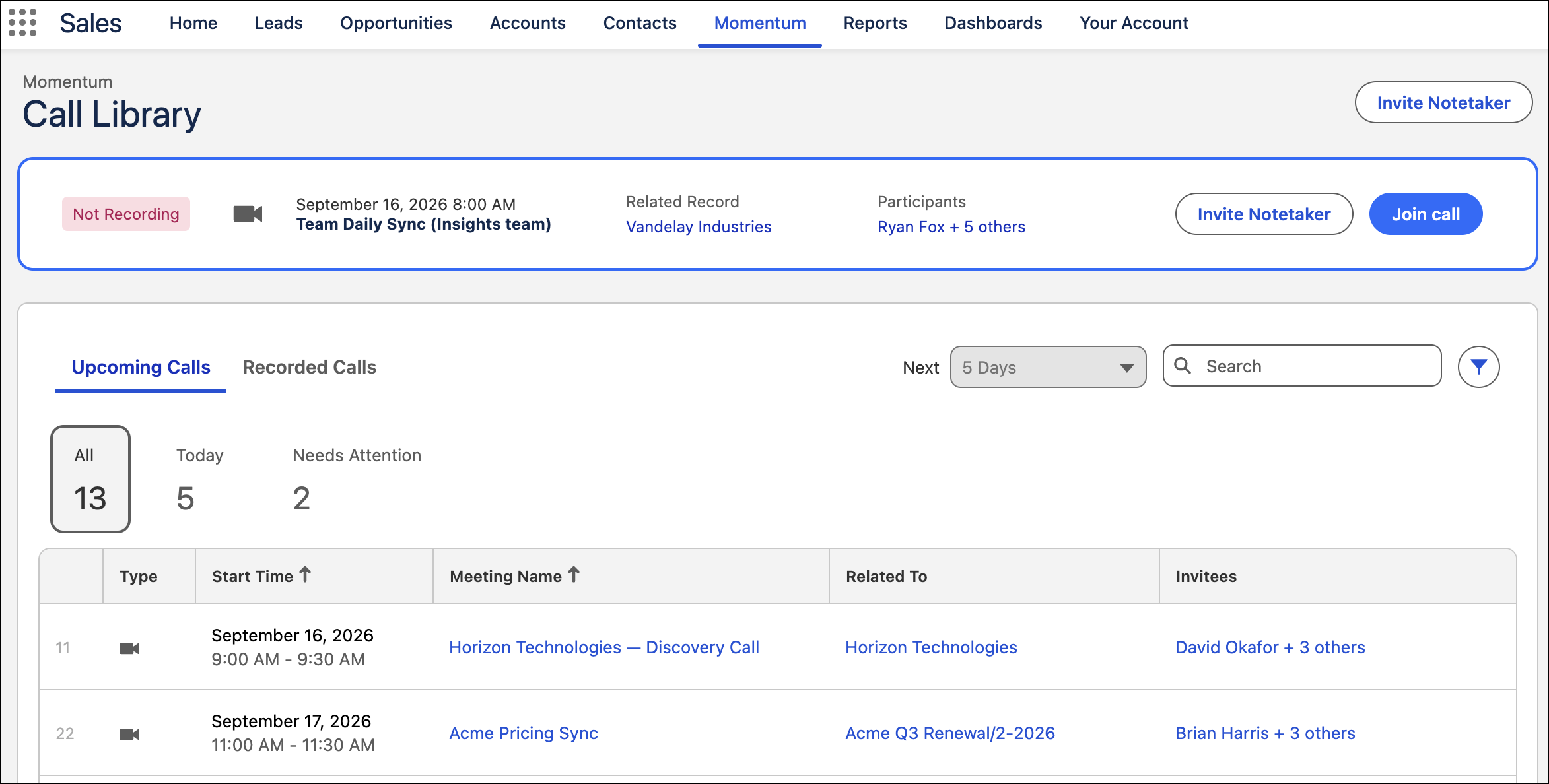
Your organization’s recording, consent, privacy, and exclusion settings determine which conversations Momentum captures.
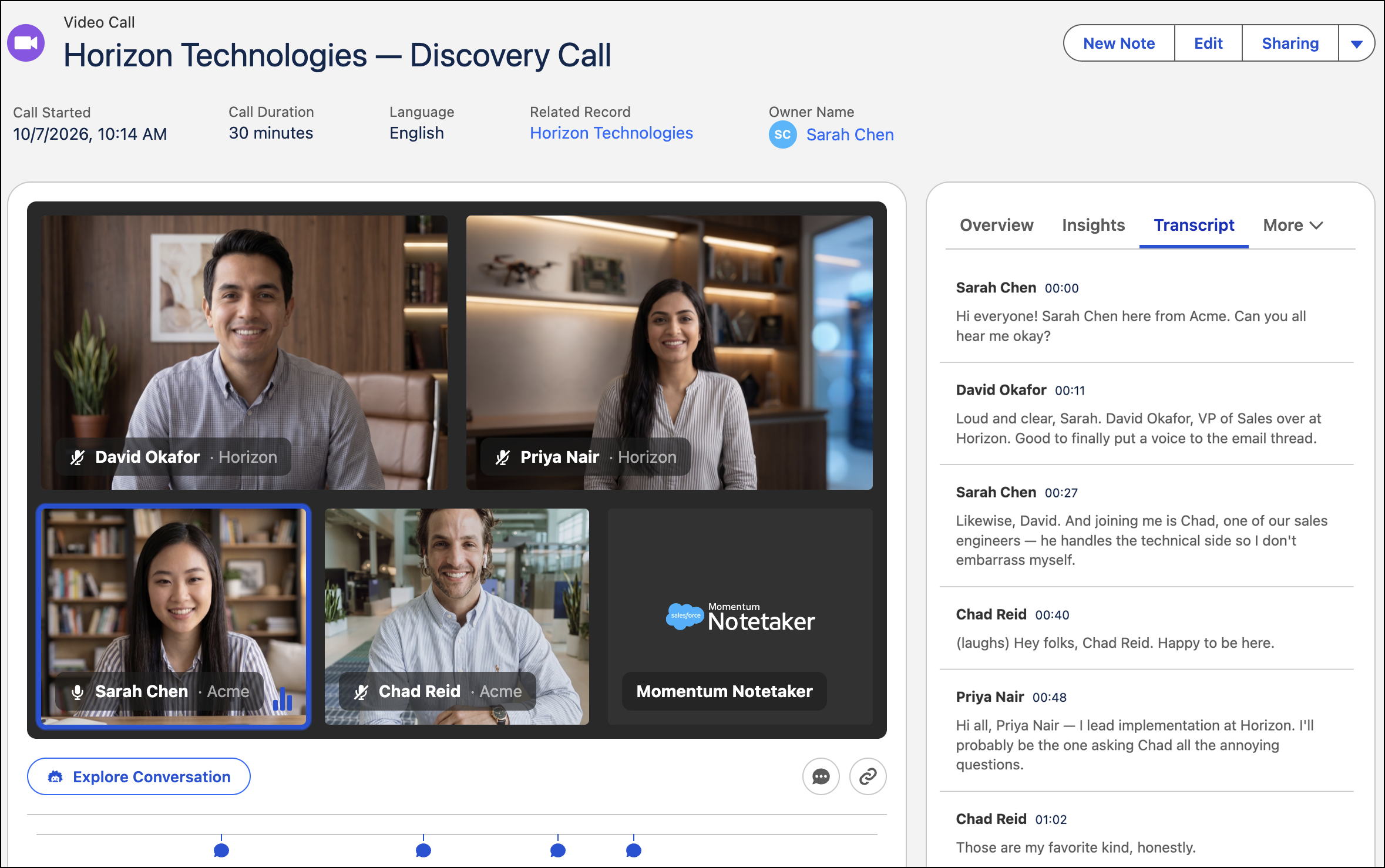
Video calls are related to relevant participants and opportunity or account records. Each call features a recording player, transcript, call summary, and action items.
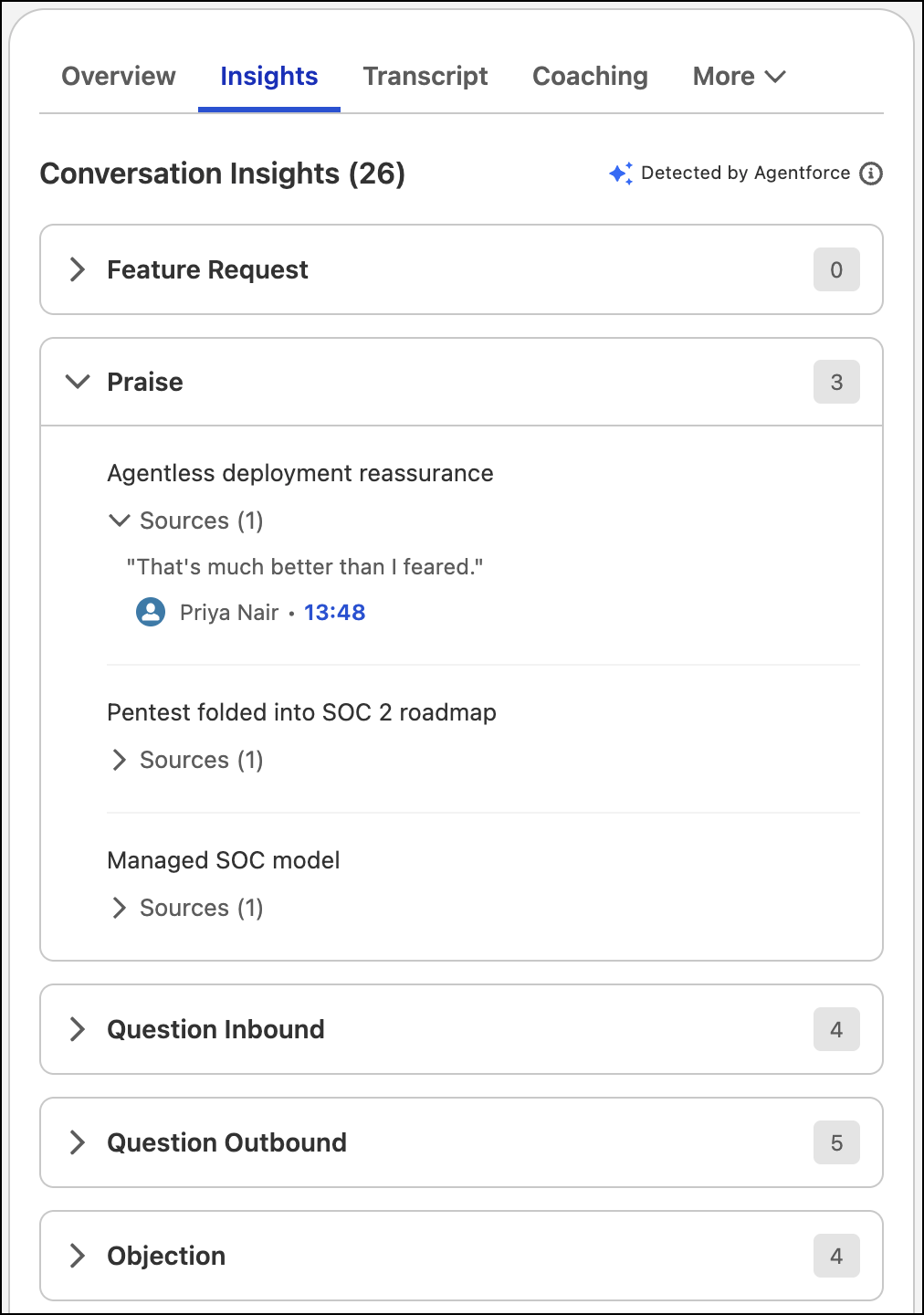
The Insights tab features relevant distillations–or memory fragments–from the call, including praise, objections, and product feedback. Examine these reusable fragments across calls to get a complete sense of how things are going with your team’s sales conversations.
After activating Momentum, you can turn on features like Call Coaching to access more information about individual calls. You can also harness this data across calls, use it to configure automatic field updates or field update suggestions for opportunity and account fields, or access it headlessly in other interfaces.
How: Momentum requires a connection to Google Workspace or Microsoft 365, Data 360, and Einstein Generative AI. Momentum isn’t compatible with Einstein Activity Capture or Einstein Conversation Insights. Momentum isn't yet fully supported in Japanese.
To turn on the feature, from Salesforce Go, enter Momentum under Features. Then connect your organization’s supported calendar and conferencing providers, review the generated configuration, and activate Momentum. After you’ve turned on Momentum, users need to connect their video providers.