See Relevant Report Data by Using Organizational Hierarchies in Data 360 Reports (Beta)
Filter Semantic Data Model reports to help your users focus on the report data that matters to their role. By defining role or manager hierarchies, you can provide a focused view of organizational data and simplify reporting across teams. Managers can easily analyze their team’s records or view all records.
Where: This change applies to Data 360 in Developer, Enterprise, Performance, and Unlimited editions.

How: Before using organizational hierarchy filters,make sure that the User and User Role Data Model Objects (DMOs) are available. In the Semantic Data Model authoring page, define a role hierarchy or manager hierarchy for the semantic model used by your report.
Then, from Setup, in the Quick Find box, enter Reports and select Reports and Dashboards Settings. Then, select Enable Organizational Hierarchy in Data Cloud Reports (Beta).
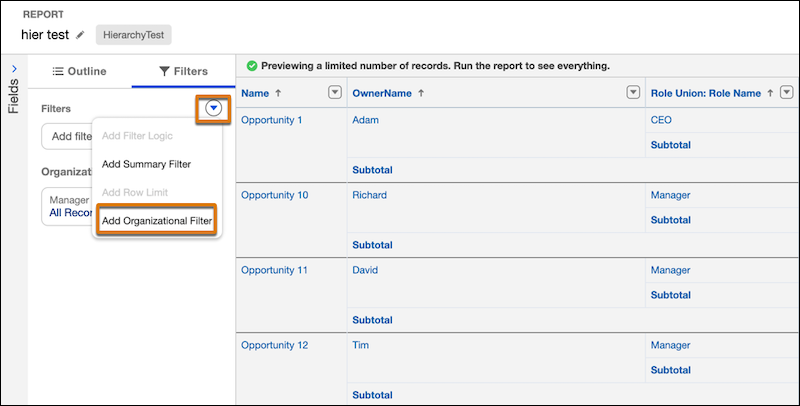
In the report editor, click the Filters tab and select Add Organizational Filter from the dropdown.
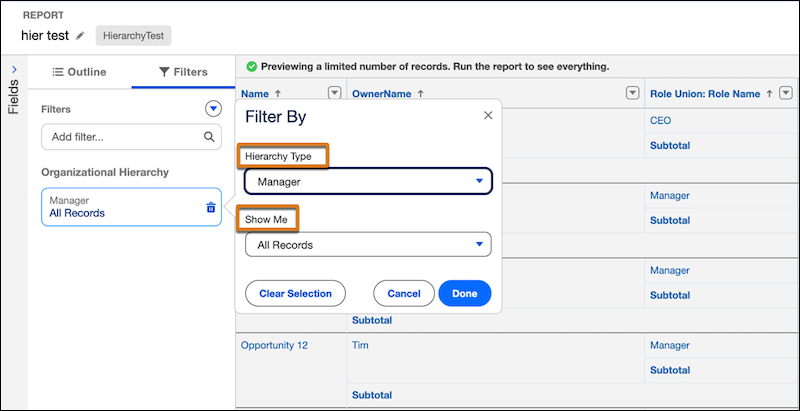
Under the Organizational Hierarchy section, click the filter to select the hierarchy type and scope of data based on your organization.