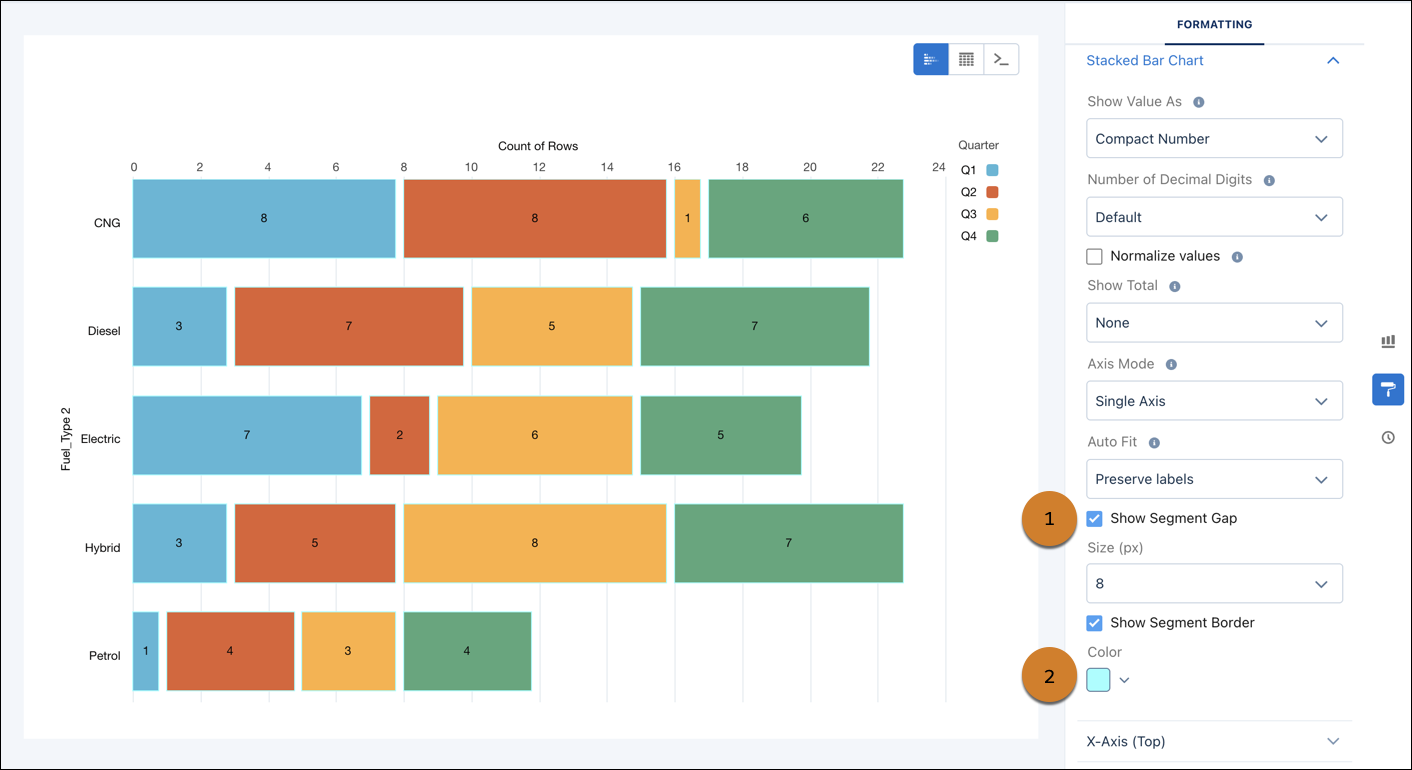
Use segment gaps and borders for improved readability on charts that rely on color differences. For example, slices in a pie chart or stacked sections in a column can be difficult to read, especially in high-density charts. These chart enhancements add visual separation between adjacent segments to improve readability. Supported chart types include Bar, Column, Stacked Bar, Stacked Column, Funnel, and Pie. These options aren’t on by default, so your existing charts remain unchanged.
Where: This change applies to CRM Analytics in Lightning Experience. CRM Analytics is available in Developer Edition and for an extra cost in Enterprise, Performance, and Unlimited editions.
Why: Segment gaps and borders matter most when your users view or print charts in high-contrast or grayscale display modes, where color differences can disappear entirely. Both options also help your charts meet Web Content Accessibility Guidelines (WCAG) 2.1 non-text contrast requirements and the Use of Color guideline (1.4.1), so your dashboards stay accessible and inclusive for all users.
How: Open the Formatting options for your chart type and turn on Show Segment Gap (1) or Show Segment Border (2) as needed. For Show Segment Gap, select a gap size of 1, 2, 4, or 8. For Show Segment Border, use the color picker to set the border color (white is default). Both options are also available in the Formatter in Explorer mode.