Describe what you want your flow to do, and Flow Author generates a deployable flow based on your confirmed intent. Flow Author supports autolaunched, record-triggered, schedule-triggered, and screen flows.
Where: Flow Author is a standalone Visual Studio Code extension available for use with a connected Salesforce org, which must have Agentforce enabled. This change applies to Developer, Enterprise, and Unlimited editions with Data Cloud or Agentforce 1 editions.

Who: To use Flow Author, you need the Agentforce Platform Developer and Admin permission set license (PSL) and the Agentforce Developer and Admin Tools permission set assigned to your user. Flow Author acts within the connected user's permissions and standard Flow Builder access, so users can do only what they're already allowed to do. Flow Author can't activate a flow by itself. It requires someone to review and approve activation.
How: To obtain the extension, contact your Salesforce account executive. Install the extension. We recommend using a sandbox org for your connected Salesforce org.
To open Flow Author, click  in the VS Code Activity Bar. Or press Cmd+Shift+P on macOS (Ctrl+Shift+P on Windows)
to open the Command Palette, and run Flow Author (Beta): Open Chat.
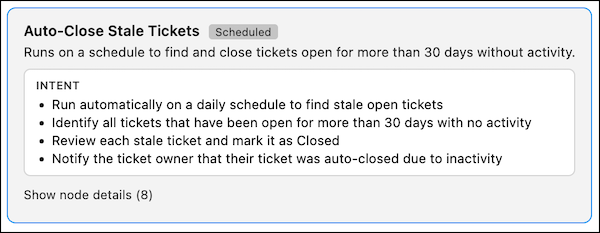
When the chat panel opens and you see the welcome message, describe the flow you want to
create. As Flow Author captures your intent, it displays a summary that confirms each
requirement.
in the VS Code Activity Bar. Or press Cmd+Shift+P on macOS (Ctrl+Shift+P on Windows)
to open the Command Palette, and run Flow Author (Beta): Open Chat.
When the chat panel opens and you see the welcome message, describe the flow you want to
create. As Flow Author captures your intent, it displays a summary that confirms each
requirement.
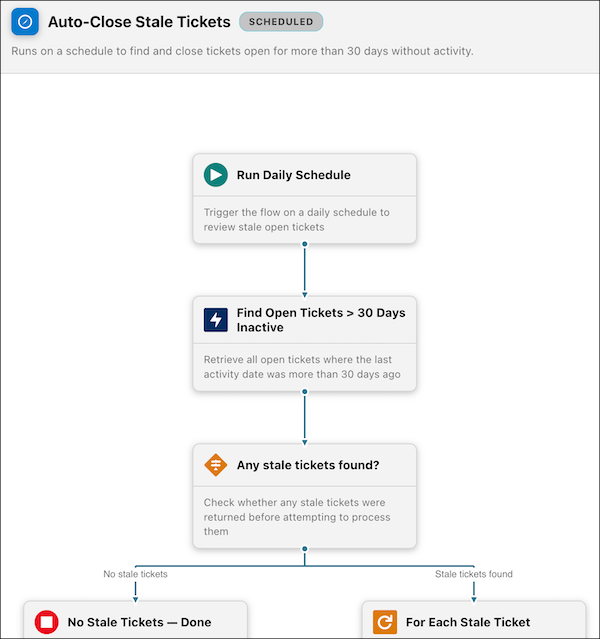
When you click Approve, Flow Author generates your flow and displays it in VS Code so you can review its structure before deployment.
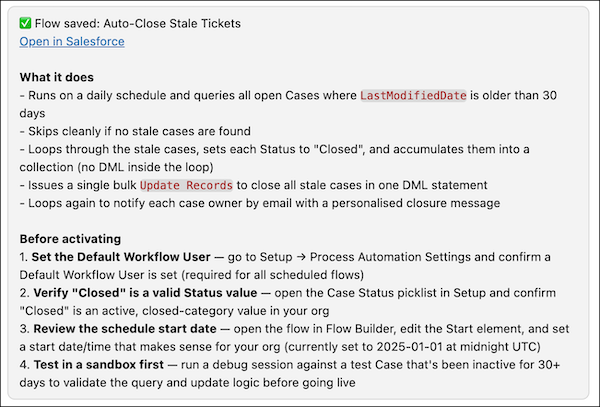
Flow Author then deploys the flow to your connected org.