
Agentforce Service and Employee agents now support file uploads in production and preview conversations, so you can help your agents resolve more inquiries. When you add file upload support to your agent, your users can share screenshots, receipts, and PDFs by attaching a file in the chat window. Your agent can interpret the image or PDF content and answer questions, and it can add the file to a Salesforce record or use the file as context. File uploads are supported for agents connected to web clients on Enhanced Chat v1, Enhanced Chat v2, and Lightning Experience.
Where: This change applies to Lightning Experience in Enterprise, Performance, Unlimited, and Developer Editions with Foundations or Agentforce 1 Editions. Setup for AI agents is available on the desktop site.
When: This change is available on a rolling basis in Salesforce orgs upgraded to Winter ’27 starting the week of September 28, 2026. Go to trust.salesforce.com for exact dates.
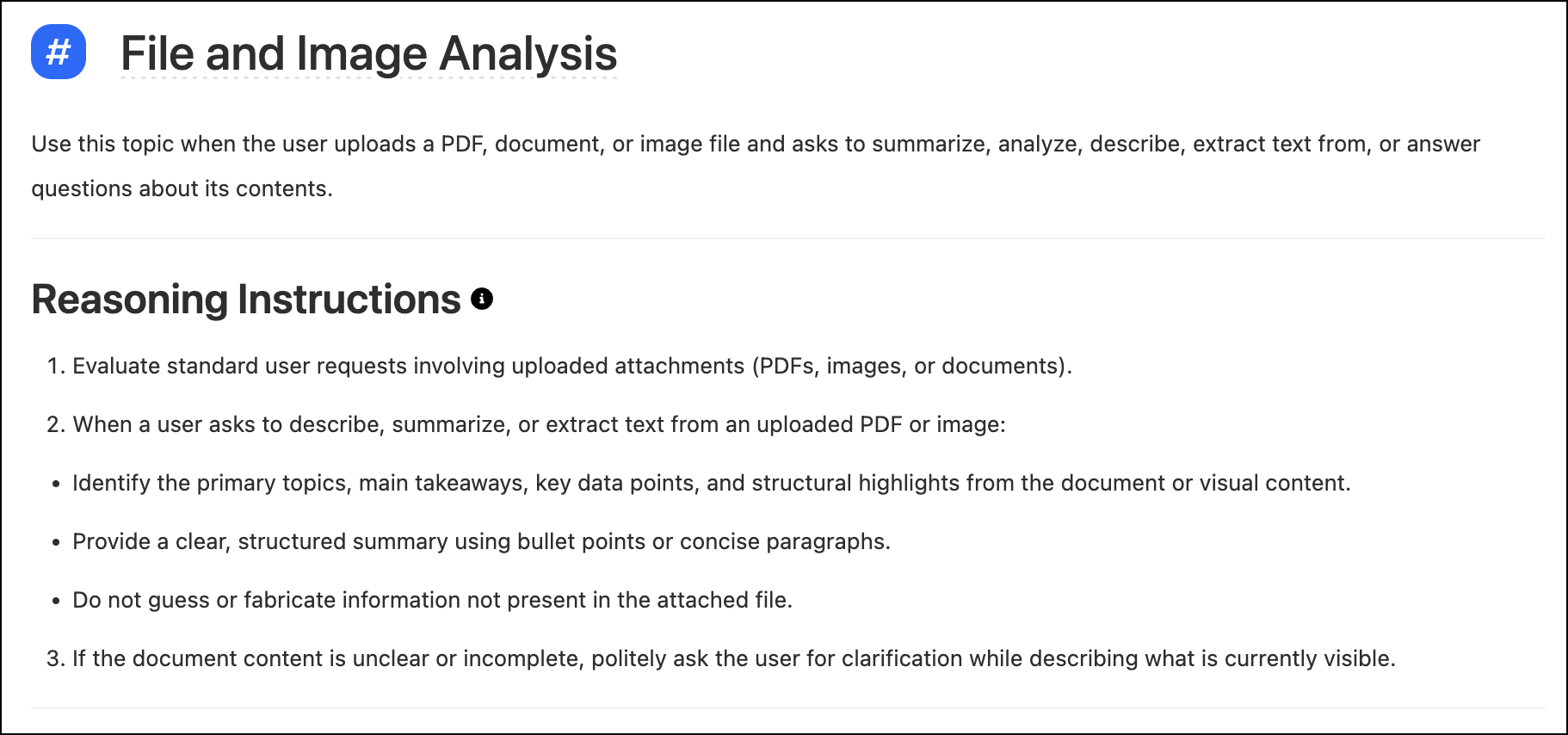
How: In an Agentforce agent, create a dedicated subagent for processing files. Add instructions to tell your agent how to handle the files it receives and how to use them in the conversation.
Optionally, in Script view, add the file upload parameter to your agent’s
config block and specify a mode. For example, by default, your
agent process files automatically and saves them to the conversation history. In managed
mode, your agent saves uploaded files to the uploaded_files variable,
and then you use the variable to control how your agent processes and uses the files.
You can also use modes to turn off file uploads for your agent.
config:
    developer_name: "Support_Agent"
    agent_label: "Customer Support Agent"
    file_upload:
        mode: "managed"
Enhanced Chat requires additional permissions and settings.