Arrange data around a circular axis in Tableau Next to compare values, identify cyclic or seasonal patterns in your data. With the new Radial layout, you can create pie charts, Nightingale rose charts, radial heatmaps, radial bar charts, and spoke bar charts without requiring complex calculations.
Where: This change applies to Tableau Next in Enterprise, Performance, and Unlimited editions.
Why: Choose the right radial chart type for your analysis.
- Pie chart: Show how individual categories contribute to a total value.
- Nightingale Rose chart: Compare values across categories that emphasizes differences in magnitude.
- Radial heatmap: Reveal trends, gaps, intensity, or hotspots across cyclical categories.
- Radial bar chart: Compare progress toward a goal across multiple categories in a compact circular layout.
- Spoke bar chart: Visualize cyclical or periodic data with bars that extend outward from a central hub.
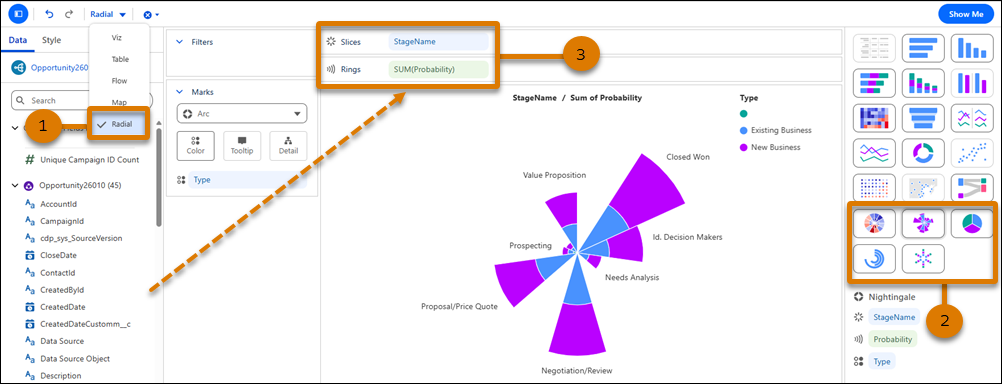
How: To create a radial chart, select Radial from the Layout menu in the widget toolbar (1). Click the thumbnail for the radial chart type you want in the Show Me pane (2). Add fields to the Slices and Rings shelves (3).