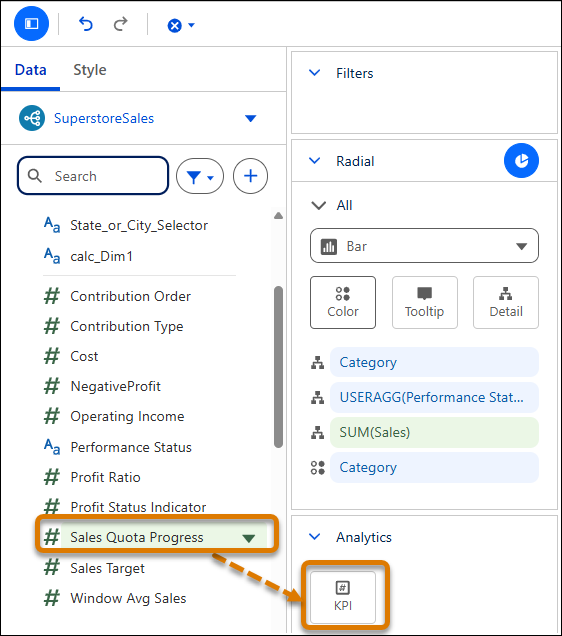
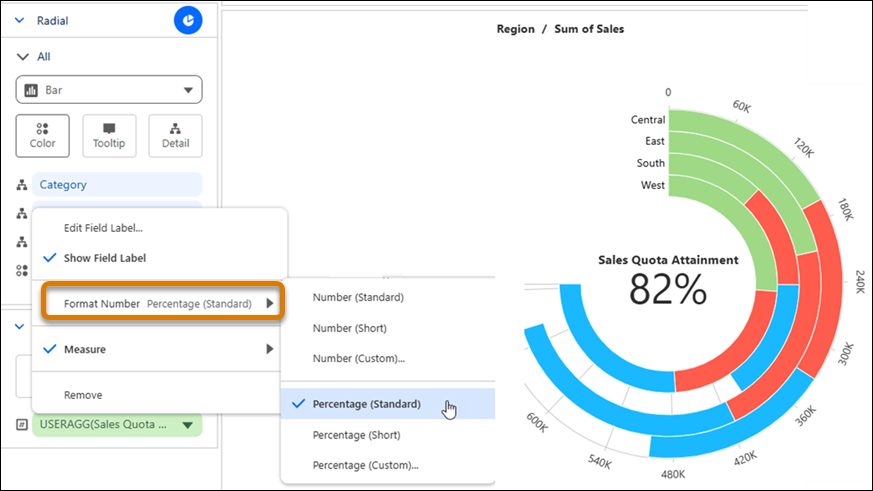
Highlight aggregate metrics alongside visualizations in Tableau Next by including KPI values in radial charts. For example, track total sales in the center of a donut chart while breaking down sales by category. Or, monitor sales quota attainment with a radial bar chart that compares progress toward sales goals across regions. You can format a KPI value as a number or percentage and add the visualization to a dashboard to monitor key metrics.
Where: This change applies to Tableau Next in Enterprise, Performance, and Unlimited editions.
How: To add a KPI, drag a measure or calculated field from the Data pane to KPI in the Analytics section. To format the KPI, select a formatting option from its context menu.