Transform geographic data into interactive maps in Tableau Next to explore regional trends and patterns without manually entering latitude and longitude coordinates. Use geographic roles and hierarchies to simplify map authoring, organize related location fields, and distinguish between places with the same name. Also, navigate maps efficiently using map controls or keyboard shortcuts for common actions.
Where: This change applies to Tableau Next in Enterprise, Performance, and Unlimited editions.
Who: To enable this feature for your org, contact your Salesforce admin.
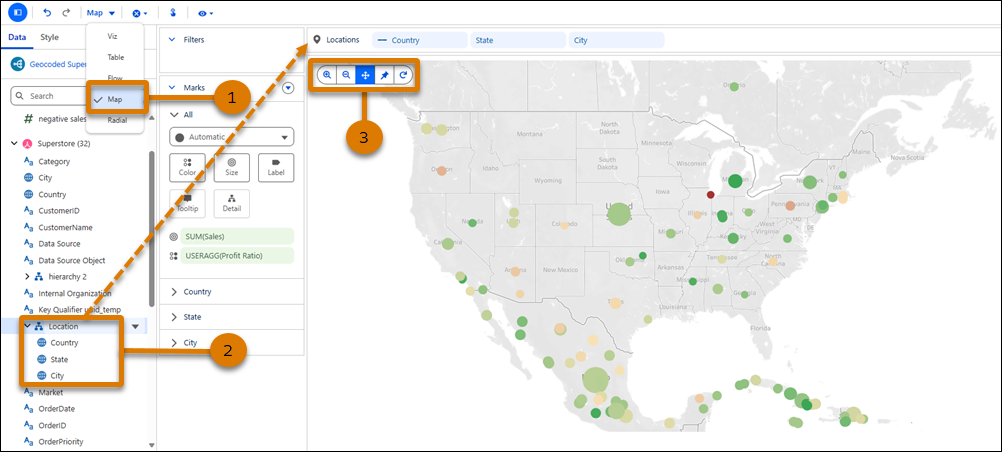
Why: For example, create a point map that shows sales performance by city. Size marks by sales and color them by profit ratio to identify top-performing markets and underperforming regions, then zoom from a regional view to city-level detail to uncover growth opportunities.
How: To set a field's geo role in the visualization builder, from the field's context menu, click Edit Properties. From the Data Type menu, select Geographic Role. Then, select the field's geo role, such as City.
To create a point map, select Map from the Layout menu in the widget toolbar (1). Drag a geographical hierarchy or field to the Locations shelf. Use the map controls (3) or keyboard shortcuts to zoom, pan, pin locations, and reset the map view.