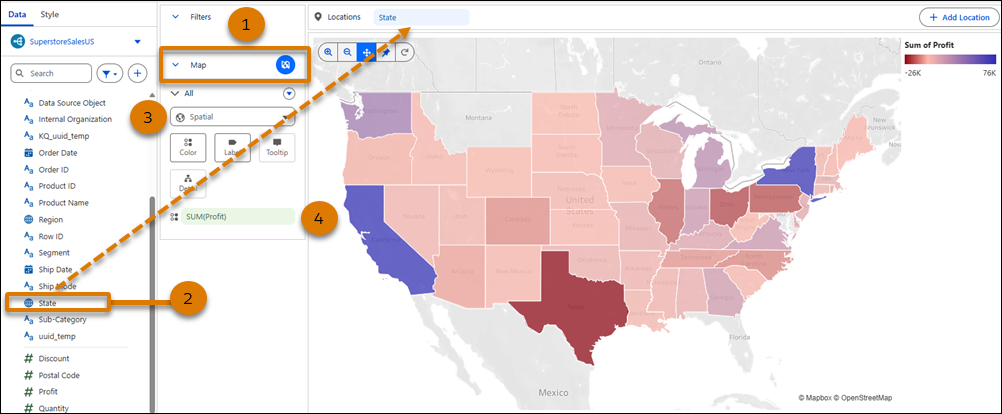
Create choropleth maps in Tableau Next to compare data across geographic areas such as countries, states, counties, and cities. Visualize differences in values using color to quickly identify geographic hotspots and outliers. Explore the map interactively and zoom in for greater detail or zoom out for a broader picture.
Where: This change applies to Tableau Next in Enterprise, Performance, and Unlimited editions.
Why: For example, compare profit across states to quickly spot states with unusually high or low profit.
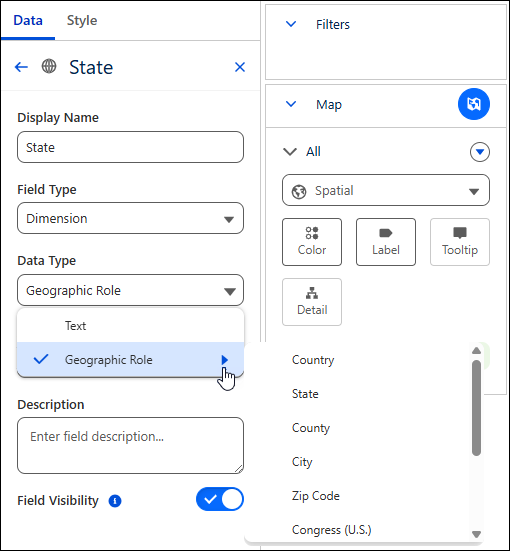
How: To set a field's geo role in the visualization builder, from the field's context menu, click Edit Properties. From the Data Type menu, select Geographic Role. Then, select the field's geo role, such as State.
To create a choropleth map, select Map from the Layout Type menu (1). Drag the geographical field to the Locations shelf. Select Spatial as the Marks type (3). Drag a measure, such as Profit, to Color (4).