Provide Service Reps with Immediate Case and Customer Context with Case Catch-Up & Insights
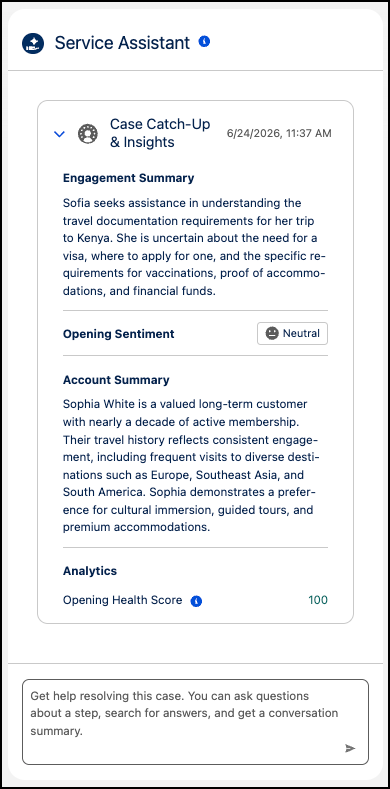
Instead of spending time catching up on case details, your service reps now get a 360-degree view of a customer and key case details directly within the Service Assistant component. When a rep opens a case record, Case Catch-Up & Insights displays AI-generated summaries of the case, associated account, customer sentiment, and case health score.
Where: This change applies to Lightning Experience in Enterprise, Unlimited, and Developer editions with the Agentforce for Service or Agentforce 1 add-ons. This feature requires the Service Planner and Adaptive Experience add-ons.
Feature Support: This feature is supported in Service Assistant for Case.
When: This feature is available starting July 21, 2026.
Who:
- To set up Case Catch-Up & Insights, Salesforce admins need the Service Planner Builder and Prompt Template Manager permission sets.
- To use Case Catch-Up & Insights, service reps need the Service Planner User and Prompt Template User permission sets.
- The ServicePlanner User (agent user) doesn’t require any specific permissions to access this feature.
Why: Previously, service reps had to manually review the case details and associated account and contact details. Now, Service Assistant generates a unified card with customizable insights: Engagement Summary, Account Summary, Opening Sentiment, and Analytics. Service reps have critical case information in one place to help them gather context and start resolving an issue faster and more efficiently.
How: Case Catch-Up & Insights is available for setup without needing to complete the full Service Assistant setup, including creating a Service Assistant agent. The only Service Assistant-specific setup required to access Case Catch-Up & Insights is that you turn on Service Assistant for Case from the Service Assistant Setup page and add the Service Assistant component to the case record page. To enable Case Catch-Up & Insights, turn on Case Catch-Up & Insights from the Setup page and then turn on each insight you want to show to service reps. Afterward, go to Prompt Builder to activate the default prompt template for each insight you turned on. You can use the templates as is or configure them to your business requirements.