
Enable dark mode for Salesforce Lightning Design System 2 (SLDS 2) themes in Performance and Unlimited edition orgs. And in all editions where dark mode is available, you can now upload a dark-mode version of your company’s logo for SLDS 2 themes. Dark mode shows light-colored text and visual elements on a dark background, which lays the foundation for richer theming opportunities and more customization of Lightning base components. With dark mode enabled, your users can select an appearance that reduces eye strain in low-light conditions and enhances readability.
Where: These changes apply to Salesforce Lightning Design System 2 and Lightning Experience in Performance and Unlimited editions.

How: To enable dark mode, from Setup, in the Quick Find box, enter Themes and
Branding and select it. Click New Theme, or click
 next to an existing SLDS 2 theme and then select Edit. In the
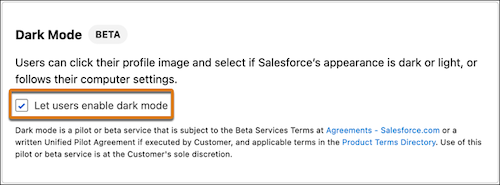
Dark Mode section, select Let users enable dark mode.
next to an existing SLDS 2 theme and then select Edit. In the
Dark Mode section, select Let users enable dark mode.
Save your changes and then activate the theme.
After you enable dark mode, a user can click their profile image and select how they want Salesforce to appear.
Not all Salesforce apps and features are fully optimized for dark mode yet, including:
- Analytics, reports, and dashboards
- Builders
- Setup
To share feedback about dark mode, see the Trailblazer Community Design Trailblazers.