
It's now much easier to set up and manage phishing-resistant verification methods for passwordless login and multi-factor authentication (MFA). On the new Passkeys page in your personal settings, you can view your registered passkeys and security keys, set up new ones, and delete ones that you no longer use.
Where: This change is available in Salesforce Classic in all editions.
Why: This change improves the MFA method registration experience for you and your users. Salesforce started enforcing MFA requirements in June 2026: MFA for all internal users and a stricter requirement for phishing-resistant MFA for privileged users. For direct Salesforce logins, passkeys and security keys are the most secure, easiest, and fastest way to satisfy these requirements.
For the best login experience, enable passwordless login with passkeys, which satisfies the MFA requirement. Users can log in by simply entering their username and then using their passkey or security key.
How: Go to your personal settings. Enter Passkeys in the Quick Find box, and then select Passkeys.
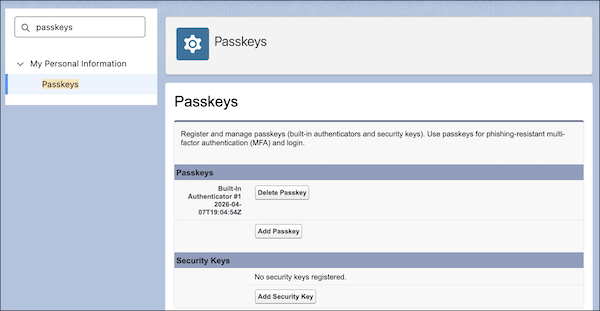
If you click Passkeys and get a blank page, try switching to Salesforce Classic or clearing your browser cookies.
If you can't see this page in your personal settings menu, check these settings on the Identity Verification page in Setup.
- Let users verify their identity with a built-in authenticator (passkey) such as Touch ID or Windows Hello—required to set up passkeys.
- Let users verify their identity with a physical security key (passkey) such as U2F or WebAuthn—required to set up security keys.
Previously, the only place to manage passkeys and security keys was the Advanced User Details page in your personal settings. You can still use that page, but the Passkeys page provides a better experience.