Passkeys are one of the most secure, fastest, and easiest ways to log in to Salesforce, and we want all users to experience their security and usability benefits. Passkeys are now the first verification method that users see for multi-factor authentication (MFA) registration, regardless of your org’s previous identity verification settings. We also simplified the passkey registration and login experiences. Instead of separate experiences for built-in authenticators and security keys, we now have unified passkey experiences.
Where: This change applies to Lightning Experience and Salesforce Classic in all editions.
When: This passkey-first registration and improved passkey experience are available starting on July 9, 2026. The change to auto-enable identity verification settings are scheduled to take effect slightly later in July 2026.
These changes apply when the Require multi-factor authentication (MFA) for all direct UI logins to your Salesforce org setting is turned on, even if Salesforce hasn’t enforced MFA in your org yet. After Salesforce enforces MFA, this setting becomes automatically enabled and can’t be disabled. For detailed enforcement timelines by Salesforce instance, see these articles.
- Prepare for Phishing-Resistant MFA Enforcement for Privileged Users including Admins
- Prepare for MFA Enforcement for All Employee Users
How: Here's a summary of everything that's changed for identity verification settings, registration, and login.
Changes to Identity Verification Settings
To support the passkey-first experience, Salesforce changed these settings on the Identity Verification page in Setup.
- Let users verify their identity with a built-in authenticator (passkey) such as Touch ID or Windows Hello—automatically enabled
- Let users verify their identity with a physical security key (passkey) such as U2F or WebAuthn— automatically enabled
- Show all permitted verification method options for MFA registration—automatically disabled, so that MFA registration begins with passkeys instead of showing users all verification methods
Registration Experience
There are no longer separate registration experiences for built-in authenticators and security keys. Now, it’s all a simple, unified passkey experience. Users can select verification methods of their choice, such as device authenticators (Windows Hello, Touch ID), physical security keys, or their mobile phone as a security key. They can also enable synced passkeys based on their browser and operating system settings.
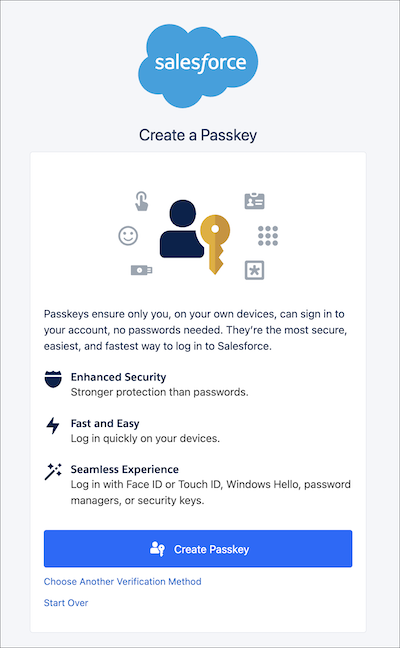
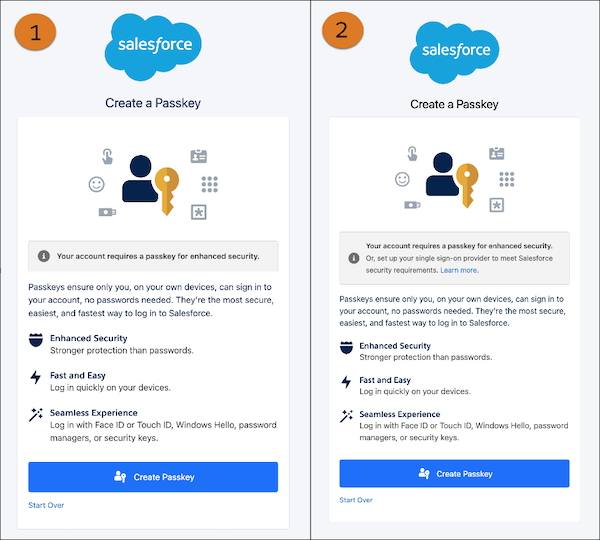
Because users with privileged permissions are required to use phishing-resistant MFA, the registration experience is slightly different depending on the user's level of access. Both types of users are prompted to set up passkeys first, but only privileged users are required to. Non-privileged users can choose to set up another verification method for MFA.
If non-privileged users don’t meet the MFA requirement, they now see this page after they enter their username and password.
Privileged users see slightly different pages depending on the type of login. Here's the page for direct login (1) and for single sign-on (2).
Login Experience
Just like with registration, there are no longer separate login processes for built-in authenticators and security keys. Now, users can log in with one simple passkey flow. This experience is the same for non-privileged and privileged users.
The unified passkey login experience applies to both MFA with passkeys and passwordless login. For MFA, users simply enter their username and password and are then instantly prompted by their browser to use their passkey. For passwordless login, the passkey login process is extra simple and fast, especially with the new username-first login experience. To log in, users just enter their username and use their passkey.
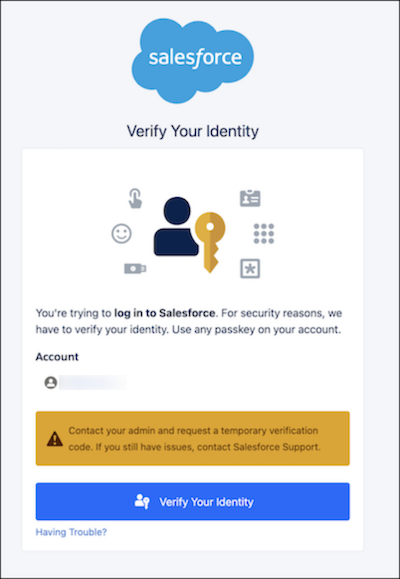
We also added a new warning message that appears if a user can't use their passkey. This warning directs users to request a temporary verification code instead. Here's how this warning looks for MFA with a passkey.