
Salesforce plans to make two changes to simplify and improve your login experience. Starting in June 2026, Salesforce prompts users to enter only their username as the first login step. And starting in August 2026, login with an email address becomes the default experience.

- For the username-first login change: Update tests to provide the username, hit the Log In button, and then provide the password.
- For the login with email change: Update tests to hit the Login with Username button and then
proceed with username-based login. Alternatively, to go directly to the username-based login
page, add the
login=1parameter to the login URL, such ashttps://login.salesforce.com/?login=1.
Where: Both of these changes apply to login.salesforce.com, test.salesforce.com, and mobile apps. The username-first login experience applies to My Domain login pages, but the login with email change doesn't. Neither change affects Experience Cloud login pages.
When: These changes are released on a rolling basis. Here’s when Salesforce plans to start. These dates are subject to change.
- Username-first login experience:
- Sandboxes: June 2026. As of July 2, 2026, the sandbox rollout is complete.
- Production orgs and mobile apps: July 20, 2026 (previously June 2026, but we changed the start date)
- Login with email as default experience:
- Sandboxes: August 2026
- Production orgs: October 2026
- Mobile apps: Tentatively planned to start in late 2026. Stay tuned for more information.
 Note Salesforce moved up the start of the login with email rollout from its previously announced date of September 2026.
Why: The username-first login change streamlines the passkey login experience. Users can simply enter their username and then use their passkey (built-in authenticator or security key). Passkey login is the fastest, easiest, and most secure way to log in while satisfying upcoming MFA requirements. To learn more about passkey login, see Passwordless Login with Passkeys.
The email login experience creates a unified login process. Instead of remembering usernames, you can simply enter your email address and find all associated accounts.
How: The username-first login experience applies to direct UI logins, but doesn't affect single sign-on (SSO) logins from a third party. Here's how the login experience works.
First, a user enters their username and clicks Log In.
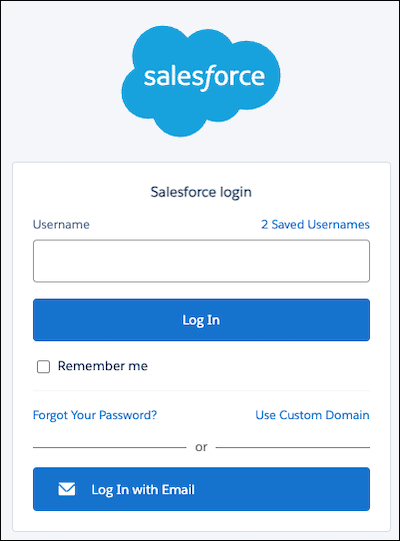
Based on the username, Salesforce determines what to do next.
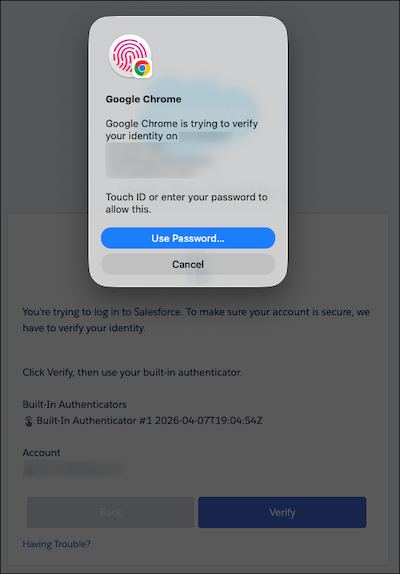
If passkey login is enabled, Salesforce prompts the user to use their registered passkey.
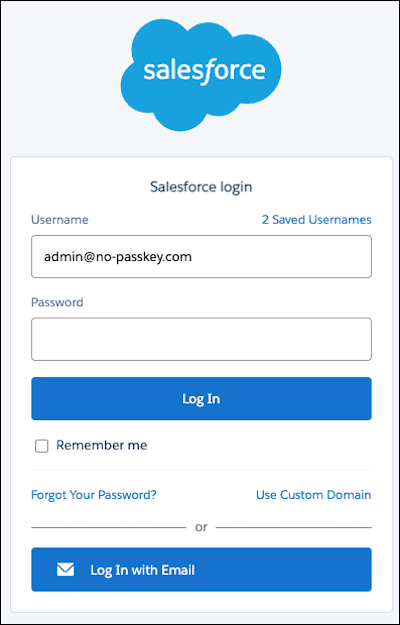
If the user doesn't use passkeys, Salesforce displays the password field.
For email login steps, see Log In with Your Email Address.
To prepare your automation using Robotic Process Automation (RPA), follow these practices.
- Prepare your My Domain to work with username-first login experience.
- To continue using the username login experience after email becomes default, update the login.salesforce.com and test.salesforce.com URLs in your automation to include the login=1 parameter: login.salesforce.com/?login=1 and http://test.salesforce.com/?login=1
- To continue using the UI that includes both the username and password text boxes after username-first login experience becomes default, update the login.salesforce.com and test.salesforce.com URLs in your automation to include the type=twobox parameter: login.salesforce.com/?type=twobox and test.salesforce.com/?type=twobox
- To prepare for log in with email, make sure that you have only one username for the email address. An email address linked to multiple usernames requires email verification every 30 days.
- Additionally, you can complete MFA challenges with automation.