
Learn about other changes we made in Summer ’26.
Where: These changes apply to Salesforce Enterprise and Unlimited editions with Marketing Cloud Next Growth and Advanced editions.
Copy Stakeholders on Unified Messaging Emails
To keep entire groups informed of business exchanges, add internal or external email addresses as CCed (carbon copy) recipients. To set up Email CC in Unified Messaging, turn on the CC field on the Send Settings page. Marketers can add up to 10 email addresses in each email send.
SEE ALSO | Salesforce Help: Set Up Email Carbon Copy in Unified Messaging
Store Email Copies with Email Archiving
To meet requirements for business processes and compliance, you can now store copies of
sent emails. As a cost-effective solution, we store the email archives in the
EmailMessage standard object. You must enable archiving in the Unified
Messaging setup. To minimize storage costs and export archived emails, use the Archive
app.
SEE ALSO | Salesforce Help: Set Up Email Archiving in Unified Messaging
Personalize Email Headers with Dynamic Addresses
Send marketing emails from a familiar, trusted sender to improve engagement and strengthen
customer relationships. You can now add Salesforce Contact and Account data dynamically to
your From and Reply-To addresses so that emails can appear to come directly from an account
owner or sales rep instead of generic addresses like do-not-reply@. When
customers respond, their replies go directly back to that specific person.
How: In Setup, find and select Authorized Email Domains under Unified Messaging. Then, add and verify email domains for dynamic addresses.
After domain verification is complete, marketers can use merge fields to dynamically configure the sender and reply addresses when they create a campaign.
Simplify Next-Gen Feature Discovery and Setup
Discover, set up, and configure Marketing Cloud Next features from a single location in Salesforce Go. Start with the Initial Setup card to complete foundational tasks, such as installing Marketing Cloud Next and configuring data streams. Feature cards for each marketing channel provide guided setup steps and track your setup progress.
SEE ALSO | Salesforce Help: Discover and Set Up Features with Salesforce Go
Slack & RCS Setup Node in Assistant Home
Find Slack and Rich Communication Services (RCS) configuration directly on the Assistant Home page.
- Connect Slack to your marketing campaigns and centralize collaboration for your marketers.
- Configure RCS to deliver rich messaging to mobile-first audiences.
SEE ALSO | Salesforce Help: Set Up Unified RCS Channel
Automate Your LinkedIn Strategy with Campaigns
To engage with your LinkedIn audience directly within Salesforce, use the new Create Social Post flow action. When marketers create LinkedIn posts as components of a campaign, they can better monitor engagement and overall performance.
Marketing Performance Is Now Marketing Performance Intelligence
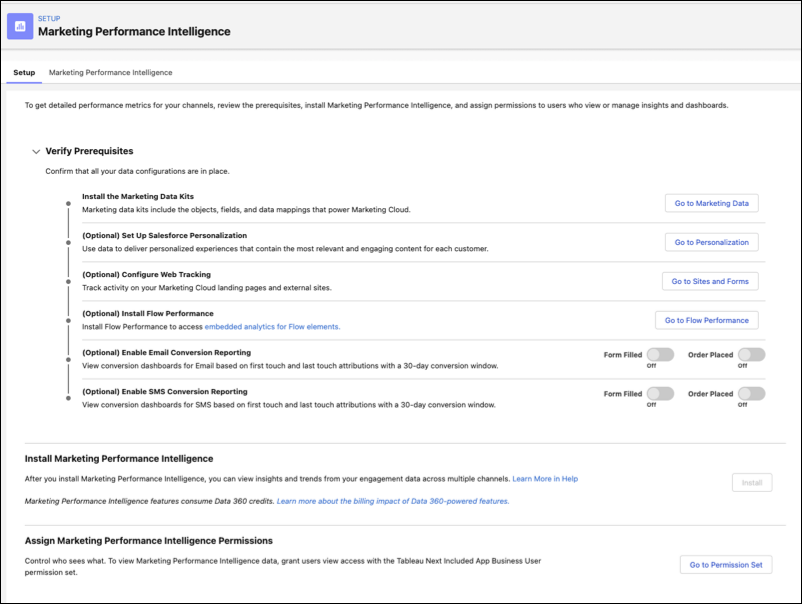
Marketing Performance Intelligence, formerly Marketing Performance, brings cross-channel performance, attribution, and goals together in one place. With unified marketing analytics, your marketers get a single source of truth for faster, data-driven decisions across the customer journey. During the naming transition, the old name might still appear in some Salesforce resources.
SEE ALSO | Salesforce Release Notes: Unify Your Marketing Data for Complete Performance Visibility
Grow Your Subscriber Base with the Subscriptions Dashboard
Monitor your Email, SMS, and WhatsApp subscribers from the Subscriptions dashboard in Marketing Performance. Track Opt-In Rate, Opt-Out Rate, and acquisition trends across channels in one place. Filter by subscription type, such as marketing, newsletter, or promotions, to identify which communications drive growth in your subscriber base.
Manage WhatsApp Consent in Your External System
Control WhatsApp subscriber consent outside Marketing Cloud and send messages without configuring a Communication Subscription. This flexibility accelerates onboarding by eliminating subscription setup requirements and reduces message delivery time by skipping internal consent verification in Flow Builder.
Reach WhatsApp Users with Usernames Using Business-Scoped User IDs
Import contacts with BSUIDs, send outbound messages when phone numbers aren't available, and track message engagement across both identifiers. Maintain contact continuity with WhatsApp users when they hide their phone numbers with usernames. Marketing Cloud supports Meta's Business-Scoped User ID (BSUID), which identifies users who enable username privacy.
When: Starting June 2026, Marketing Cloud Next continues to send compliance responses without disruption.
See Also | External Documentation: Business- Scoped User IDs
Automatically Format Phone Numbers to E.164
Improve message deliverability and eliminate format errors by enabling automatic E.164 formatting for phone numbers. After an admin turns on this setting, phone numbers without a country code automatically convert to the globally recognized E.164 format based on your default country code. The formatted numbers are then matched against phone numbers in consent records to ensure accurate, reliable message routing.
See Also | Salesforce Help: Standardize Phone Numbers to E.164 Format
Manage the Sales Data Kit Independently
The sales data kit is now an optional, on-demand component in Marketing Cloud Next setup. Previously bundled with required marketing data kits, it has its own dedicated section so you can choose whether and when to deploy it. You can also manage its updates independently from your other data kits.
How: In Setup, find and select Basic Settings under Marketing Cloud. In the sales data kit section, deploy the data kit as needed, check its status, or apply updates when available.
See Also | Salesforce Help: Deploy Data Streams for Marketing Cloud Next
Automate Follow-Up Tasks with Marketing Completion Actions
Reduce setup time by adding a marketing completion action to your audience flow. For example, you can set up a completion action to notify a user, or assign a lead to a specific user or queue. Previously, you had to configure separate flow logic for each outcome.
How: In Flow Builder, in the place that you want to put the element, click the plus sign. Select Action, and then select Marketing Completion Actions.
Updates to Related Features
Looking for other features that work with Marketing Cloud Next? Check out these updates to related features.