Extend your agent’s capabilities with Multi-Agent Orchestration for Agentforce (Beta). Connect your Agentforce agent with other specialized Agentforce agents in your Salesforce org. Together they can collaborate seamlessly on complex tasks. By providing a single, unified point of contact, connected subagents help your users accomplish more without juggling multiple disconnected sessions.

Where: This change applies to Lightning Experience in Enterprise, Performance, Unlimited, and Developer editions with Foundations or Agentforce 1 editions.
When: Multi-Agent Orchestration for Agentforce (Beta) features start rolling out the week of May 4, 2026. Certain features may come in a subsequent roll out. For example: support for custom variables and a unified trace view in NGA that shows a connected subagent's trace in detail.
How:
- If the agent was built using the new Agent Builder, create and activate a new version of it.
- If the agent was built using the legacy Agentforce Builder, upgrade it to the new Agent Builder. See Upgrade an Agent from the Legacy Builder to the New Builder.
In Agent Builder, open an agent in a draft state. This agent serves as your orchestrator agent. From the Explorer panel, click + and select Connect Agent as Subagent (Beta). Select one or more available agents that you want your agent to connect to, then select Add to Agent to add your selections to the Explorer.
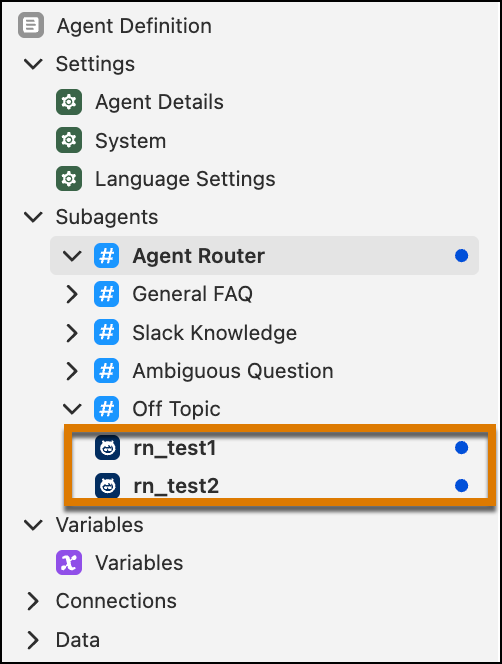
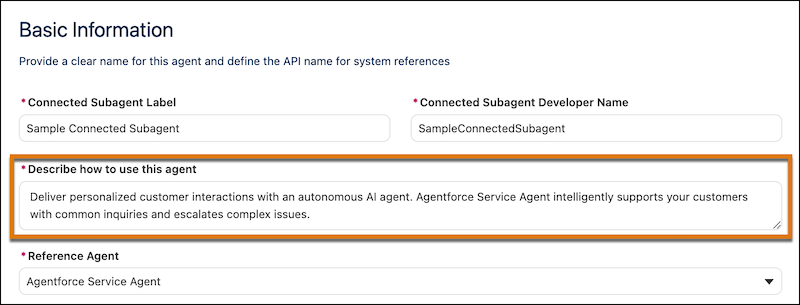
For each connected subagent, customize its description to govern its behavior within the context of your orchestrator agent.
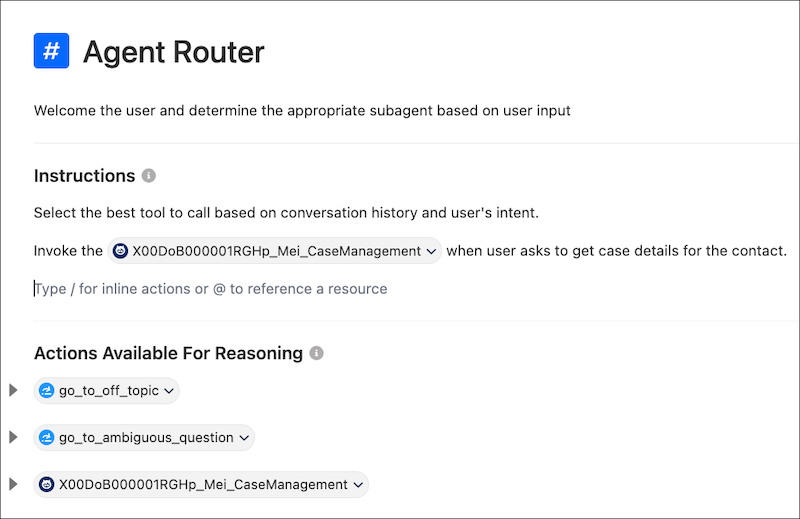
If your orchestrator agent uses Agent Router, specify any logic or instructions for routing conversations to the connected subagent. In Canvas view, manually add each connected subagent under Actions Available for Reasoning. Then use the @ symbol to reference it in the Instructions.