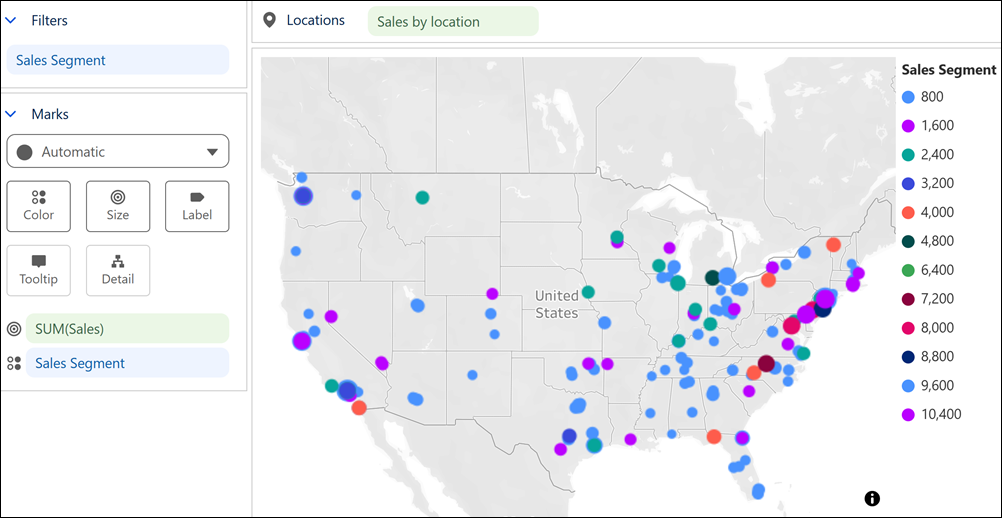
To evaluate how values vary across locations, plot latitude and longitude data in Tableau Next’s new map view. Uncover broader geographic trends by grouping or binning related data points. Or narrow your analysis to specific regions by applying filters in the map view.
Where: This change applies to Tableau Next in Enterprise, Performance, and Unlimited editions.
Who: To enable this feature for your org, contact your Salesforce admin.
Why: For example, in a point map, compare how sales vary across locations to analyze market distribution. Size marks by sales to identify the largest markets. Group locations into sales ranges using bins, and color them to compare markets at a broader level.
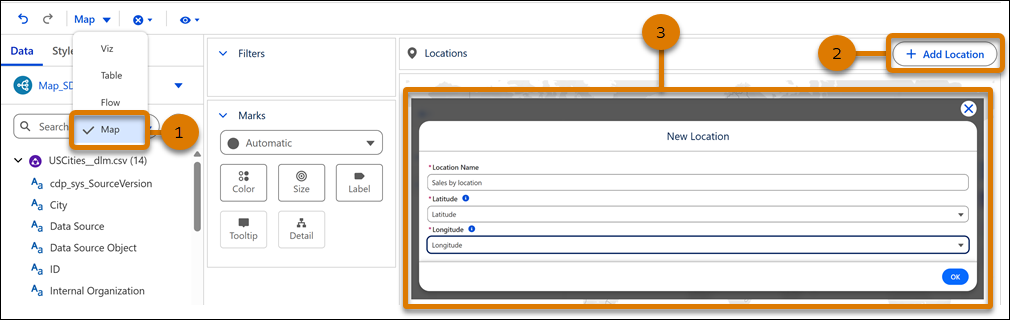
How: To create a point map, select Map from the Layout menu in the widget toolbar (1). Click + Add Location (2). Enter a location name, then select latitude and longitude fields from your data source (3).
Use the mouse scroll wheel to zoom in and out. Hold the Shift key and drag to pan across the map.