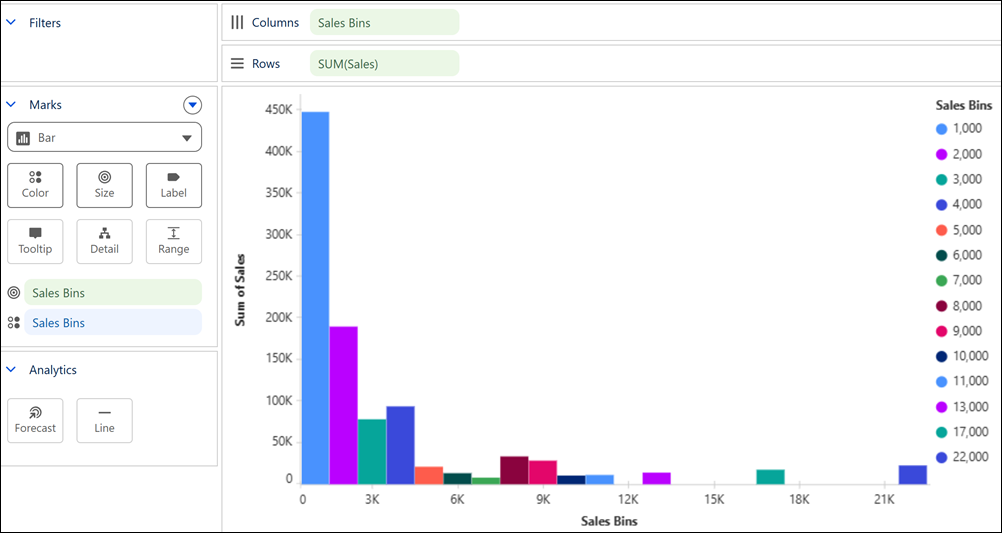
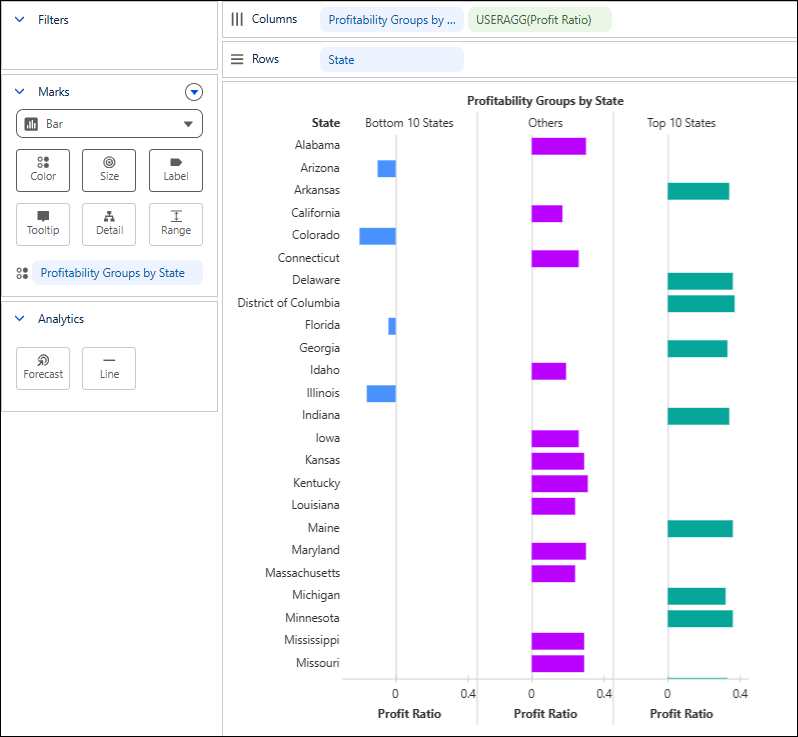
Segment dimension values into meaningful groups to compare performance across segments without changing the underlying data. For example, categorize states into Top 10, Bottom 10, and others based on profit ratio to highlight leading and underperforming states at a glance. Bucket continuous measure values into evenly sized bins to understand how data is distributed within ranges. For example, create bins on Sales to build a histogram that shows how order values are spread across ranges and identifies which bins contain the most orders.
Where: This change applies to Tableau Next in Enterprise, Performance, and Unlimited editions.
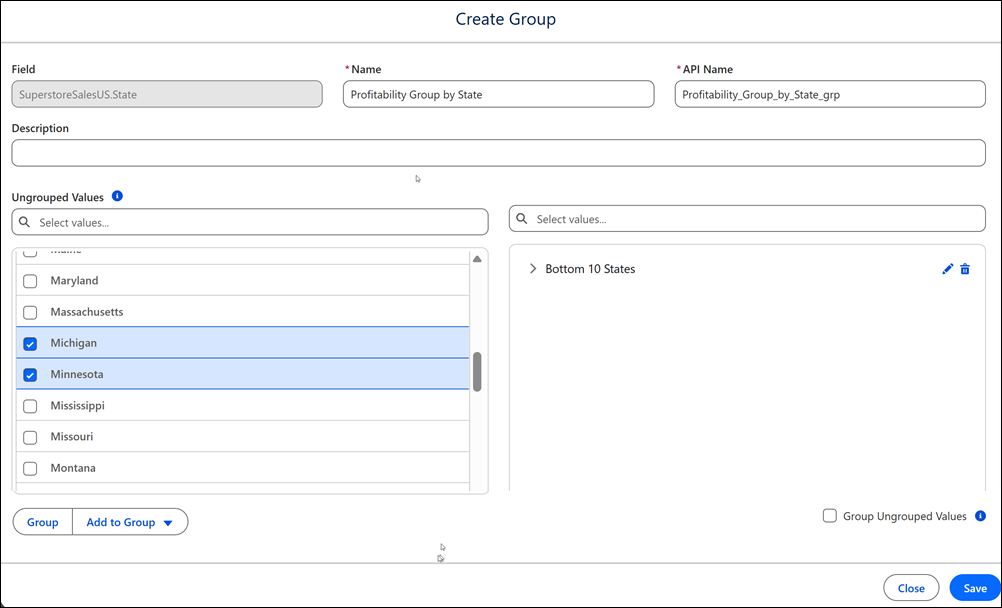
How: To create a group, from a dimension field’s context menu, select Create Group. Name the group, define group members, and assign values to each member. To group unassigned values, select Group Ungrouped Values. Save the group.
To create a bin, from a measure field’s context menu, select Create Bin. Name the bin and specify the bin size. Save the bin.