
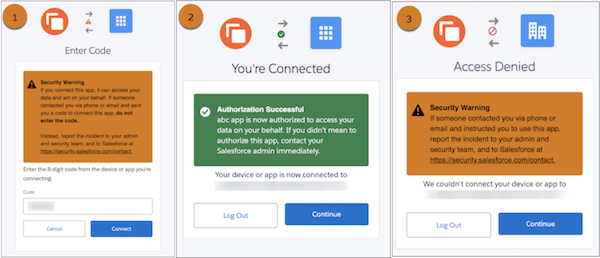
To discourage users from connecting unfamiliar third-party apps to Salesforce, we added security alerts for OAuth flows. These security alerts appear when a user connects a device to Salesforce via the OAuth 2.0 device flow. We also updated the security alert on the page where users authorize access to their data via OAuth 2.0 flows.
Where: This change applies to Lightning Experience and Salesforce Classic (not available in all orgs) in all editions.
How: During the device flow, users are prompted to enter a code from the device or app that they're connecting. We added a security alert to the page where users enter their code (1), to the page that indicates a successful connection (2), and to the page that indicates a denied connection (3).
We also updated the security alert on the page where users authorize an app to access their data via an OAuth flow.
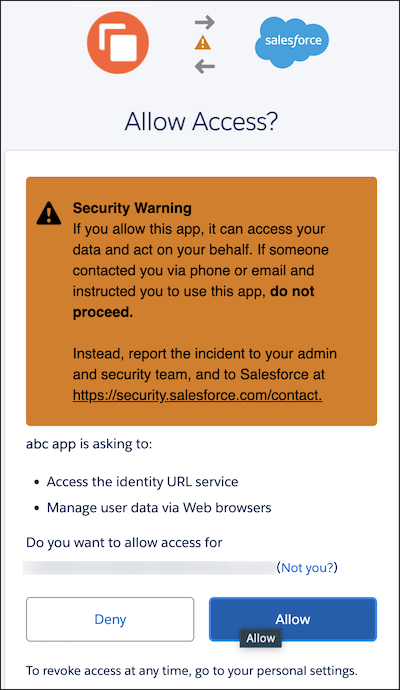
If your external client app or connected app doesn't have a logo, Salesforce uses this default
logo for the graphics above the warnings:  . To brand these graphics, update the Logo Image URL in your app settings.