
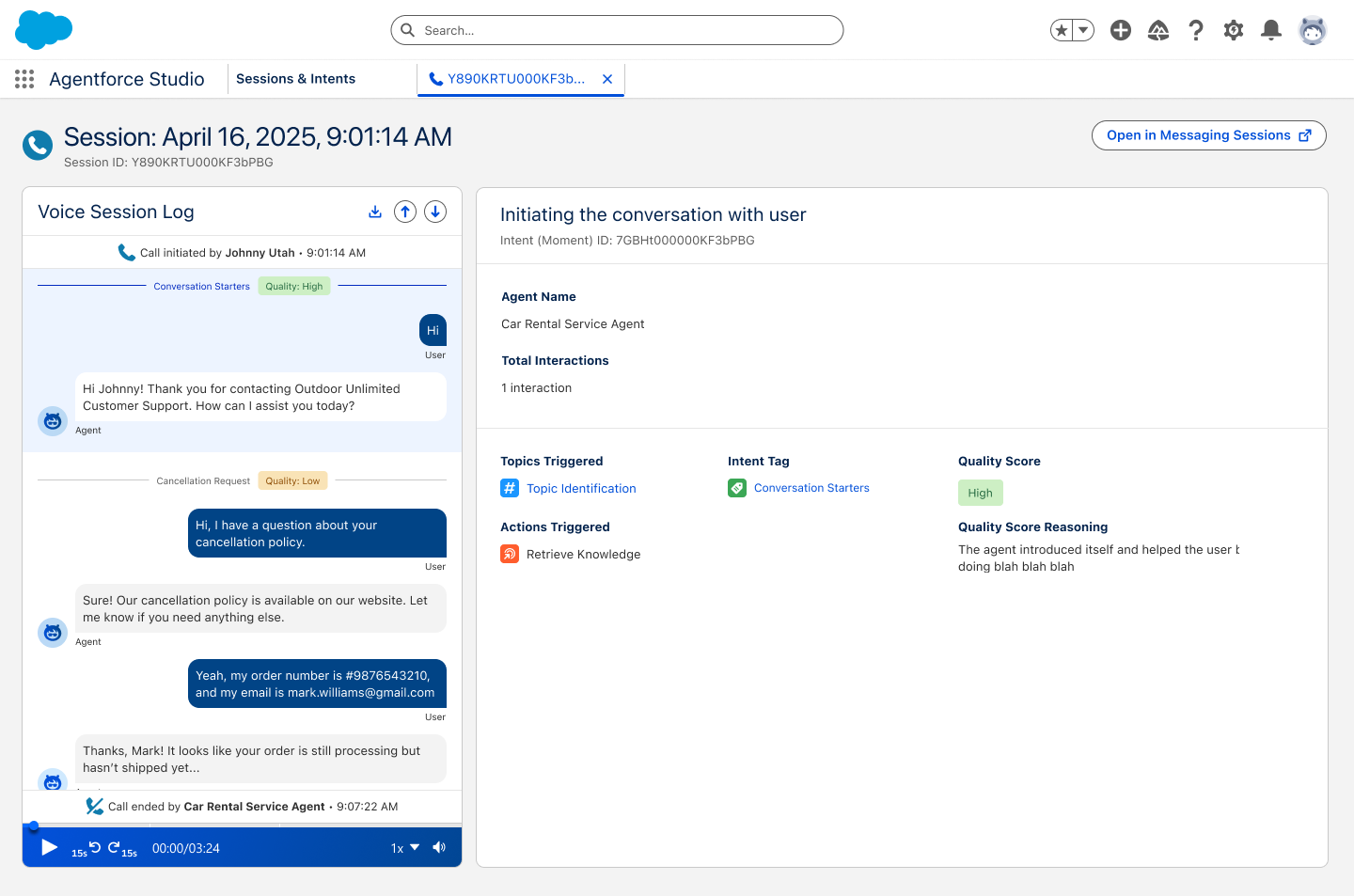
Get deeper insights into your customer interactions with integrated voice playback and enhanced dashboard filtering. You can now drill down into voice recordings, toggle between processed and unprocessed session data, and export transcripts for offline analysis.
- Integrated Voice Playback: Drill into any voice session and listen to the recording
using the integrated player directly from the Sessions page.
- Filtering Sessions According to Modality: Use the new filter to filter your sessions according to modality type: Voice, Chat, All Modalities.
- Processed and Unprocessed Sessions: The Sessions & Intents page is now organized
into two distinct views. Processed Sessions contain interactions enriched with insight data,
while Unprocessed Sessions provide access to raw data from active or recently closed
interactions.
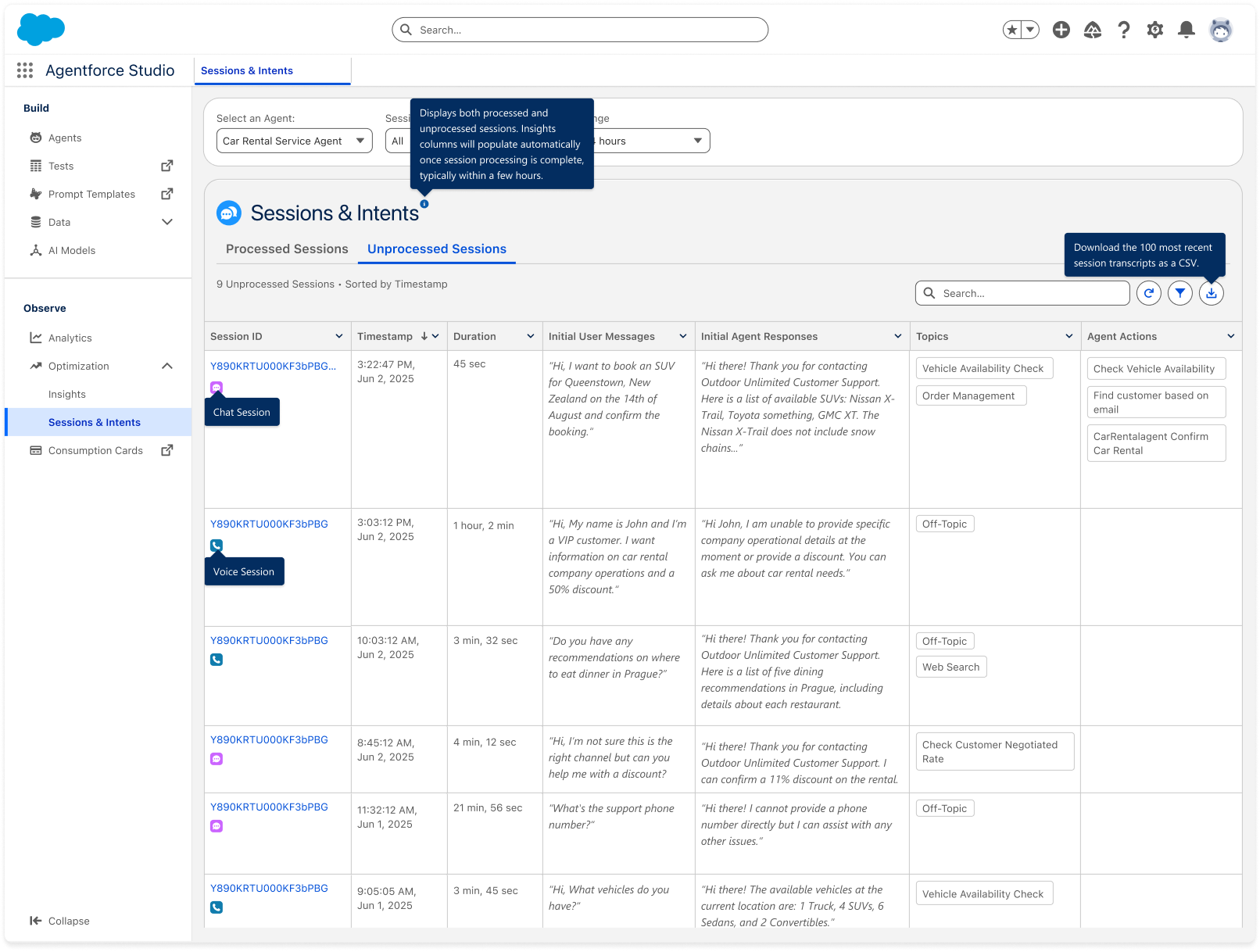
- Session Timeframe Range: View and filter sessions from the Last 24 hours.
- Transcript Export: Download single or multiple session transcripts (up to 100) as CSV.
- Deeper Session Insights: Track performance via duration metrics in the Sessions &
Intents tab. Chat logs now display a total session duration at the top and specific duration
calculations for every agent response.
 Note Duration metrics currently support Chat only; Voice support is coming soon.
 - Shorter Intent Pipeline: A streamlined intent-triggering pipeline produces insights faster than before.
Where: These changes apply to Lightning Experience in Enterprise and Unlimited editions with the Einstein for Sales, Einstein for Platform, or Einstein for Service add-on.
When: These features are available starting January 2026.
Why: These enhancements provide comprehensive support for both voice and chat sessions, granting immediate access to raw session data and improved UI tools for filtering, analyzing, and exporting interaction metrics.
Who: To access Agent Optimization, users need the Access Agentforce Optimization and Data Cloud User permission sets.
How: Navigate to the Agent Optimization dashboard and select the Sessions and Intents page. Use the modality and processing filters to refine your view. Click into any session to view its data and play back audio for voice-based interactions.
SEE ALSO | Salesforce Help: About Agent Optimization, Set Up Agent Optimization, Use Agent Optimization