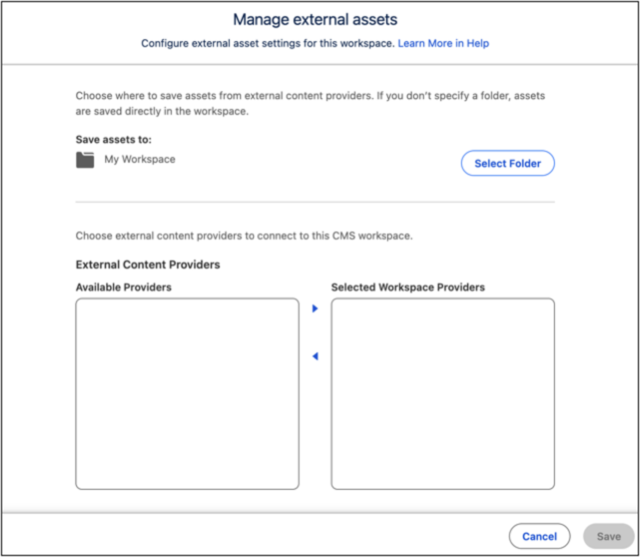
Several new settings make it easier to manage external assets in an enhanced CMS workspace. Choose which providers are available to your workspace for greater administrative control, and specify where to save the files. Previously, you could only save external assets directly in the workspace, but now you can choose your preferred folder.
Where: This change applies to enhanced CMS workspaces in Lightning Experience in Enterprise, Performance, Unlimited, and Developer editions.
How: To manage external assets in an enhanced workspace, click  | External Assets. Select which folder to use for saved assets. And choose one or more available
providers to make them accessible from the workspace.
| External Assets. Select which folder to use for saved assets. And choose one or more available
providers to make them accessible from the workspace.
If you previously installed external providers in Winter ’26, you must reselect the providers to make them available again in the workspace.