
Add more productivity features to your content workflow, such as third-party generative AI tools, tone and grammar editors, and translators with Extensions in CMS. Formerly known as Sidebar Extensions, Extensions now appear in a floating panel in the content editor. Use the new development workflow to build more complex extensions for specific content types, and customize the size and behavior of the floating panel.
Where: This change applies to enhanced CMS workspaces in Lightning Experience in Enterprise, Performance, Unlimited, and Developer editions.
How: To build new extensions for specific content types, use the new development workflow. Any extension built with the existing workflow still works as expected. To test the appearance of existing extensions in the new floating panel, open them in the content editor.
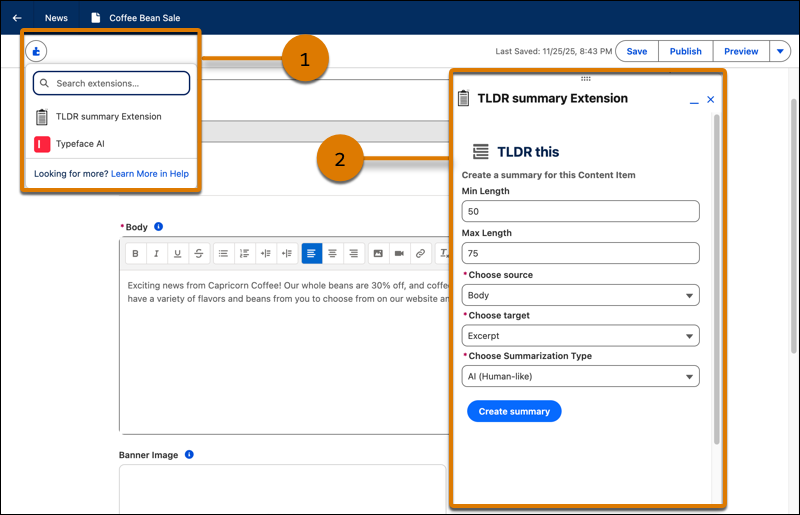
To use an extension while editing CMS content, select one from the extensions menu (1). Work with the extension in the floating panel (2) and apply your changes. Position the floating panel anywhere on the content editor page for easy editing.