
Use the Compare Versions feature to automatically track what’s changed between any two versions of a screen flow. View changes to screen flow elements, resources, fields, properties, components, and styles between flow versions.
Where: This change applies to Lightning Experience in Essentials, Pro Suite, Professional, Enterprise, Performance, Unlimited, and Developer editions.
How: From the Automation app for a screen flow, click the actions dropdown in the Flows list view, the flow’s details page, or versions page, and click Compare Versions. Or, from Flow Builder, click the versions dropdown and then click Compare Versions. This option is available only if the screen flow has two or more versions.
Select the screen flow versions to compare, and then click Compare Versions. You can change either flow version to compare. The comparison results show changes made to elements, resources, and flow properties for the selected screen flow versions. You can select to either view only changes or show all the elements in the flow regardless of the change status. To show all items, deselect Show Only Changed Items.
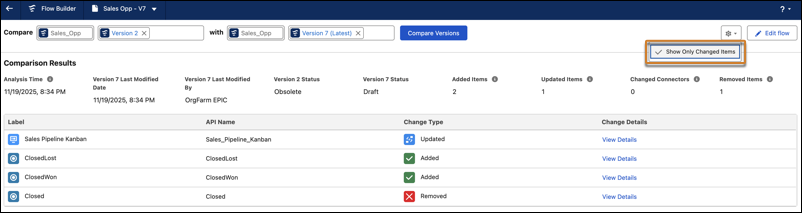
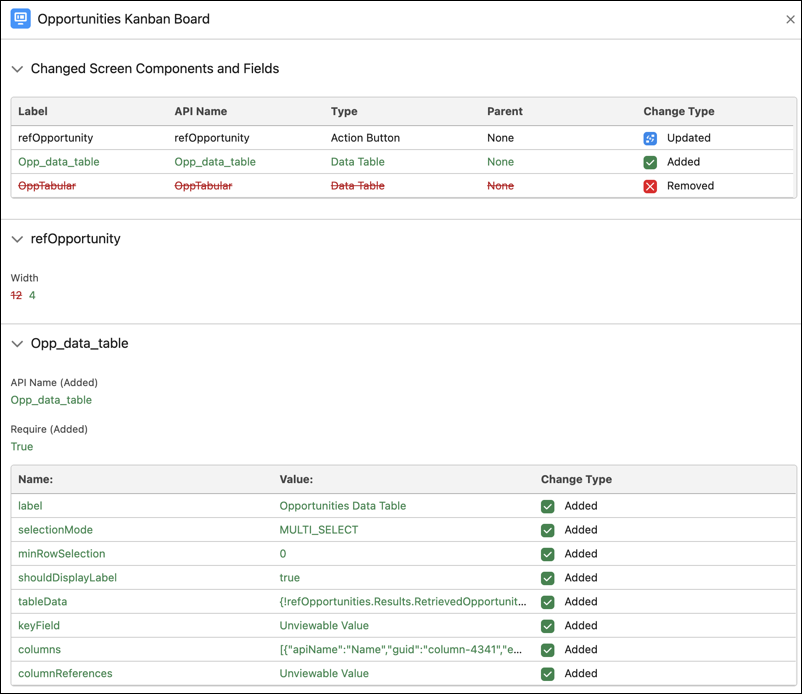
For more information about changes to an element, resource, or field click View Details. Review detailed changes to screen components, fields, flow properties, and component styles.
Share the flow version comparison results by using a direct link. Recipients can open the page with the flow versions preselected and the results displayed. If they change the flow versions and run the comparison again, a new link gets generated.