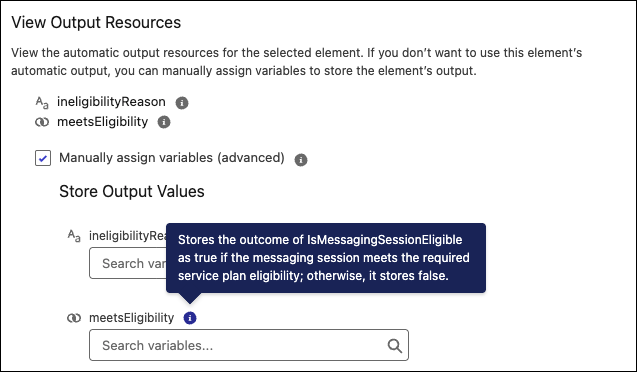
The infobubbles for subflow output variables now show the custom description set by the admin or developer. If no custom description is defined, improved default text guides you to assign a resource. Additionally, view descriptions for a subflow’s input resources in an infobubble even if the resource isn’t included. Previously, you had to enable the input resource to know whether you needed it.
Where: This change applies to Lightning Experience, Salesforce Classic in Essentials, Professional, Enterprise, Performance, Unlimited, and Developer editions.
How: In Flow Builder, hover over the infobubble next to a subflow input resource to view its description without enabling it.
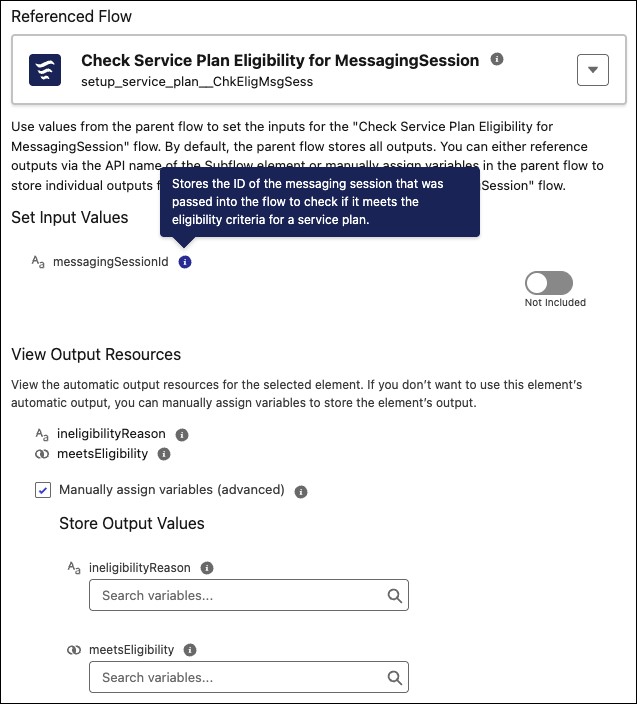
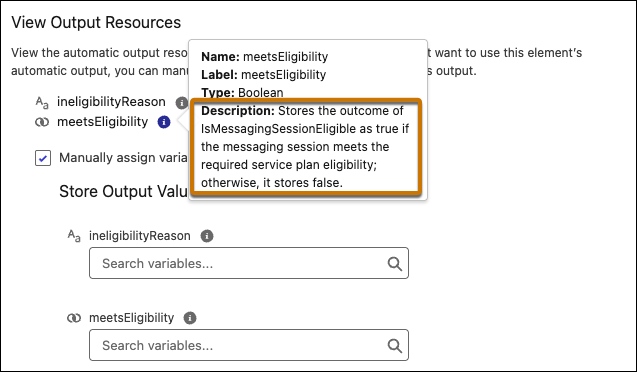
For subflow outputs, hover over the infobubble in the View Output Resources list to see the variable’s name, label, type, and description.
When you select Manually assign variables (advanced), the infobubble next to each output value shows the custom description, replacing the previous generic message.