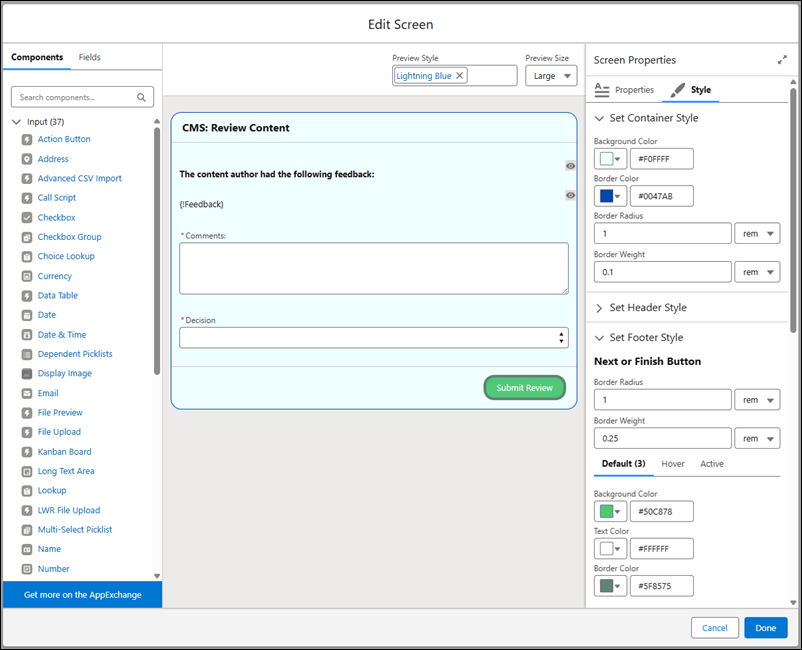
Deliver a personalized screen flow experience to your customers. Customize a variety of style properties for your screen flows, like background color, border color, border weight, border radius, text color, buttons, and more. Any styling changes you set override your org or Experience Cloud site’s default theme.
Where: This change applies to Lightning Experience and Salesforce Classic in Essentials, Professional, Enterprise, Unlimited, and Developer editions.
This change also applies to Aura, LWR, and Visualforce sites accessed through Lightning Experience and Salesforce Classic in Enterprise, Performance, Unlimited, and Developer editions. You must have at least one active community license in your org to use this feature.
How: To customize the look for your screen, edit a screen. On the Screen Properties panel, select the Style tab. On the Style tab, you can set the styles for the header, container, and footer of your screen.
You can customize the styling for these components: Checkbox, Checkbox Group, Currency, Date, Date/Time, Display Text, Number, Long Text Area, Multi-Select Picklist, Password, Picklist, Radio Button, Repeater, Section, and Text.