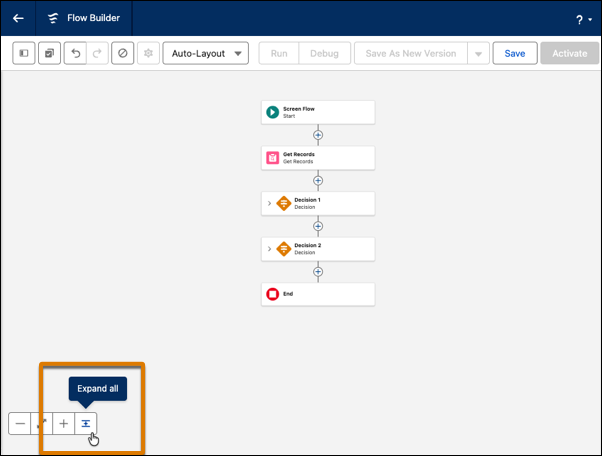
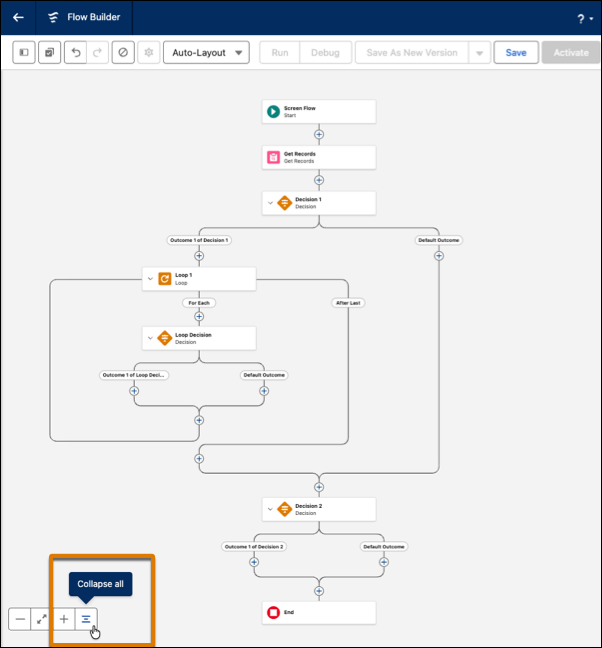
Collapse or expand all multiple-path elements, such as Wait, Decision, Loop, Path Experiment, and Async Actions, on the Flow Builder canvas with one click. This feature simplifies your view so that you can reduce visual clutter and focus on the important parts of the flow. You can still expand or collapse individual elements as needed. Flow Builder remembers your current layout automatically, even if you leave the flow. This layout saves locally in your browser, so you can pick up where you left off without changing the view for other users.
Where: This change applies to Lightning Experience, Salesforce Classic in Essentials, Professional, Enterprise, Performance, Unlimited, and Developer editions.
How: Collapse or expand all elements by clicking  or
or  in the lower left of the Flow Builder canvas. You can also use these keyboard
shortcuts.
in the lower left of the Flow Builder canvas. You can also use these keyboard
shortcuts.
- Collapse all: Ctrl+Alt+2 (Windows) or Cmd+Option+2 (MacOS)
- Expand all: Ctrl+Alt+2 (Windows) or Cmd+Option+2 (MacOS)
When elements are fully expanded or some elements have been collapsed manually, click Collapse all to collapse the entire flow.
When elements are fully collapsed or some elements have been expanded manually, click Expand All to expand the entire flow.